

Appearance
Subscription and Plan Changes
Insight, then Billing opens the page titled Subscription and billing. It shows your plan and status, your usage this month, a comparison of the four plans, and the buttons that change your subscription. Card changes, plan changes and cancellation happen in Stripe's hosted portal, which the page links to.
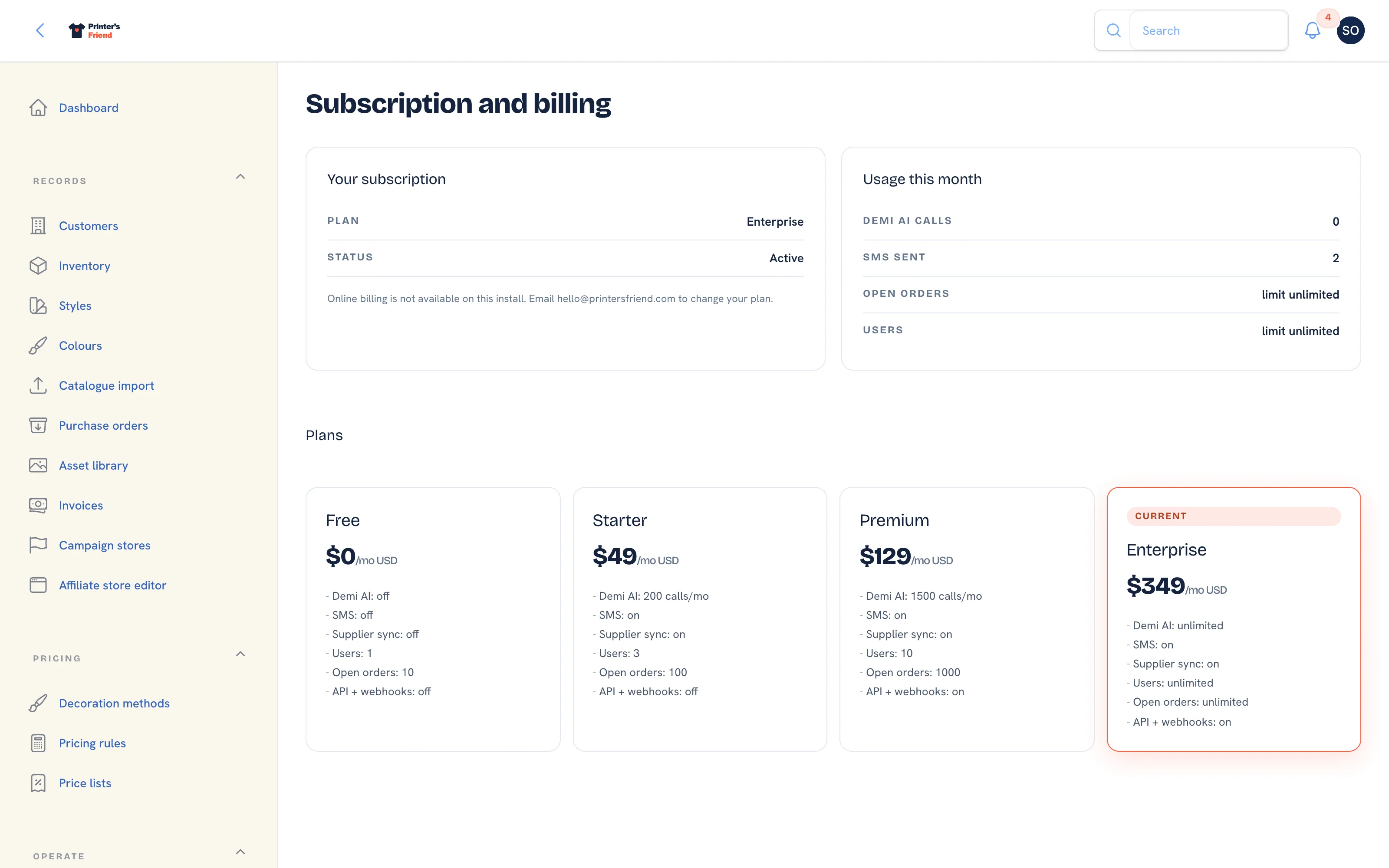 Subscription and billing. Billing is visible to owners and managers only.
Where It Lives
| Section | What it shows |
|---|---|
| Your subscription | Plan, Status, then Trial ends, Renews or Grace ends as they apply, and the button for your situation |
| Usage this month | Demi AI calls against the monthly cap, SMS sent, and the Open orders and Users limits on your plan |
| Plans | All four plans with their entitlements, your current plan marked Current, and a button on each of the others |
Your Subscription
The button under Your subscription depends on the state of the workspace:
| State | Button | What it does |
|---|---|---|
| Active or trialing with a card on file | Manage card and invoices | Opens Stripe's hosted billing portal for card changes, plan changes, cancellation and tax invoices |
| Trial with no card, lapsed after a failed payment, or cancelled | Start subscription | Opens a dialog to pick a plan, then Stripe Checkout against your existing Stripe customer |
| Self-hosted install with no platform Stripe | None | The page asks you to email hello@printersfriend.com |
Opening the billing portal writes an entry in the audit log.
Changing Plan
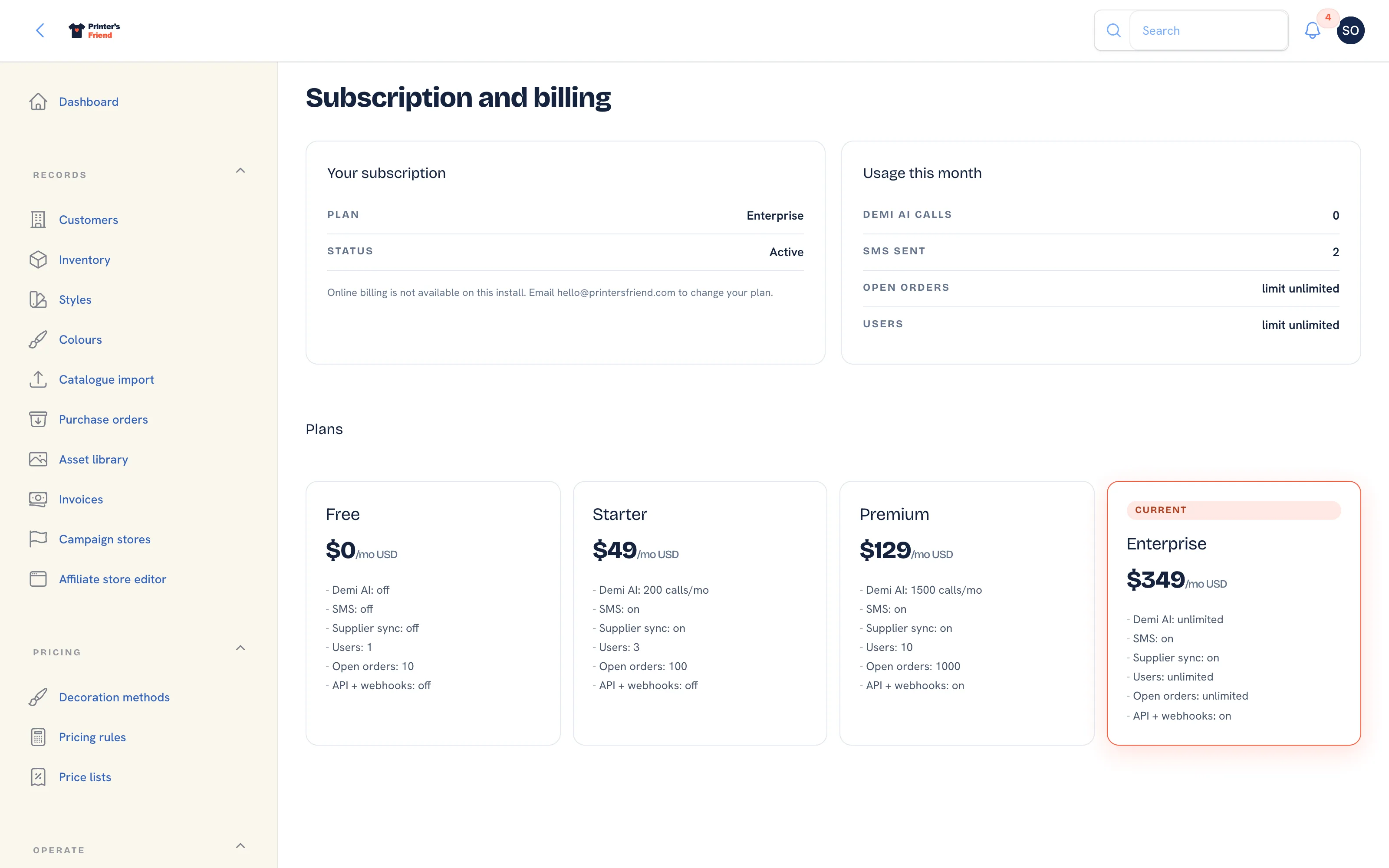 The plan comparison on the Billing page.
- Scroll to Plans. Your plan carries the Current badge. Each other paid plan has a Switch to Premium style button.
- Click the button. Stripe's billing portal opens on your subscription.
- Choose the new plan in the portal and confirm. Stripe shows the proration before you commit.
- Stripe tells Printer's Friend about the change and the Billing page shows the new plan. The entitlements of the new plan apply from that moment.
Upgrades take effect immediately and are prorated. Downgrades take effect at the next billing cycle. After a downgrade, anything over the new plan's limit is refused at the moment of the action with a message naming the limit, and nothing you already have is deleted: existing team members keep their logins while no one new can be invited or reactivated until you are under the cap, and webhook subscribers stay saved while deliveries pause.
The full comparison is on Plans and prices.
Restarting a Subscription
A workspace with no live subscription offers Start subscription in the page header and under Your subscription, and each paid plan in the comparison shows a Start on Premium style button.
- Click Start subscription. The dialog "Start your subscription" explains that you will be taken to Stripe Checkout and that every record stays as it is.
- Pick a Plan. The list preselects the plan you lapsed from when there is one.
- Click Continue to Checkout, enter the card and confirm. There is no second trial.
- Stripe returns you to the Billing page with "Subscription started" and the plan active. If the confirmation from Stripe has not arrived yet, the page says "Payment received, activating" and the subscription attaches within a few minutes.
If you abandon Checkout, the Billing page shows "Checkout cancelled. Nothing was charged."
When a Payment Fails
Stripe retries the card over the following days. During that time the banner reads "Your payment failed on 3 Oct 2026. Update your card to restore Premium. Every record is intact and nothing is deleted." with an Update card button, the Billing page shows Grace ends with the date, and you receive the email "Payment failed for Your Shop". You have a 7 day grace period during which nothing changes.
If no payment has gone through when the grace period ends, the workspace drops to the Free tier with every record intact and you receive "Your Premium subscription for Your Shop has lapsed". Updating the card in the portal, or Start subscription, restores the plan you had. A failed payment never starts the deletion window; see Cancelling and the 30 day window.
Who can change billing
Only owners and managers see the Billing page, and only an owner can close a workspace. Billing emails go to the billing contact, which is the owner chosen with Make billing contact on the team page, or the first owner otherwise.
Related Pages
- Plans and Prices: what each plan costs and includes
- Subscription and Billing: your plan, card, usage and the plan grid
- Payments, Receipts and Tax: when the card is charged, receipts and tax
- Cancelling and the 30 Day Window: cancelling, the 30 day read-only window and deletion