

Appearance
1. Business Details and Branding
Insight, then Brand & portal. This one page controls what your customers see: the portal, the emails you send them, the PDFs they receive, your tax and currency, your time zone and the walk-in kiosk. Changes apply the moment you press Save in the page header.
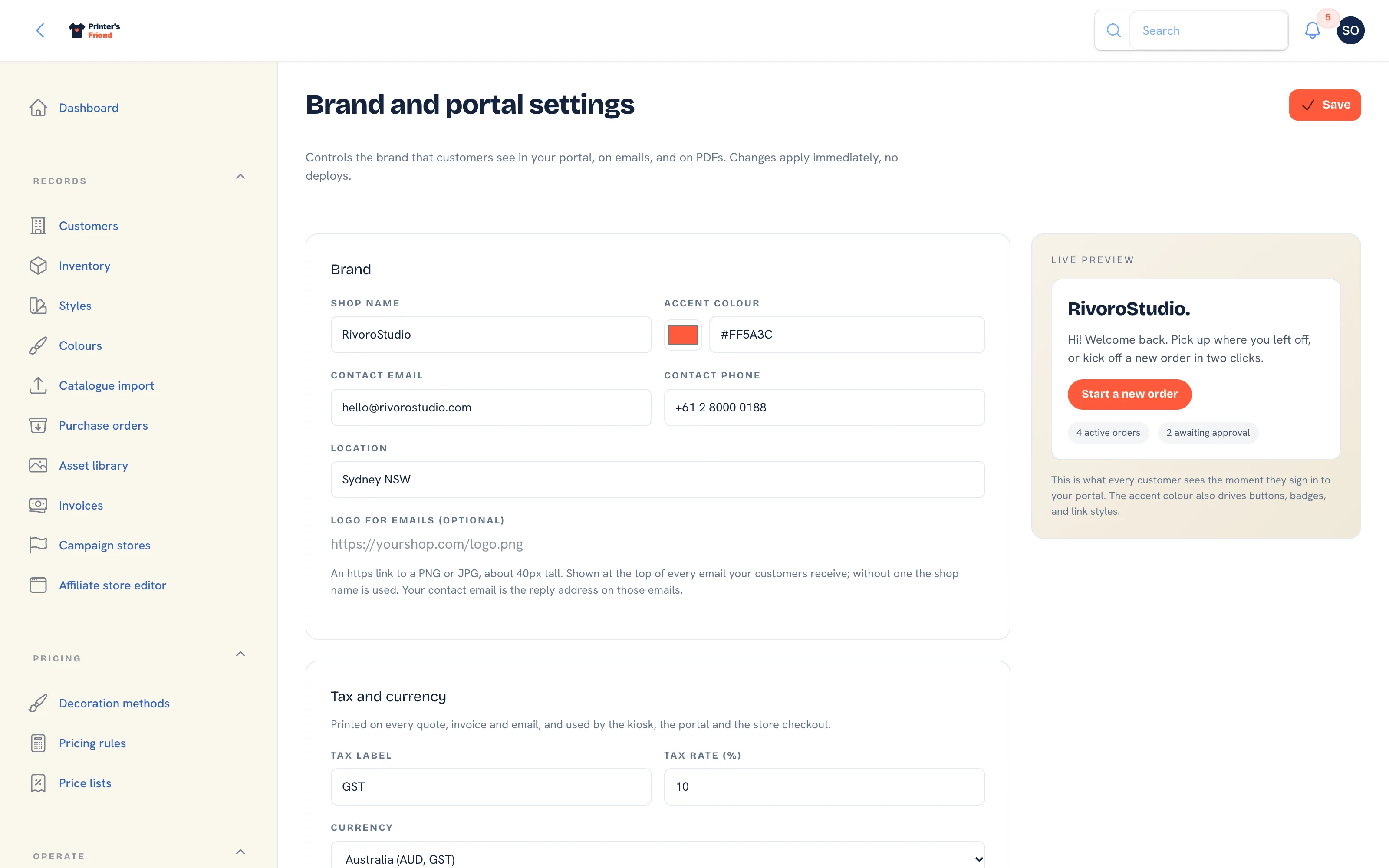 Brand and portal settings. The preview on the right updates as you type.
Where It Lives
The page is a column of cards. Each has its own guide section.
| Card | What it's for |
|---|---|
| Brand | Shop name, accent colour, contact details, location, email logo |
| Tax and currency | The tax label, rate and currency on every document. See Tax, currency and invoices |
| Customer portal copy | The greeting and the main button on the portal |
| Time zone | The zone your due dates, boards and reminder sends follow |
| Sender address and default carton | Printed on Australia Post labels as the sender |
| What customers see | Two portal switches |
| Walk-in kiosk | The kiosk switch, its PIN and the unlock address. See Shop floor hardware |
Brand
- Check Shop name. It is the From name on every customer email and the name on the portal, storefronts and PDFs. Provisioning filled it from your signup.
- Set Accent colour with the swatch or a hex value. It colours portal and storefront buttons, badges and links.
- Check Contact email. It is the Reply-To on every customer email, so use a mailbox someone reads. Provisioning filled it with the owner's address.
- Add Contact phone and Location, for example
Sydney, AU. Both show on the portal. - Optionally paste an https link to your logo under Logo for emails (optional): a PNG or JPG about 40 px tall, shown at the top of every email your customers receive. Without one the shop name is used.
- Press Save.
Pick an accent colour that reads on white
The accent is used for buttons and links on a light portal. A pale yellow or a light mint will save and then be hard to read. The live preview on the right shows the result before you save.
Customer Portal Copy
| Field | What it does |
|---|---|
| Welcome message | The line under the greeting on the portal home. Blank uses the default |
| Primary CTA label | The main button on the portal home, for example Start a new order or Reorder kit |
Write the button in the words your customers use. A club reorders kit; a corporate account raises a new order.
Time Zone
Pick your Shop time zone from the list. Due dates, today tables, late badges, clock-in times and the morning sends of invoice reminders and artwork chasers all follow it. Records are stored in UTC underneath. The zone starts from your billing region (Australia/Sydney, Europe/London, Europe/Dublin or America/New_York), so a shop in Perth or Los Angeles should change it on day one.
Sender Address and Default Carton
Fill in Address line 1, Address line 2, Suburb, State, Postcode and the two letter Country code. This is the sender printed on Australia Post labels. The Default carton length, width, height and weight are used when an order does not carry its own carton dimensions; leave them blank and a label without dimensions is refused with a message instead of booking a zero size parcel.
What Customers See
| Switch | On | Off |
|---|---|---|
| Show YTD spend | The customer sees their running spend with you this year on the portal home | Hidden |
| Show reorder favourites | Previously ordered SKUs appear as one-click reorder tiles | Hidden |
Both default to on. Turn YTD spend off for consumer customers, where a running total can feel intrusive.
Walk-in Kiosk
The kiosk is off by default and cannot be switched on without a six digit Device PIN. The card shows the Unlock address to open on the iPad. The steps are on Shop floor hardware.
Checks Before Moving On
- Read the portal preview as a customer would.
- Confirm the contact email is a mailbox somebody reads; it receives every customer reply.
- If your shop trades under more than one name, use the one your customers pay invoices to. There is one brand per workspace.