

Appearance
Sample Data
Sample data is a small, removable set the setup wizard offers so you have something to click on before your own catalogue and customers are in. Everything in it is marked as sample, and removing it takes out exactly what was loaded and nothing you created since.
Where It Lives
| Page | What it's for |
|---|---|
| Getting started, step 4 Sample data | Load sample data and Remove sample data |
| Records, then Catalogue import | A card headed "Sample data is loaded" with Remove sample data |
What It Loads
- Three garments under the brand Sample Supply Co, a tee, a hoodie and a polo, each in two of three sample colours and sizes S to XL, with stock on hand and reorder points.
- One customer, Riverside Football Club (sample), with two contacts. The primary contact uses your own email address.
- A draft quote for 24 printed tees. Mark sent on it and the quote email, with its accept link, arrives in your inbox.
- A portal login for the sample customer on your email address. The link to set its password is emailed to you, so you can sign in at
/portaland see what customers see.
Loading It
- On step 4 of the setup wizard, press Load sample data.
- A Sample data loaded notice confirms the set and the portal set-password email.
- Press Continue to finish the wizard. The Getting started entry stays in the sidebar while the sample data is loaded, so the remove button is easy to find.
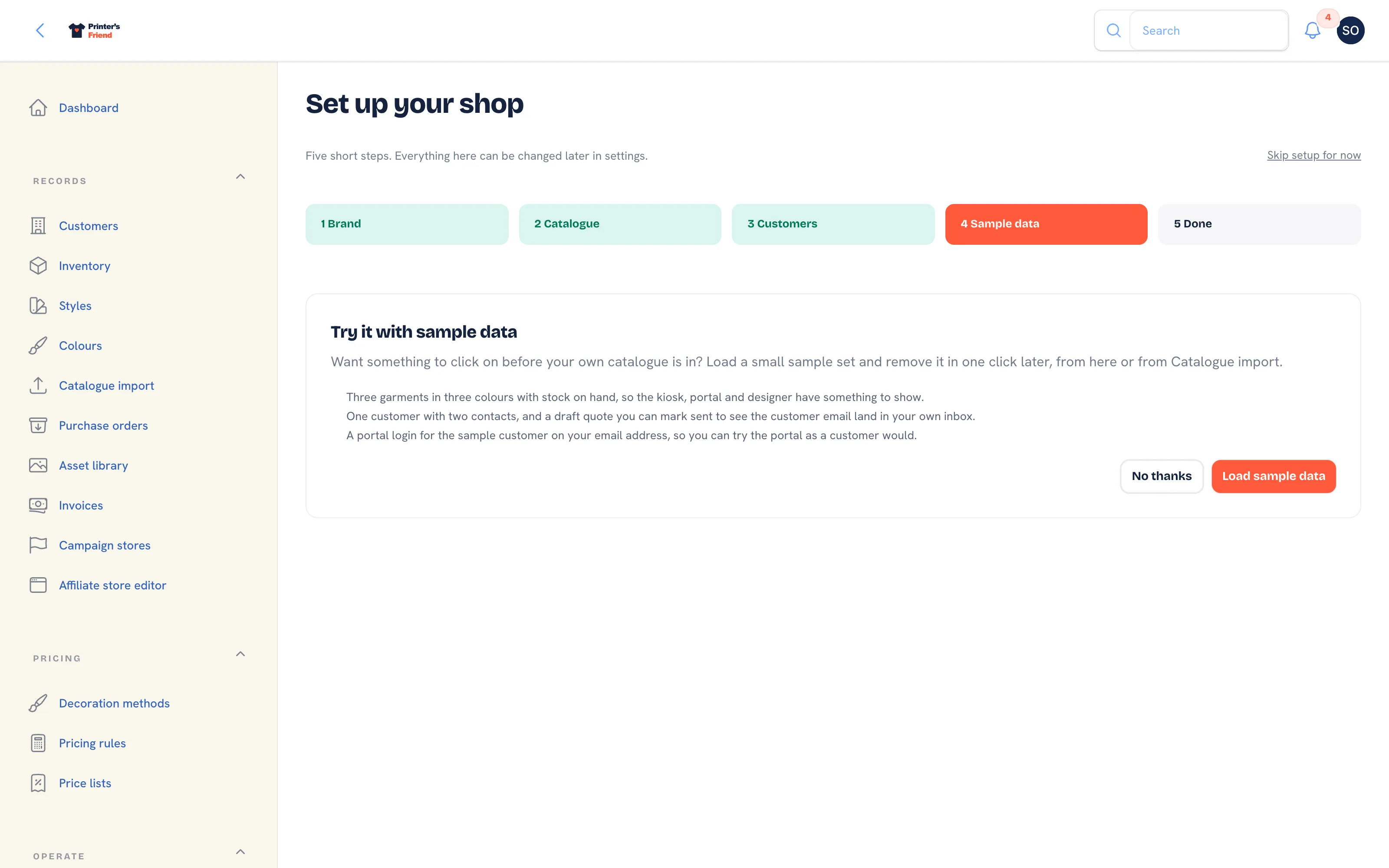 Step 4 of the wizard.
Trying the Product with It
- Open the sample quote under Operate, then Quotes, read the pricing rules trail, and press Mark sent to see the customer email.
- Set the portal password from the email and sign in at
yourshop.printersfriend.com/portalto see the sample customer's quote and the catalogue at their price. - Switch the kiosk on and the sample garments appear on the garment step.
- Open the designer in the portal and the sample garments are there to design on.
Removing It
Press Remove sample data on step 4 of the wizard or on the Catalogue import page, and confirm. The sample quote, portal login, contacts, customer, SKUs, styles and stock movements are deleted; a sample colour, category, brand or size is removed only when nothing else uses it.
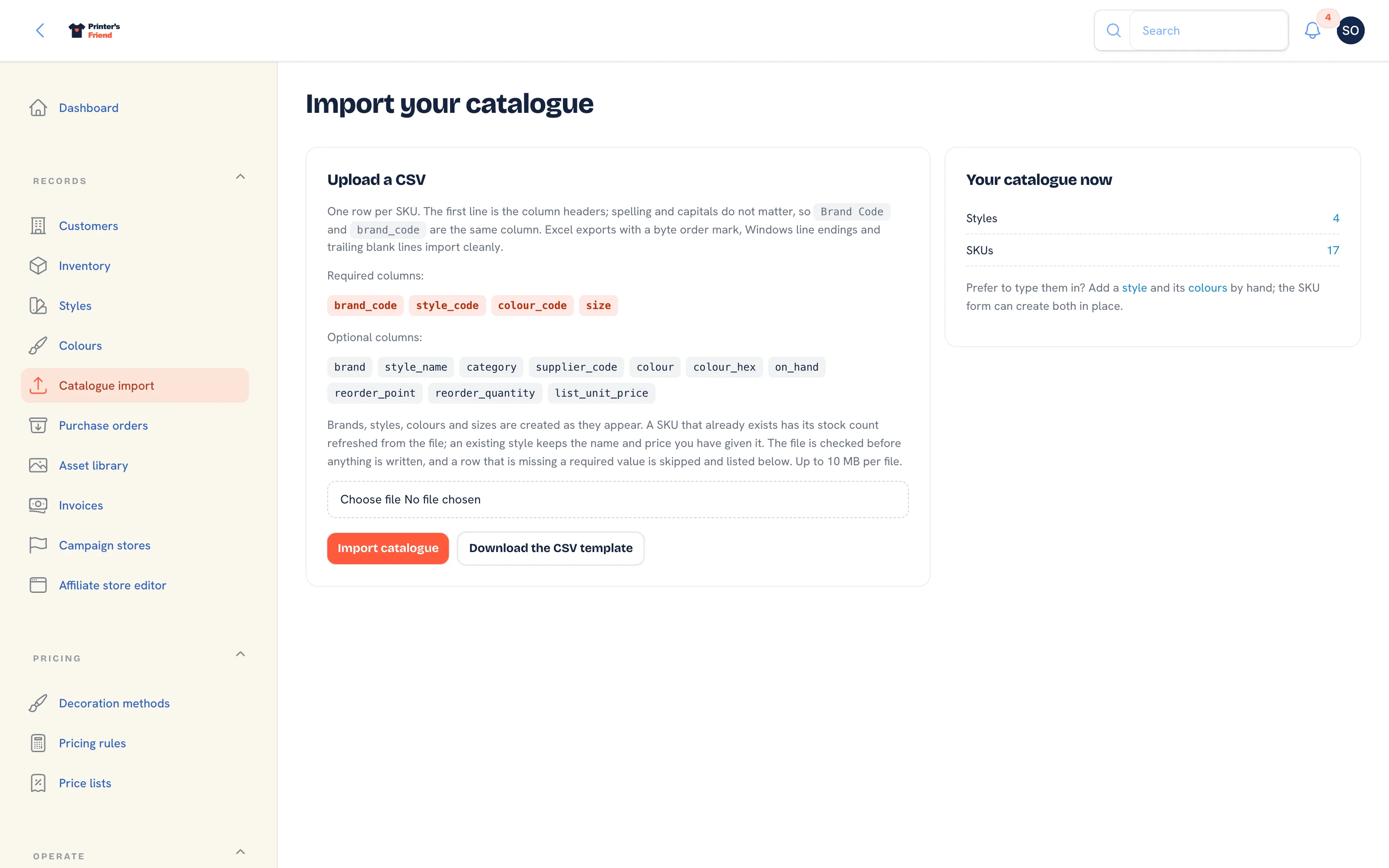 The Catalogue import page carries the remove button once sample data is loaded.
Removal is refused while real records depend on the sample set
If you have created an order or an invoice for the sample customer, or used a sample garment on an order, a purchase order or a quote for another customer, removal stops with a message listing what is in the way. Delete or move those first, or keep the sample data. A proof approved by the sample portal login blocks removal in the same way.
Loading the set a second time while it is already loaded does nothing.