

Appearance
Artwork and Approvals
Artwork lives on the order. Each order has one artwork record with numbered versions, a status and a message thread. Approval is the gate: a job moves from Artwork to the print queue when the customer signs off the proof.
Where It Lives
| Page | What it's for |
|---|---|
| The order page, Upload artwork version | Add a proof as a new version |
| The order page, Send for approval | Email and text the customer a signed approval link |
| The Artwork panel on the order | Status, every version with its preview, the approved version, the source file |
| The customer's approval page | The page behind the link, with Approve and print and Request a change |
| The customer portal, Artwork | The same proof for customers with a portal login |
| Dashboard, Awaiting approval and the approval queue | Every proof sitting with a customer |
The States
| Status | Meaning |
|---|---|
| Draft | An artwork record exists with no version sent |
| Awaiting client | A version has been uploaded or sent. The customer has not answered |
| Change requested | The customer asked for something different; their note is on the thread |
| Approved | Signed off, with the approved version and the approver recorded |
Uploading a Proof
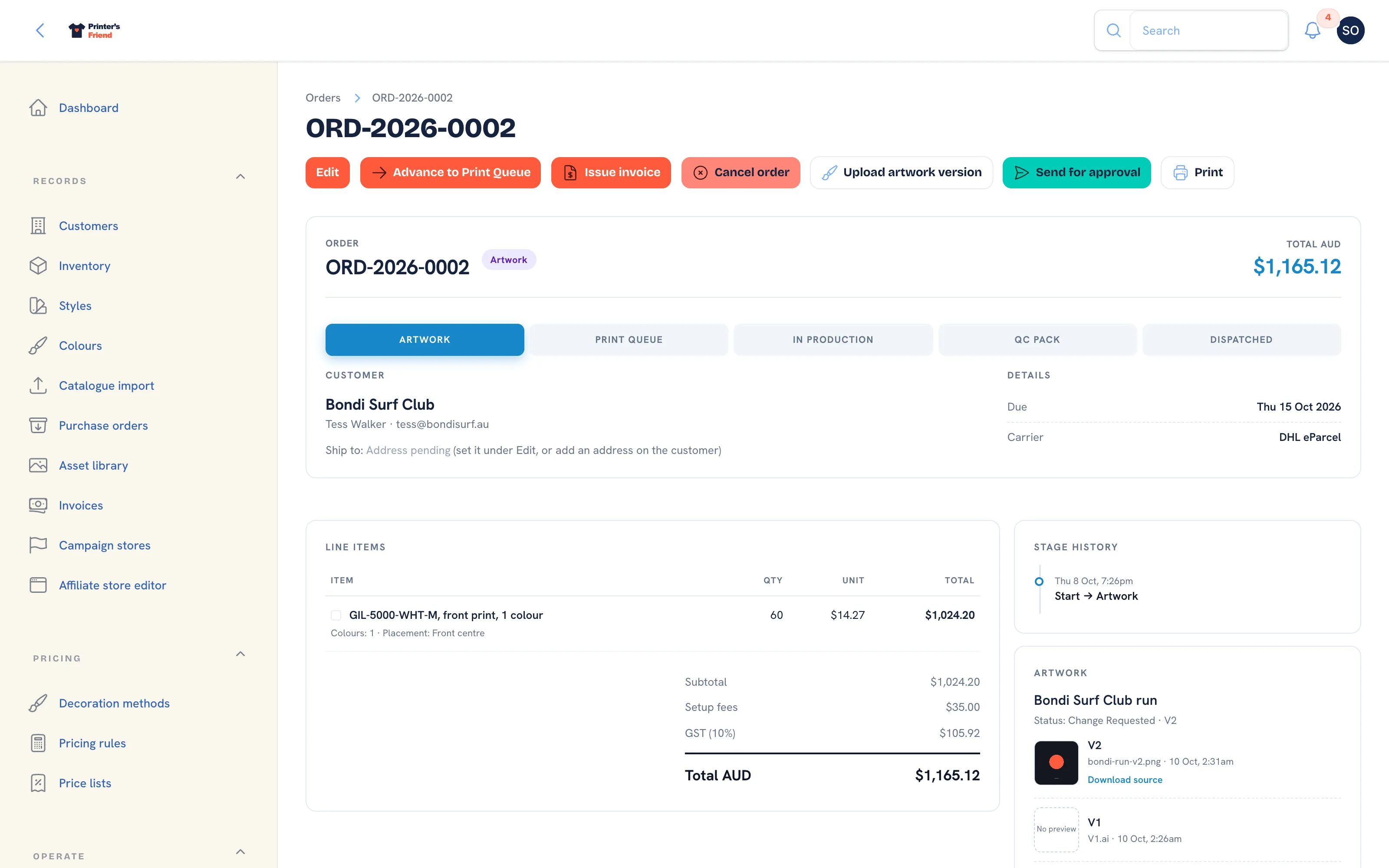 An order waiting on artwork. The Artwork panel lists each version with its preview.
- On the order page, click Upload artwork version.
- Choose the Proof file: AI, EPS, PDF, SVG, PNG or JPG up to 50 MB. The file is filed in the asset library as a proof tagged with the order number, and its preview renders in the background.
- For the first version, give the thread a Title. It defaults to the customer's name followed by "artwork".
- Fill in what the customer should know: Placement, Size (mm), Print colours, Method, Garment and a Designer note.
- Click Submit. The notification reads "Artwork V1 uploaded" and the status becomes Awaiting client.
Each upload is a new version. Nothing is overwritten: V1, V2 and V3 all stay, each with its own download of the source file.
Sending for Approval
- Click Send for approval. The button appears once a version exists and until the artwork is approved. The dialog reads "Emails the customer a one-click signed approval link, valid for 7 days."
- The link goes by email to the order's contact, and by SMS as well when the contact has a phone number, your Twilio account is connected and your plan includes SMS.
- The notification names the address the link went to and includes the signed link itself, so you can paste it into a chat or a text if the customer prefers. When the customer has no email on file the notification reads "No customer email on file, share it manually".
A failed email leaves the artwork in its previous status, records "could not be sent" on the activity timeline and shows a warning in the Artwork panel. Fix the address and send again.
What the Customer Sees
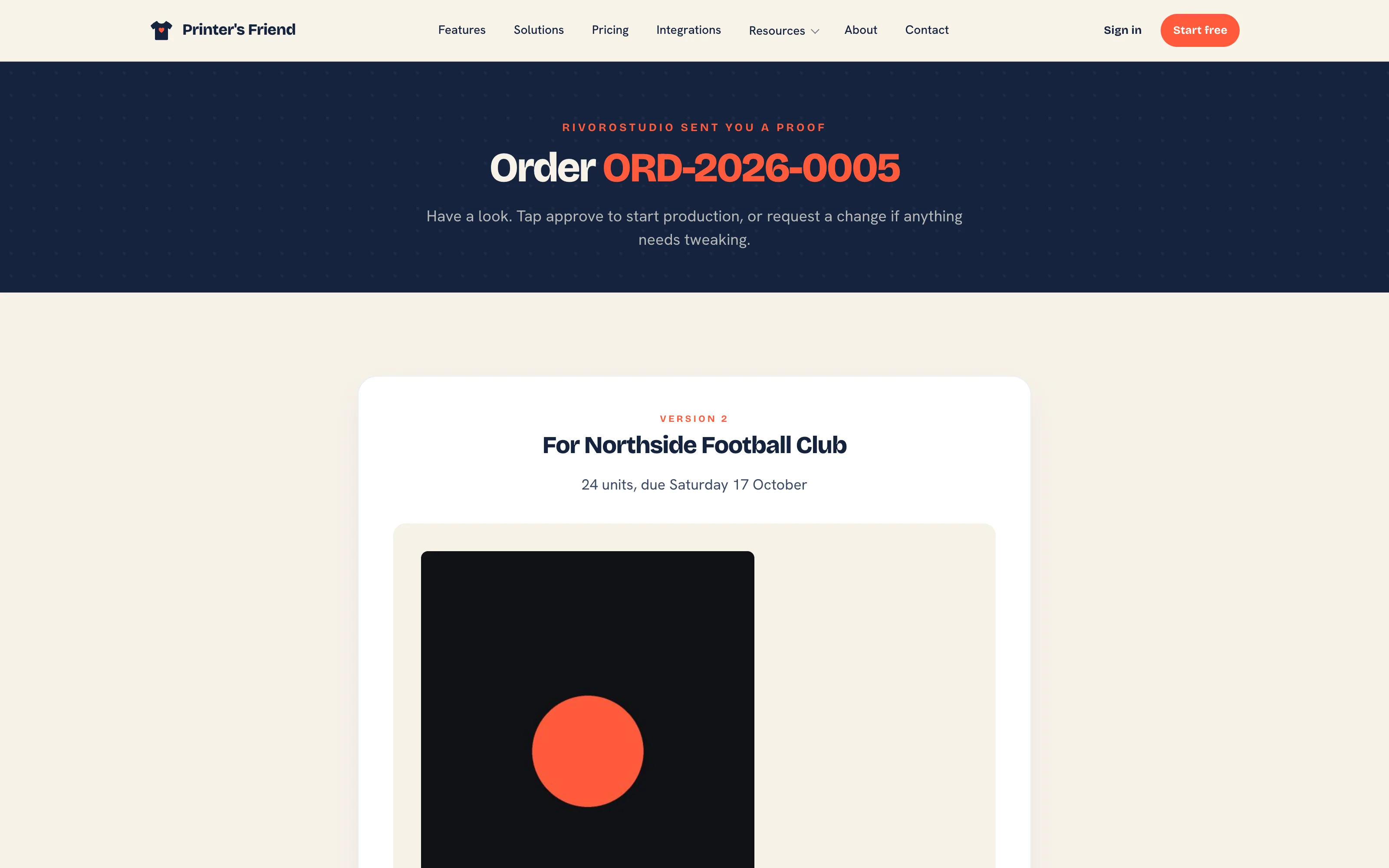 The approval page. No login, the real preview, the designer's note and two buttons.
The link opens a page with the order number, the rendered preview of that version (or "Preview is processing" if it has not finished), the designer's note and two buttons:
- Approve and print approves the proof. The page reads "Approved."
- Request a change opens "What needs to change?" with a note box and Send to the shop. The page reads "Got it."
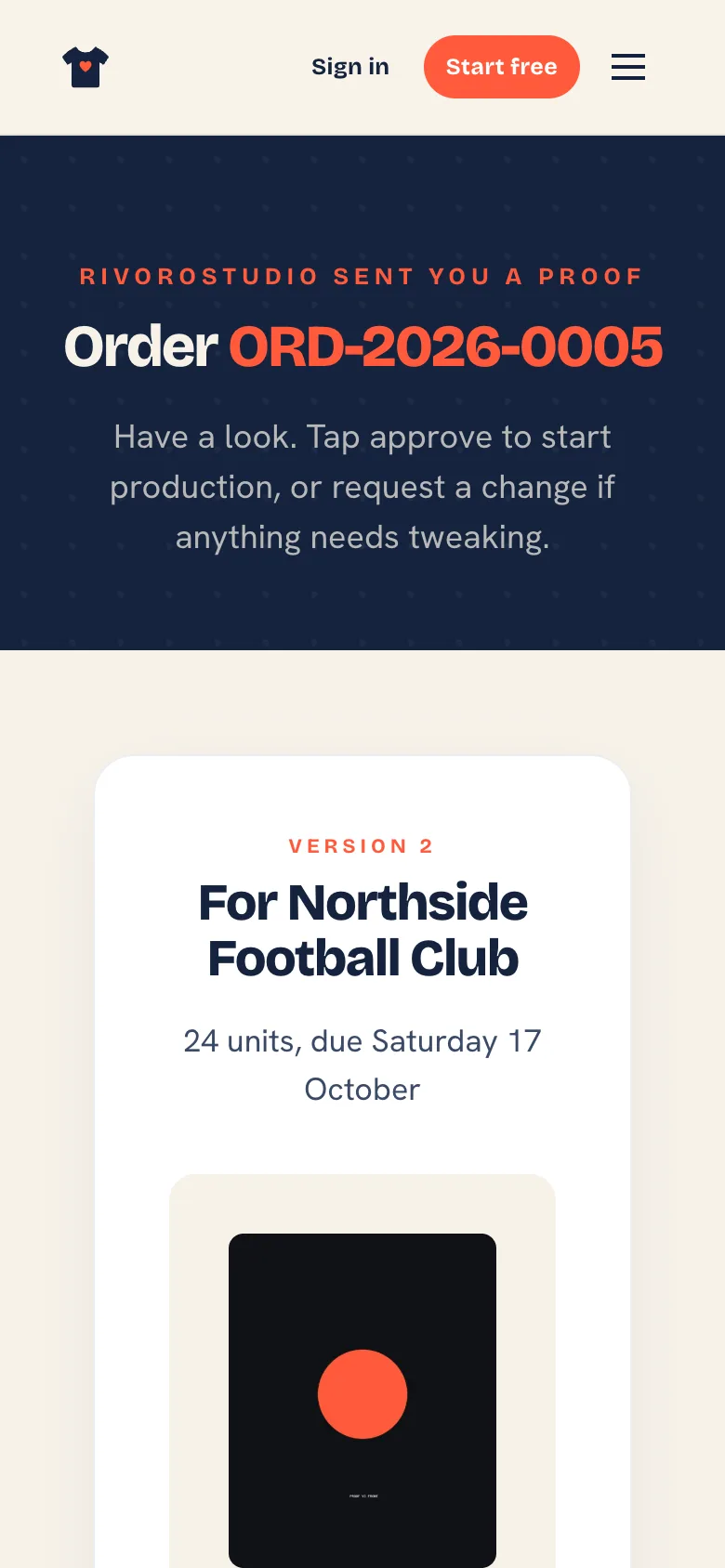 The same page on a phone, which is where most approvals happen.
Customers with a portal login can do the same from Artwork in the portal. Both routes run the same approval path.
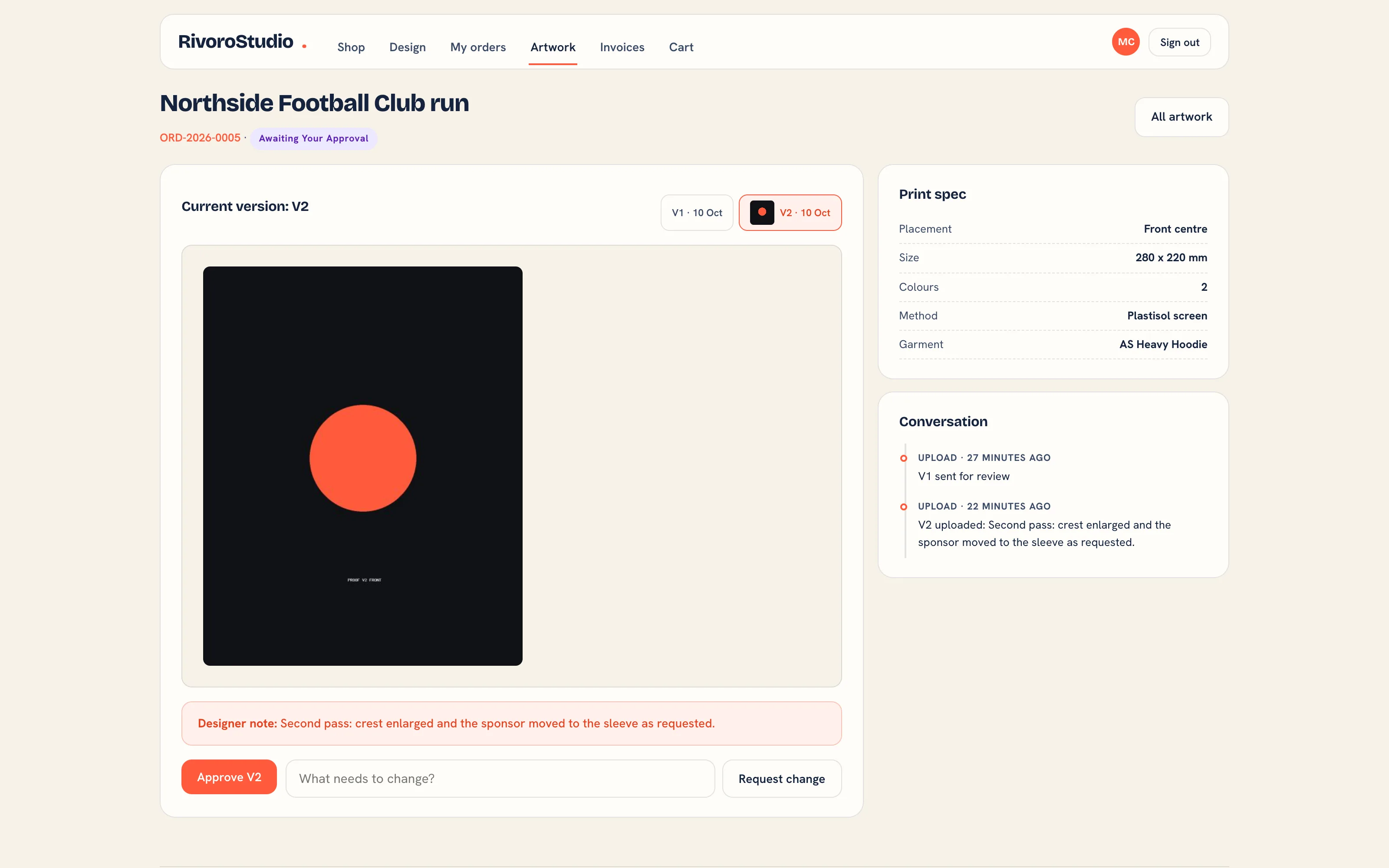 The proof in the portal, with approve and request a change.
What Approval Does
- The artwork becomes Approved, recording the approved version and who approved it. A signed-link approval is recorded as "via signed link".
- The order moves from Artwork to the print queue, if it is still in the Artwork stage. A proof approved after the job has already started, or shipped, records the approval and leaves the stage where production put it.
- The stock reservation for the order's lines is hardened on the ledger.
- The customer receives the "Your artwork is approved, we are printing" email, and the print queue SMS where SMS is available.
- The rep on the order, or every active staff member with access to orders when there is no rep, is notified in the workspace and by email.
- Webhook subscribers receive
artwork.approved.
A second click on the approval link changes nothing and lands on the same page.
Handling a Change Request
- The artwork becomes Change requested. The customer's note is on the artwork thread and the activity timeline, and the person who uploaded the version (or the rep, or everyone with orders) is notified with the text.
- Fix the artwork and click Upload artwork version to add the next version.
- Click Send for approval again. The customer gets a fresh link.
The whole exchange stays on the order, so anyone picking it up later can see what was asked for and what was sent.
Chasing an Approval
Proofs that sit with a customer are chased for you. The chaser runs at 10:00 on your shop's clock:
- Three days after the approval link went out with no answer, the customer gets a chase email. It says how many days they have been waiting and carries a freshly signed link, because the original link stops working after seven days.
- Three days after the first chase, a second chase goes out the same way.
- After two chases the customer is not emailed again. A task titled "Follow up artwork approval on" followed by the order number is raised on the customer record, assigned to the order's rep when there is one and due that day, with the contact's phone number when it is on file. The timeline records that the chases stopped and a task was raised.
Re-sending the proof starts a new cycle. An approved proof is never chased. The dashboard's approval queue shows the same proofs with their waiting time, so you can ring the ones the emails did not reach.
Keep the link in the template
No-login approval is why proofs come back the same day. If you rewrite the approval or chase email in Email and SMS templates, keep the approval link placeholder in the body.
Where Designs Live
Every artwork version on file for a customer appears in the Designs library on their customer record. Proof files sit in the asset library under the Proof kind, tagged with the order number. Lines from the online designer show on the order under Customer designs, with SVG, PNG and PDF exports of the design.
Plan requirement
Artwork approvals are included on every plan. The SMS copy of the approval link needs Starter, Premium or Enterprise and your own Twilio account connected under Integrations. See Plans and limits.
Related Pages
- Orders: the order page, stage moves and what each one triggers
- The Customer Portal: configure the portal, invite contacts and manage their logins
- Asset Library: every logo, proof, vector and product photo your shop holds
- Email and SMS Templates: the email and SMS templates and their variables
- Customers: the customer record, contacts, portal logins and addresses