

Appearance
14. Shop Floor Hardware
Six surfaces are built for the floor. None needs an install or a licence: each is an address on your workspace that you point a screen at. All of them refresh every fifteen seconds.
Where It Lives
| Surface | Address | Device |
|---|---|---|
| Floor board | /workspace/floor-board, or the signed display link | Wall TV or monitor |
| Operator stations | /workspace/operator/printer, /packer, /qc | Tablet at the station |
| Production scan | /workspace/scan | Phone or tablet with a USB or Bluetooth barcode scanner |
| Time clock | /workspace/timeclock | Tablet or phone, signed in as the person clocking on |
| Walk-in kiosk | /workspace/kiosk, unlocked at /workspace/kiosk/unlock | iPad on the counter |
| Production board | Operate, then Production | Laptop or tablet in the office |
Addresses are on your workspace, for example yourshop.printersfriend.com/workspace/floor-board. The production board's header has Time clock and Floor board shortcuts.
The Floor Board
The floor board shows every open order in four columns, Artwork, Print queue, On the press and QC + pack, with overdue, due today and on the press counts, a clock in your shop's time zone, and late and due today cards coloured.
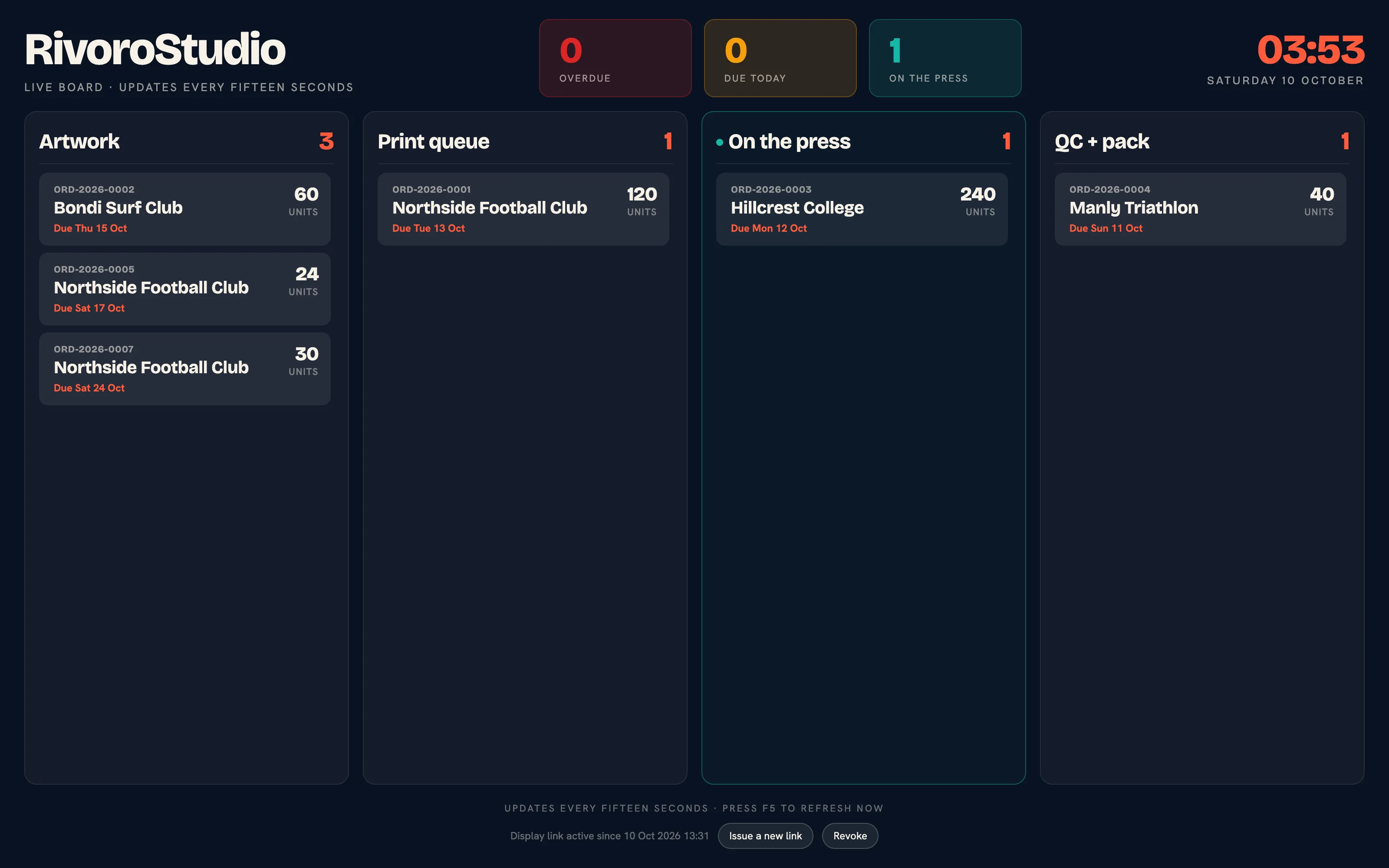 The floor board. Late cards are red, due today cards amber.
A TV has no one to sign in, so the board is shown on a signed display link that needs no login and can be revoked at any time.
- Sign in on a laptop as someone who can write production (owner, manager or production) and open
/workspace/floor-board. - In the footer, press Create a display link for a TV.
- The link is shown once. Copy it and paste it into the TV's browser. Press Done.
- On the TV, open the browser full screen and set the display never to sleep.
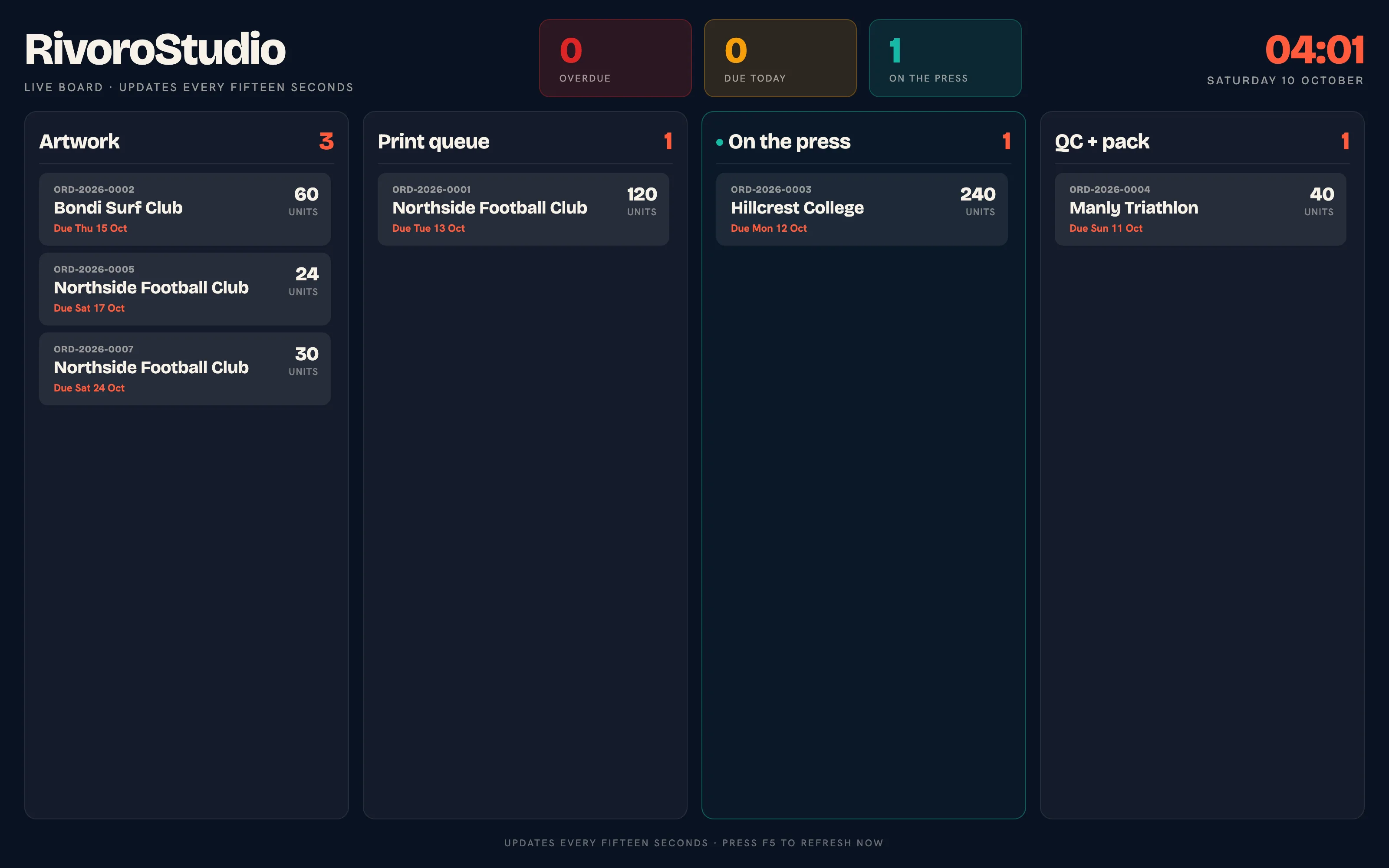 The floor board opened from a display link. No session, no sign-in form.
The footer then reads "Display link active" with the date it was issued, and offers Issue a new link and Revoke. Issuing a new link stops the old one; revoking stops every copy on its next refresh. The display link shows the floor board only.
Treat the display link like a key
Anyone with the link can see the board, including customer names and due dates. It never expires on its own, so revoke it if a TV leaves the building, and issue a fresh one for each new screen.
Operator Stations
Each station shows the subset of orders that matters there, sorted by due date, with an overdue, due today and queue count. Tap a role at the top to switch stations.
| Station | Shows |
|---|---|
| Printer | Print queue and In production |
| Packer | QC + Pack |
| QC | In production and QC + Pack |
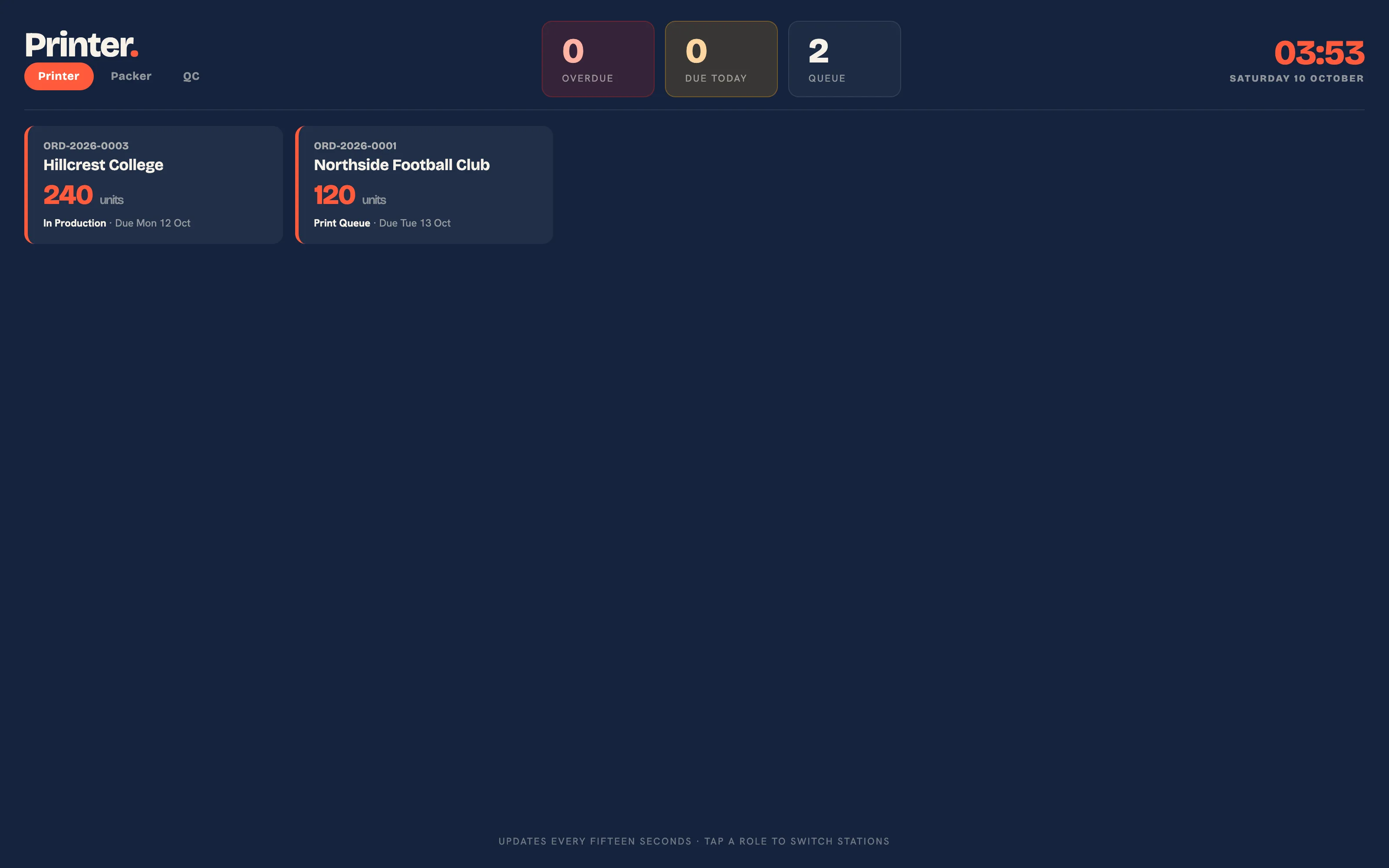 The printer board.
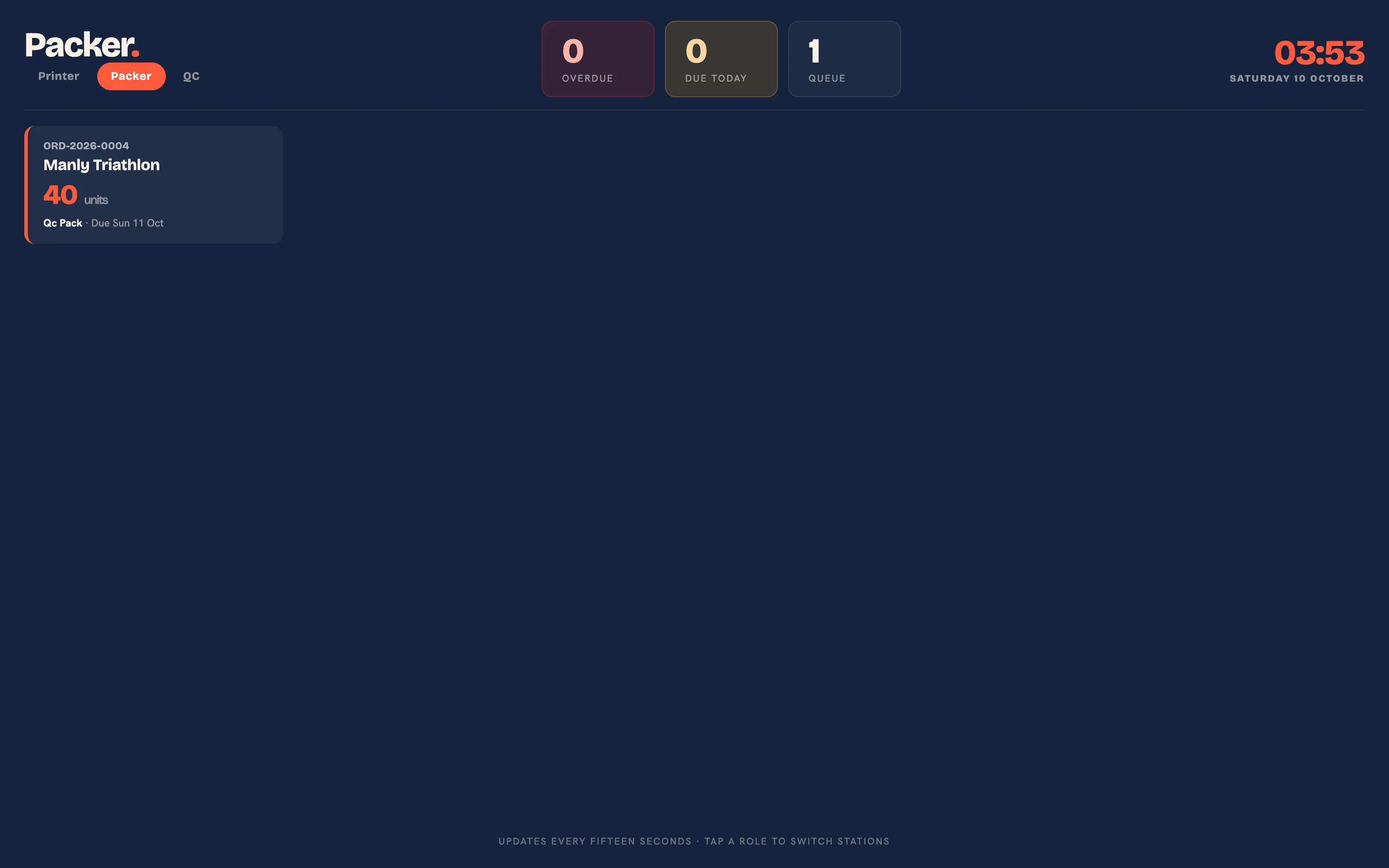 The packer board.
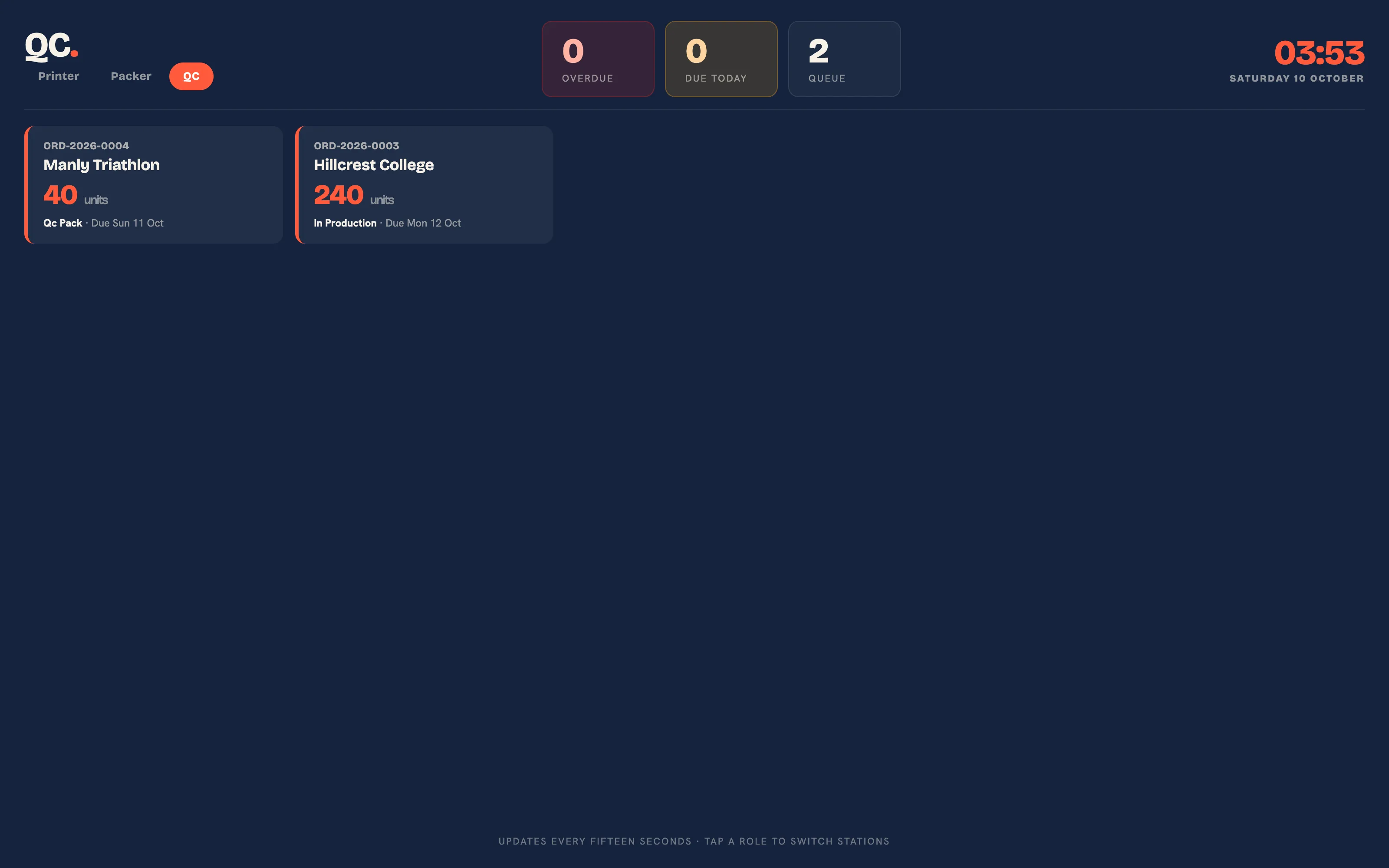 The QC board.
Station boards are opened on a tablet signed in as a staff member, at /workspace/operator/printer, /workspace/operator/packer and /workspace/operator/qc. The display link does not offer them.
Production Scan
The scan page advances a job by its worksheet barcode and reads SKU shelf labels. It is built for a USB or Bluetooth scanner that types and presses Enter, and it fits a phone screen.
- Print the order's worksheet from the order page: Print, then Worksheet. It carries the order number as a Code 128 barcode.
- Open
/workspace/scanon the station device, signed in. - Scan the barcode. The order moves to its next stage and the page confirms "Order ORD-2026-0001 advanced to In Production". A refused move, for example on a cancelled order, is shown as a message.
- Scan a shelf label instead and the page records one unit on the open cycle count, or shows the SKU's on-hand, reserved and available with a link to adjust it.
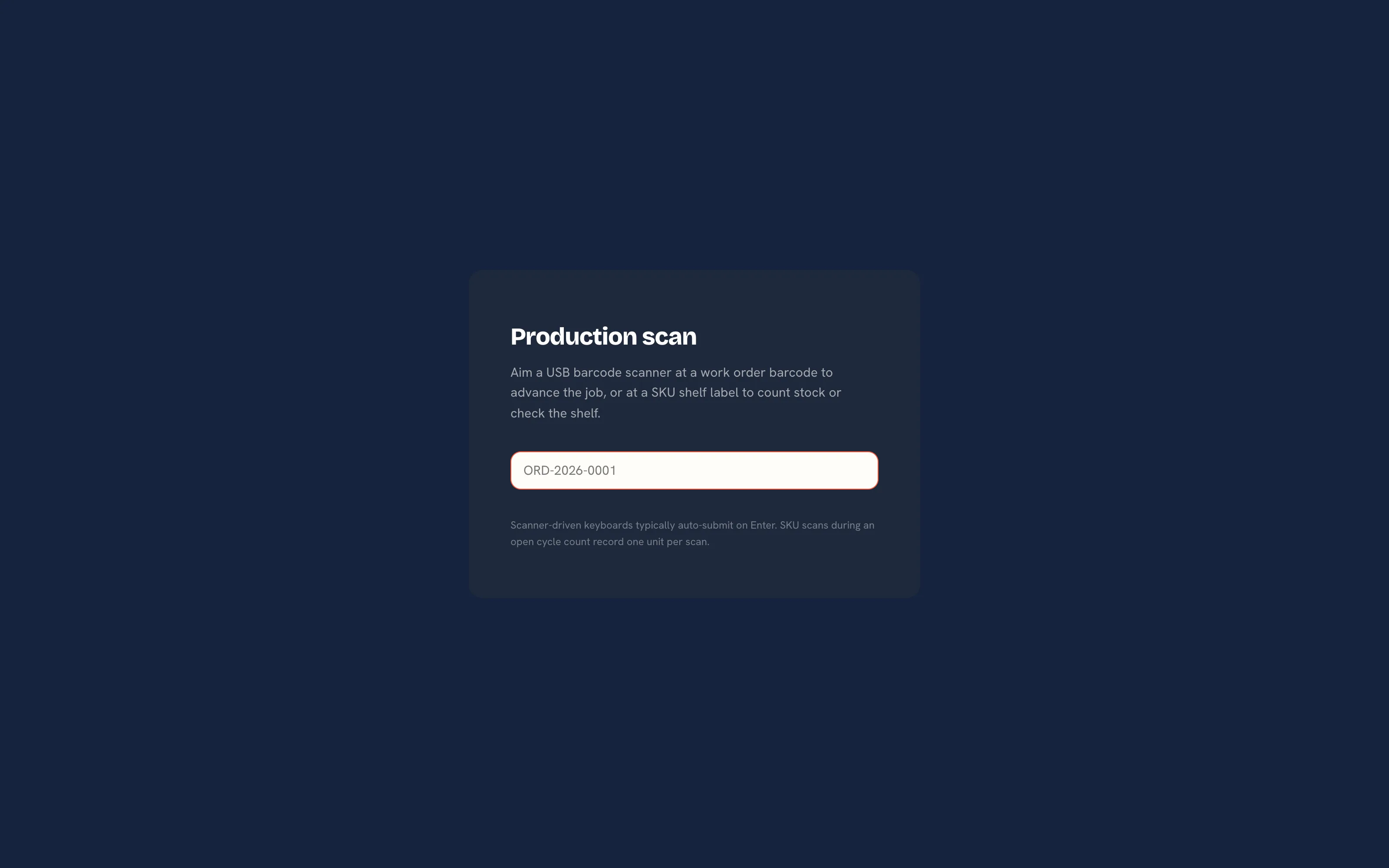 The scan page. The field keeps focus so the scanner can keep working.
The Time Clock
The time clock is one page per station tablet, signed in as the person using it. Hours book against the job, costed at that person's labour rate, so the job's margin includes labour.
- Open
/workspace/timeclockon the station device. - Type the order number and press Clock on. The page shows the running time and the job.
- Press Clock off when the run is done, with an optional note. The page lists today's entries and their hours, in your shop's time zone.
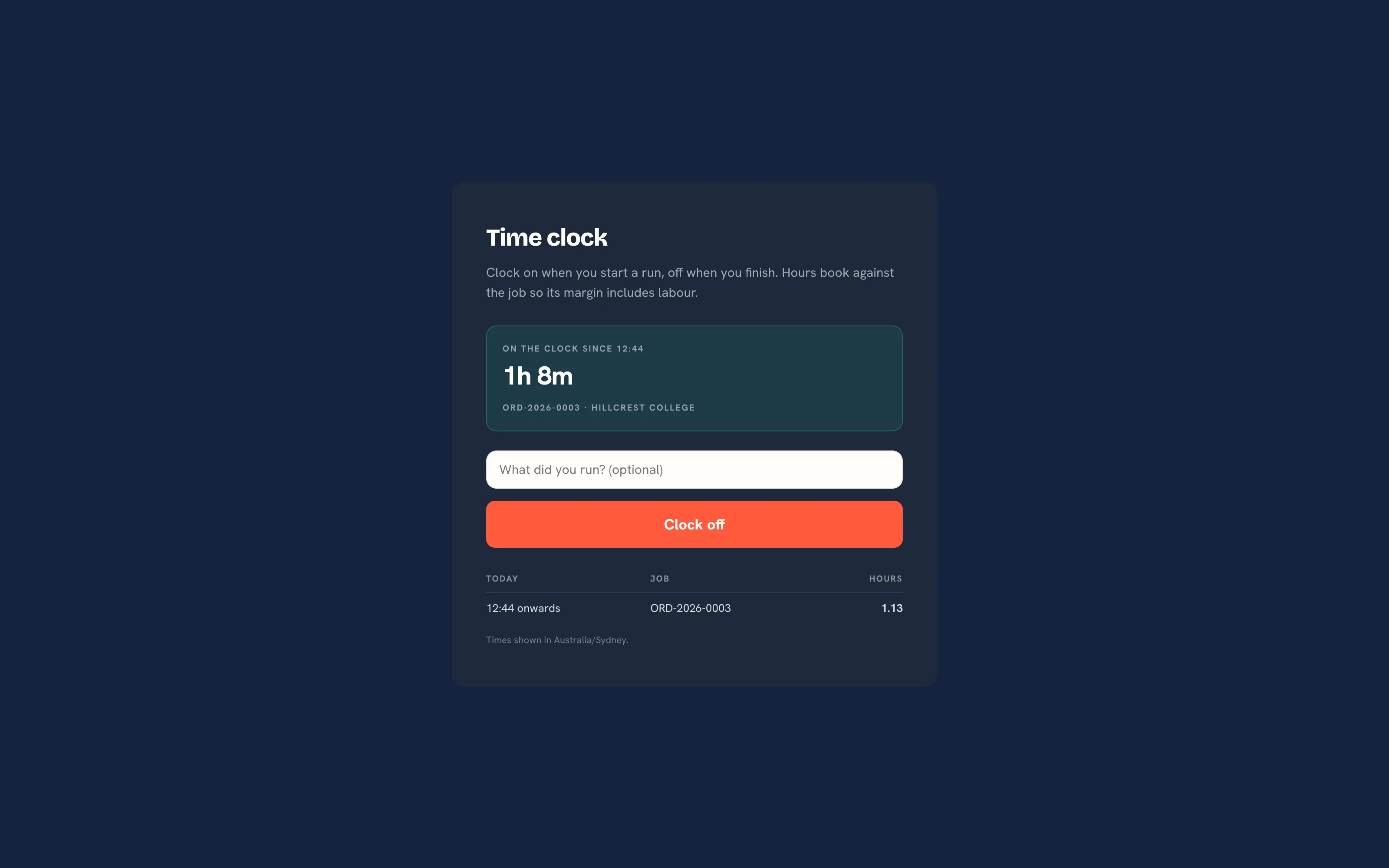 The time clock. Clock on with an order number, off when the run is done.
Every entry appears under Operate, then Time on jobs, with its labour cost. A clock still running when someone is deactivated is stopped for them.
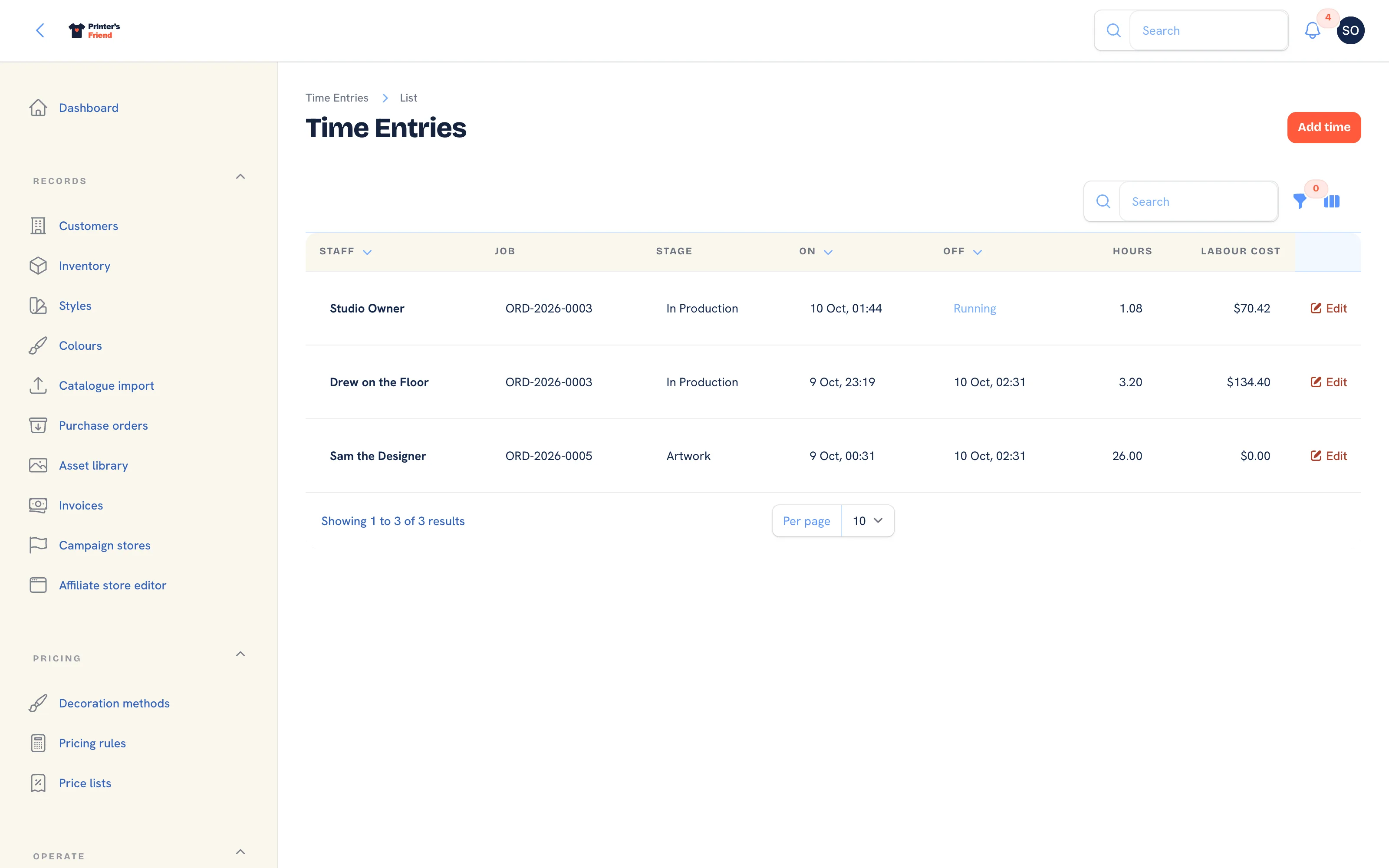 Time on jobs. Each entry carries the rate that was frozen when the clock started.
The Walk-in Kiosk
The kiosk takes real orders from walk-ins on an iPad: pick a template, pick a garment, enter quantity and contact details, and an order lands in Artwork priced the way a staff quote is. It is off by default and bound to each device with a PIN, so nobody can place orders from outside the shop.
Plan requirement
The kiosk is included on every plan. Kiosk orders count against the plan's open order limit like any other order.
- Insight, then Brand & portal, then the Walk-in kiosk card.
- Type a six digit Device PIN and switch Kiosk on. The kiosk cannot be switched on without a PIN. Press Save.
- Note the Unlock address on the card,
yourshop.printersfriend.com/workspace/kiosk/unlock. - On the iPad, open the unlock address, enter the PIN and press Unlock. The kiosk welcome screen opens, and the device stays unlocked for 30 days before it asks for the PIN again. Opening the unlock address again on an unlocked device offers Open the kiosk.
- Put the iPad in a counter stand. iPadOS Guided Access keeps it on the kiosk.
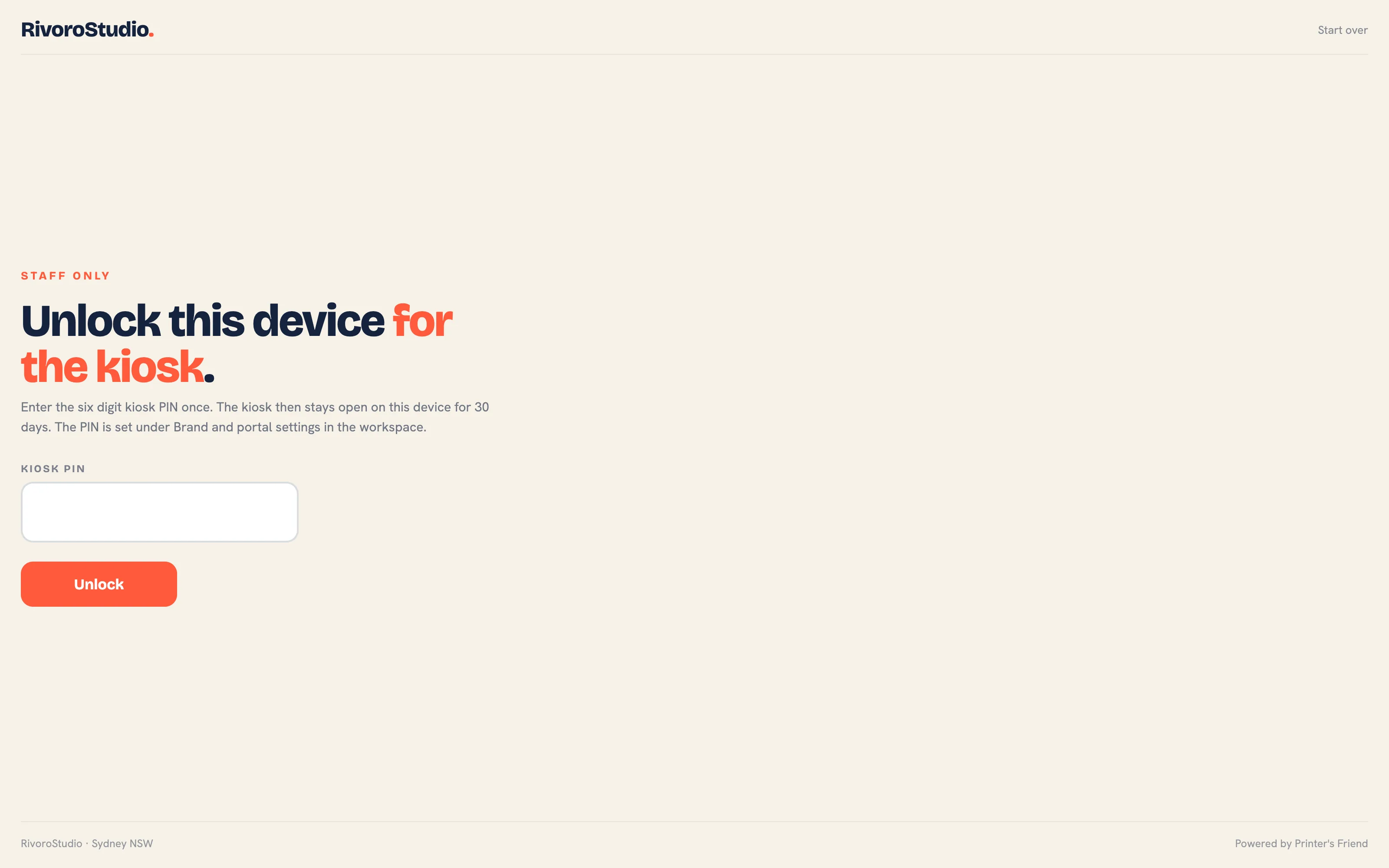 The unlock page. Staff enter the PIN once per device.
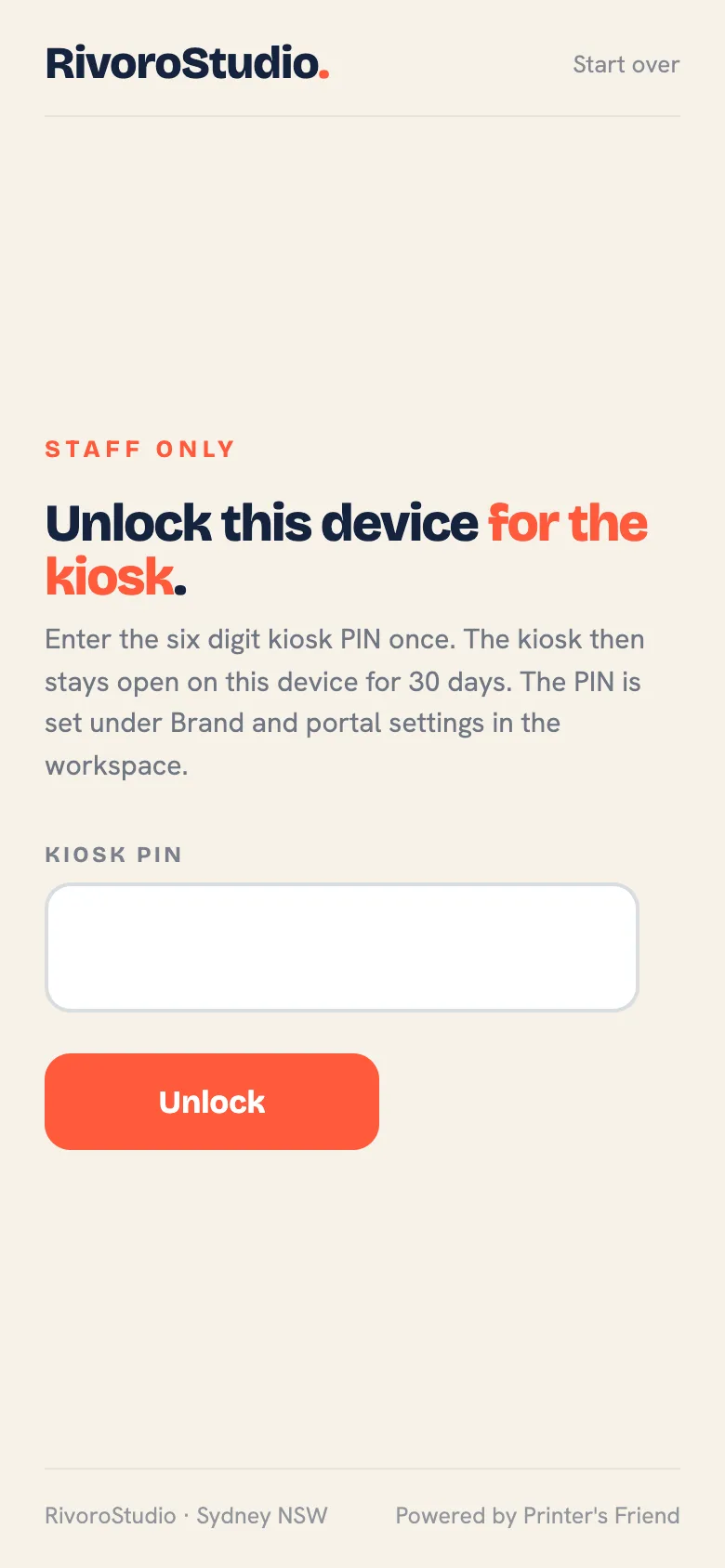 The unlock page on a phone.
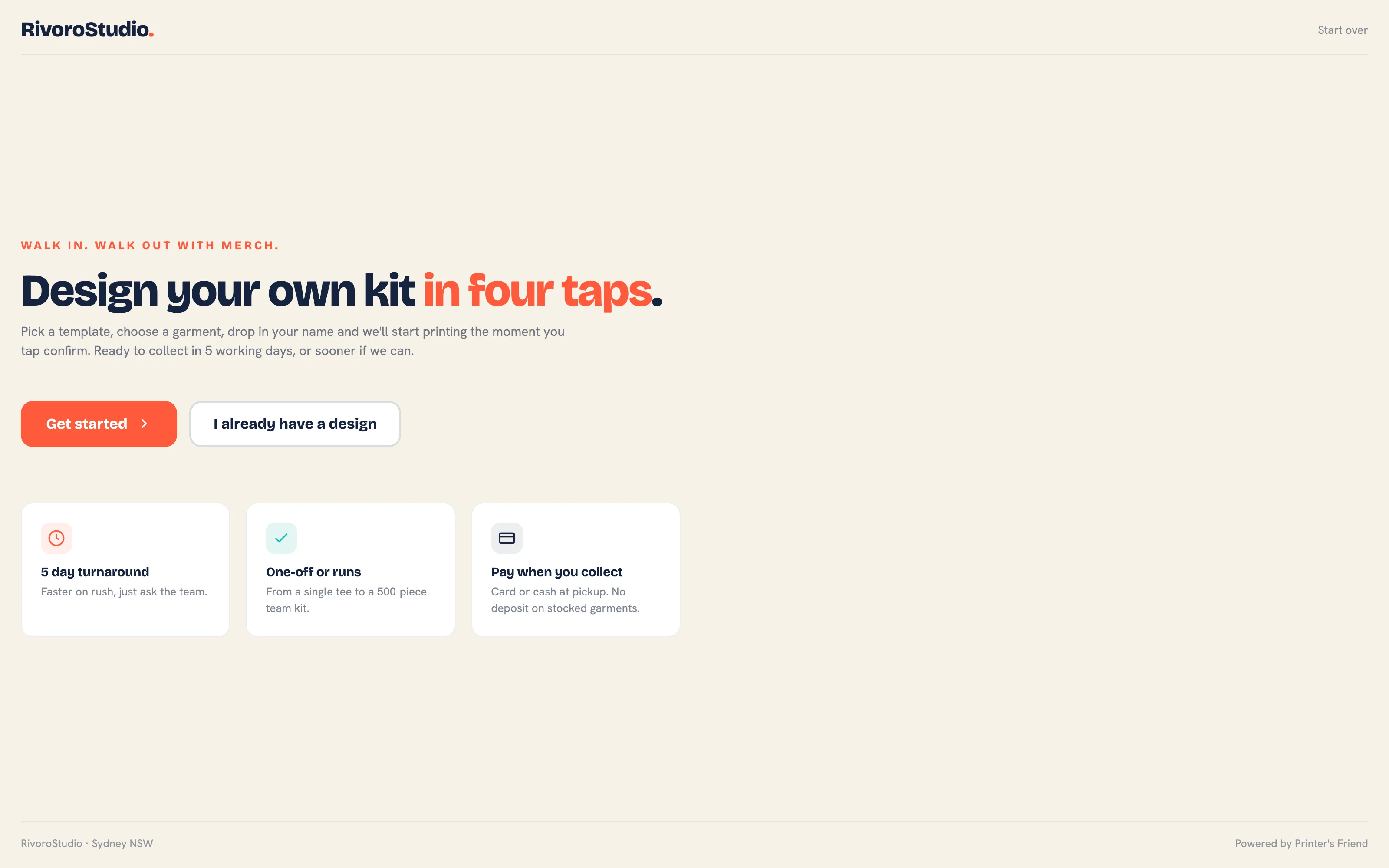 The kiosk welcome screen, in your name and accent colour.
Changing the PIN locks every device at once; each iPad enters the new PIN. Switching the kiosk off locks it even on a device that has unlocked. Without the device cookie, or on a workspace with the kiosk off, every kiosk address is a 404. The kiosk shows only garments with an active SKU and only your active decoration methods, and prices through your rates and tax scheme. The customer flow and how to work kiosk orders are on The walk-in kiosk.
On Phones
The scan page, the floor board and the station boards fit a phone screen, and the production board's cards have a Move action for touch as well as drag. The customer portal and the approval link are built for phones too.