

Appearance
Team and Permissions
The Team page is where you invite staff, give each person a role, set their labour and commission rates and switch accounts off when people leave. It also holds the rules that keep a workspace safe: only owners hand out the owner role, the last active owner can never be removed, and a leaver's open work is offered for reassignment.
Where It Lives
| Page | What it's for |
|---|---|
| Settings, then Team | The list of staff with role, status, rates and last sign in |
| Settings, then Team, then Invite teammate | Invite someone |
| Settings, then Team, then a row | Edit a person, re-send their invite, reassign their work, deactivate them |
| Profile (your name at the top right) | Your own password and authenticator app |
Team is available to owners and managers.
Plan requirement
Active staff are capped by plan: 1 on Free, 3 on Starter, 10 on Premium, unlimited on Enterprise. An invite or a reactivation past the cap is refused with a message naming the plan that lifts it. See Plans and limits.
Inviting Someone
- Go to Settings, then Team and click Invite teammate.
- Type their Name, Email and, if you want it on their record, Phone.
- Pick a Role. The helper text under the field summarises each one; the full table is below.
- Set Labour rate (cents per hour) if their time is costed against jobs: 3200 is 32.00 an hour.
- Set Commission rate (basis points) if they earn commission: 500 is 5% of the ex-tax order value, earned on dispatch.
- Leave Active on and click Create.
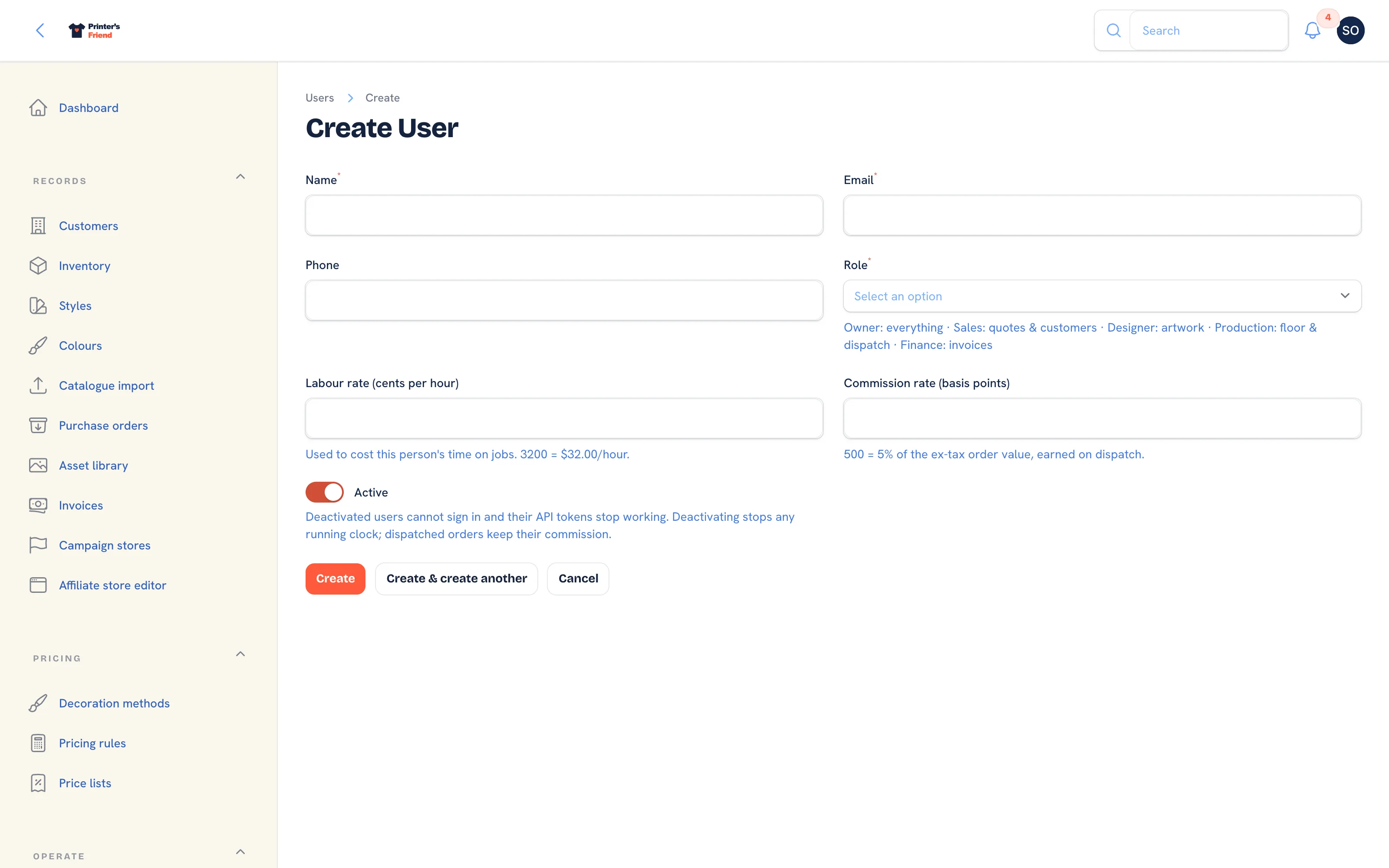 The invite form.
The new person receives an email headed with your shop name and a Set your password button. The link works for seven days; completing the form sets their password, verifies their email and signs them in at your workspace address. While the invite is unanswered, their record shows Re-send invite at the top.
If the seat cap is reached, the invite is refused with "Plan limit reached" and the plan's message. If a manager picks the owner role, it is refused with "Only an owner can assign the owner role".
Rates are frozen when they are used
The labour rate is copied onto each clock entry when the person clocks on, and the commission rate onto each order when they are assigned as its rep. Changing a rate here affects work from now on and never rewrites history.
The List
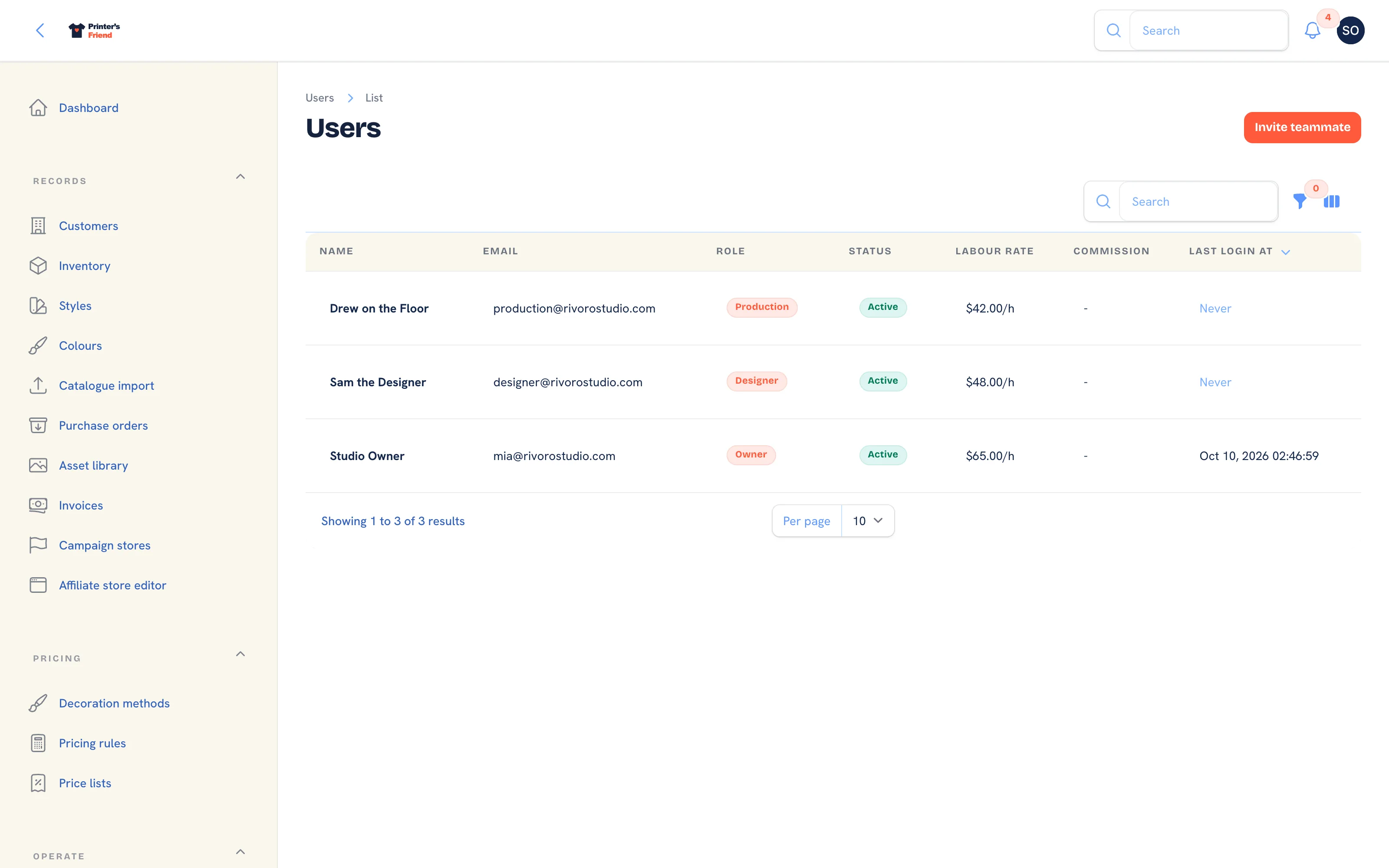 The team list.
The list shows Name, Email (click to copy), Role, Status (Active or Deactivated), Labour rate, Commission and Last login, which reads Never until the person's first sign in. The Active filter hides deactivated accounts.
The Roles
Owner and manager hold every feature. The other roles are narrower. Full means view and change, Read means view only, and None means the screen is not shown.
| Feature | Owner | Manager | Sales | Production | Designer | Finance | Viewer |
|---|---|---|---|---|---|---|---|
| Quotes | Full | Full | Full | None | None | None | Read |
| Orders | Full | Full | Full | Full | Full | Read | Read |
| Customers | Full | Full | Full | None | Read | Read | Read |
| Messages | Full | Full | Full | None | Full | None | Read |
| Marketing (stores, campaigns, coupons, promotions, broadcasts) | Full | Full | Full | None | None | None | Read |
| Assets | Full | Full | Full | Read | Full | None | Read |
| Reports | Full | Full | Full | None | None | Full | Read |
| Production | Full | Full | None | Full | Read | None | Read |
| Purchasing | Full | Full | None | Full | None | None | Read |
| Inventory | Full | Full | Read | Full | Read | None | Read |
| Invoices | Full | Full | Read | None | None | Full | Read |
| Pricing | Full | Full | None | None | None | None | None |
| Billing | Full | Full | None | None | None | None | None |
| Team | Full | Full | None | None | None | None | None |
| Integrations, API tokens, webhooks | Full | Full | None | None | None | None | None |
| Settings (brand, invoice template, workflow, audit log) | Full | Full | None | None | None | None | None |
Open to every active staff member, whatever their role: the dashboard, the production board, the floor board, Demi and the setup wizard.
Four rules sit over the table. The viewer role never changes anything, whatever the grant says. A deactivated account is denied everything at once, including its API tokens. An account with no role is treated as a manager, which is a compatibility default for old accounts and not a recommendation. Pricing, billing, team, integrations and settings are owner and manager only, with no read-only view for anyone else.
What Each Role Sees
A screen a role cannot open is left out of that person's sidebar, so a sales rep never sees Pricing, Billing or Team, and a finance user never sees Quotes or Messages. Typing the address of a screen the role does not hold opens a 403 page headed "Your role does not reach this page." with the reason, "Your role does not allow this.", and a Go back button. A record that belongs to another workspace answers 404 rather than 403, so nothing confirms it exists.
A read grant shows the screen without the buttons that change it. A viewer opens every quote and order, but New quote, Edit, Advance and the other actions are not on the page, and an action a read-only role reaches anyway is refused with a notice naming the role, for example "Your role does not allow count entry" on a cycle count. The dashboard, the production board, the floor board, Demi and the setup wizard are open to every active staff member.
During a workspace's 30 day closing window every screen is read-only for every role, and a save is refused with "This workspace is closing and is read-only. Restart your subscription from Billing to make changes." Billing itself stays writable so an owner can restart.
Editing a Person
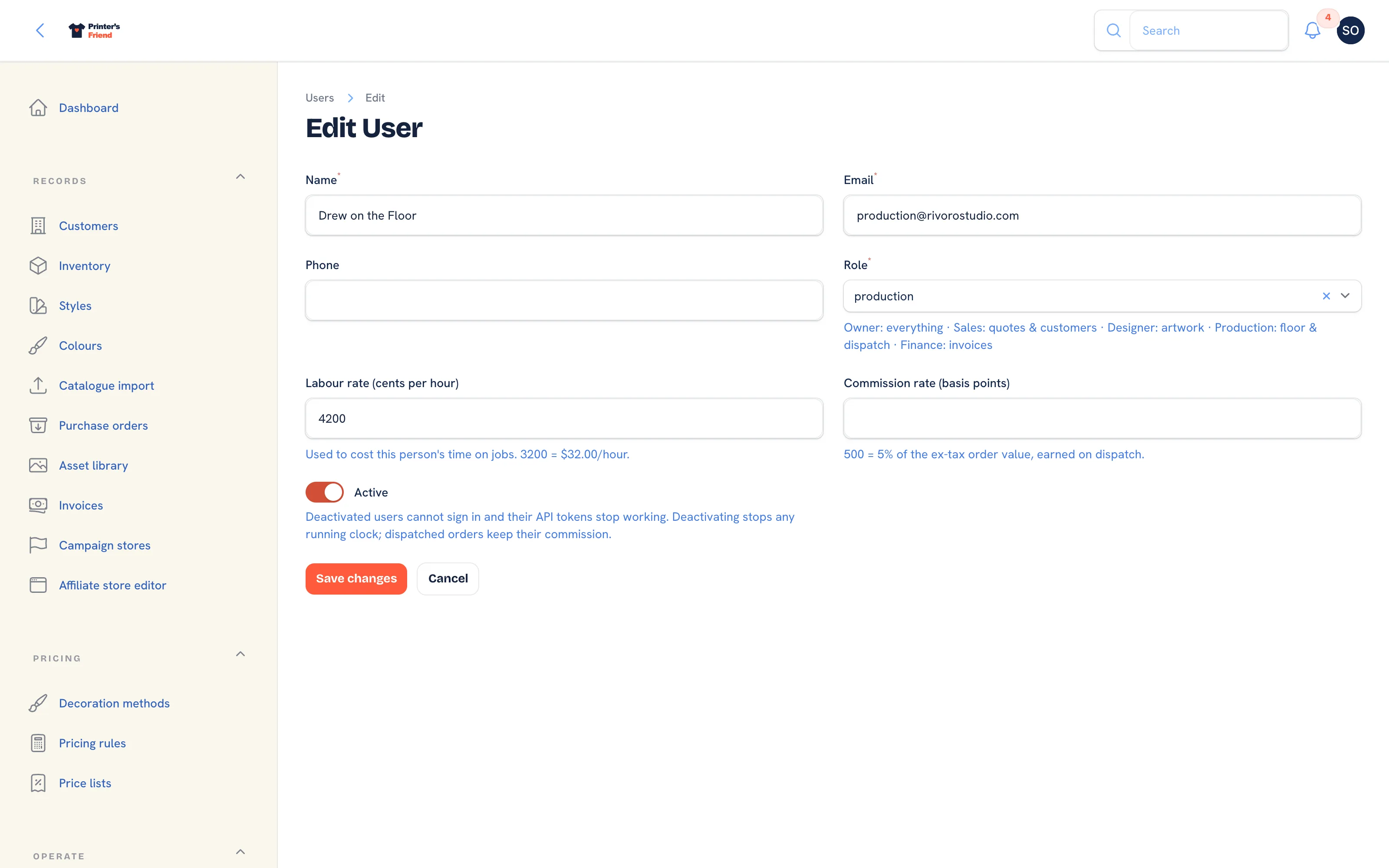 Editing a team member.
The edit page has the same fields as the invite form plus header actions that appear when they apply:
| Action | When it shows | What it does |
|---|---|---|
| Re-send invite | The person has not yet set a password | Sends a fresh seven day link |
| Reassign open work | The person is the rep on an open order or raised a draft or sent quote | Moves that work to an active teammate you pick. Dispatched orders are not touched |
| Deactivate my account | You are editing your own record | Confirms, offers to reassign your open work, signs you out |
| Make billing contact | You are an owner editing another active owner | Sends billing email, Stripe receipts and payment failure notices to that person from now on |
Changing someone's Email clears its verification: the person is asked to verify the new address at their next sign in. When the person is the billing contact, the Stripe customer is updated in the same save.
Deactivating Someone
- Open the person's record and switch Active off.
- If they still have open orders or quotes, Reassign open work to appears under the toggle, with a count of what is on their name. Pick who takes it, or leave it blank.
- Click Save. Their running clock is stopped, the work moves if you picked someone, and the event is written to the audit log.
A deactivated person cannot sign in, their API tokens stop working and their seat is freed. Their name stays on everything they made. Work left on their name shows them as (left) in the rep field, and the order still saves. Dispatched orders keep the leaver as rep at the rate frozen on the order, so earned commission is never rewritten. Switching Active back on takes a seat again and is refused at the cap.
Deactivate leavers, do not delete them
Deleting an account would orphan the orders, quotes and clock entries that name the person. Deactivation keeps the history and frees the seat.
Owners
- Only an owner can assign or remove the owner role. A manager sees the option greyed out, and a save that tries it is refused with "Only an owner can assign or remove the owner role".
- The last active owner cannot be demoted or deactivated. The refusal names the person and asks you to make someone else an owner first.
- To leave yourself, use Deactivate my account on your own record. It asks you to confirm and only proceeds while another active owner remains. Switching your own Active toggle off in the form is refused and points you to the action.
- Billing email goes to the billing contact: the first owner, unless you press Make billing contact on another active owner's record.
Authenticator Apps
Owners and managers must set up an authenticator app before they can use the workspace. After signing in they are sent to the set-up screen until it is done, with recovery codes to keep. Every other role can add an authenticator from Profile and is not required to.
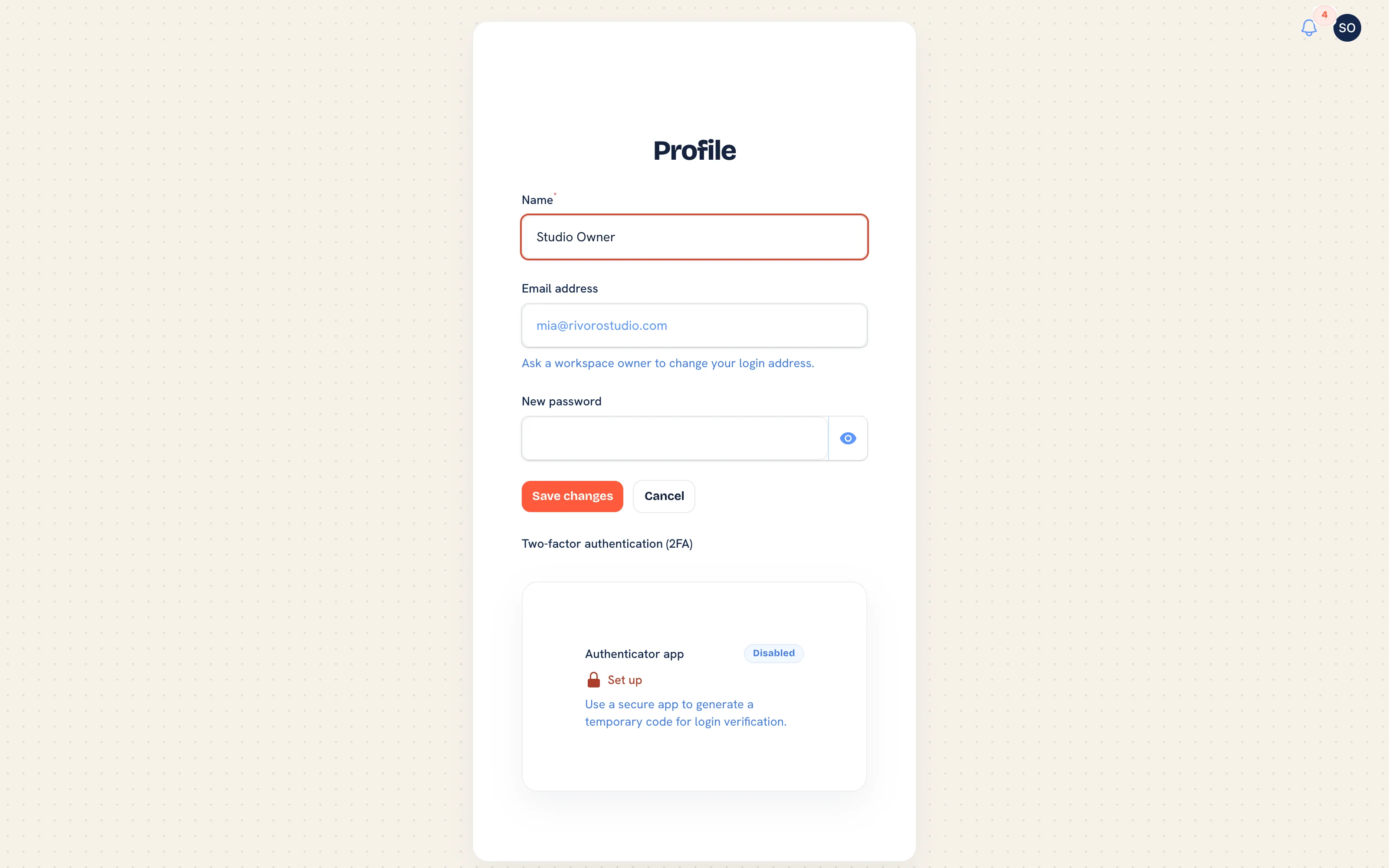 The profile page, where an authenticator is set up.
Related Pages
- Your Team and Roles: invite your team and choose their roles at setup
- Time on Jobs: clock staff on and off jobs and cost the hours
- Subscription and Billing: your plan, card, usage and the plan grid
- Audit Log: who changed what, and when
- Plans and Limits: the limits on each plan and what happens at them