

Appearance
2. Tax, Currency and Invoices
Get this right before you issue a single invoice. One tax scheme, the label, the rate and the currency, drives every quote, order, invoice, email, the portal, the kiosk and the store checkout. It starts from the billing region you chose at signup and is edited on the Brand and portal page.
Where It Lives
| Page | What it's for |
|---|---|
| Insight, then Brand & portal, the Tax and currency card | The label, rate and currency on every document |
| Insight, then Invoice template | Legal name, registration number, notes, payment instructions and the PDF accent |
| Records, then Customers, Payment terms on each customer | The due date on that customer's invoices |
How Your Tax Scheme Starts
| Billing region | Tax label | Rate | Currency |
|---|---|---|---|
| Australia | GST | 10% | AUD |
| United Kingdom | VAT | 20% | GBP |
| United States | Sales tax | 0% | USD |
| Eurozone | VAT | 0% | EUR |
Australia and the United Kingdom have a single national rate, so they are right out of the box. United States and Eurozone workspaces start at 0% on purpose: US sales tax depends on where you are registered to collect it, and EU VAT differs per member state. Set your rate yourself.
Setting the Label, Rate and Currency
- Insight, then Brand & portal, then the Tax and currency card.
- Type the Tax label:
GST,VATorSales tax. - Type the Tax rate (%) as a percentage between 0 and 100, for example
10,20or8.25. - Pick the Currency: the four billing currencies plus New Zealand (NZD, GST) and Canada (CAD).
- Read the sentence under the fields. It says what your documents will show with the values on screen, for example the tax line label, a formatted total and whether invoices are titled Tax invoice.
- Press Save.
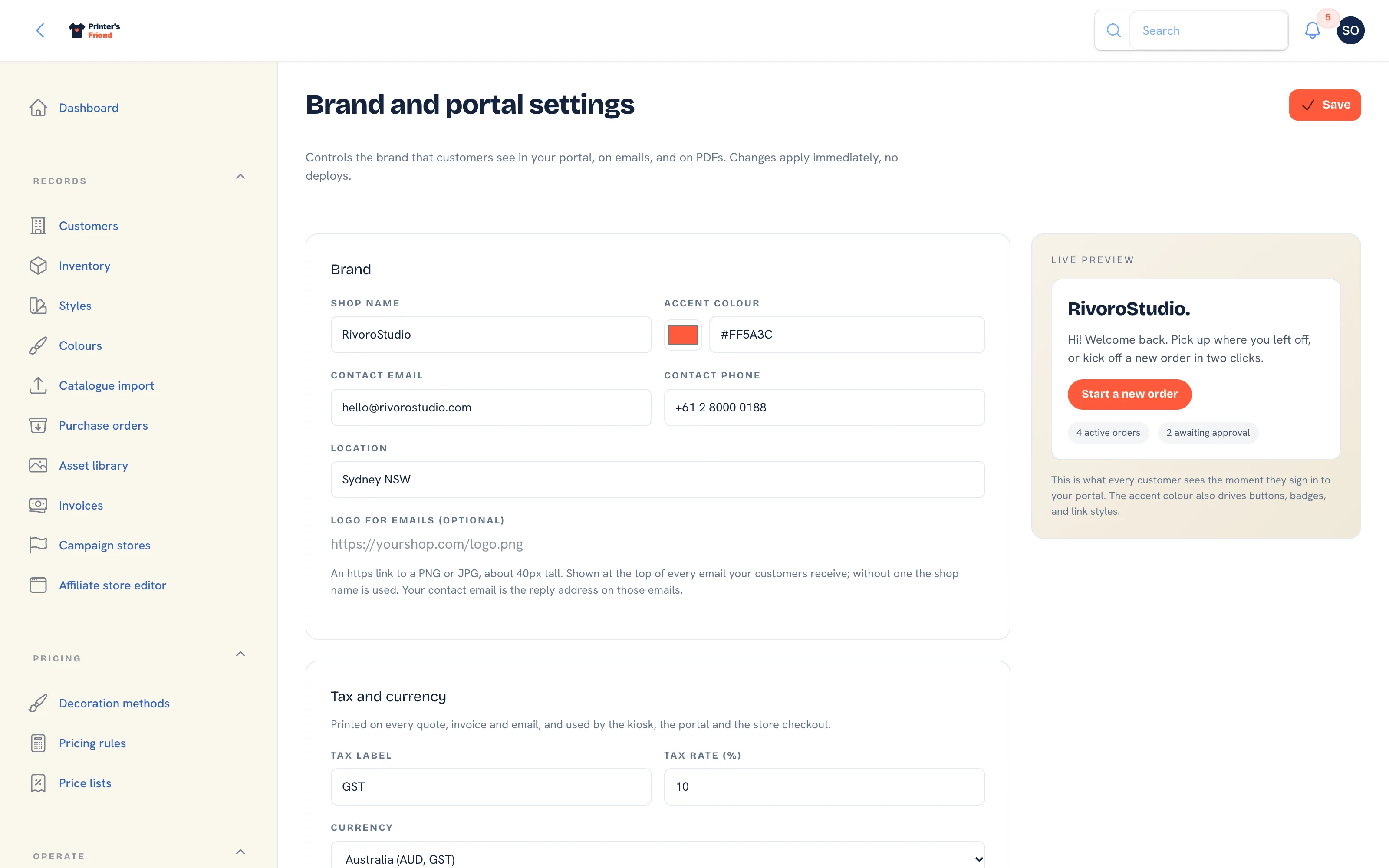 The Tax and currency card. The preview sentence shows what documents will say before you save.
Three rules follow from the scheme:
- The tax line reads label and rate together, for example
GST (10%). At a 0% rate documents show no tax line at all, which is what a US shop with no registration wants. - Invoices are titled Tax invoice only when the label is GST or VAT. With any other label they are titled Invoice.
- Totals are formatted in the chosen currency and its locale everywhere: PDFs, screens, emails, the portal, the kiosk and the activity log.
A New Zealand shop is billed in AUD and sets NZD here
Signup quotes New Zealand in AUD, so an NZ workspace starts on the Australian scheme. Set the label to GST, the rate to 15 and the currency to New Zealand (NZD, GST) before you quote anything. The same applies to a Canadian shop, which starts on the US scheme and sets CAD. Your subscription stays in the billing currency; only your own documents change.
Tax is applied at the end of the pricing pipeline, after discounts, decoration, setup fees, coupons and promotions. Margin and commission are calculated on ex-tax values, so tax never inflates either.
Branding the Invoice PDF
Insight, then Invoice template. The live preview on the right shows the PDF as you type, in your tax scheme and currency.
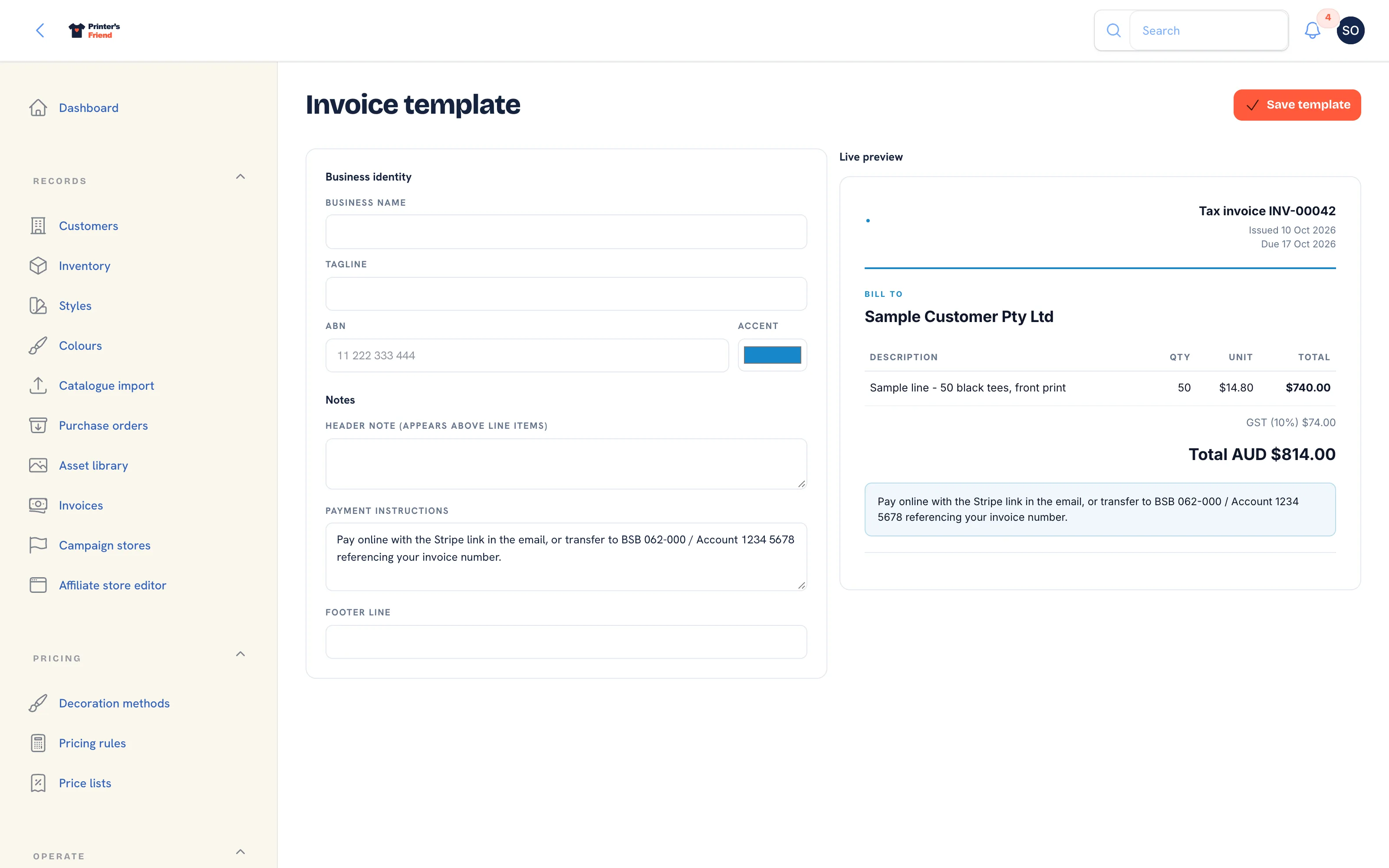 The invoice template. The preview uses your real tax label and currency.
| Field | What to put in it |
|---|---|
| Business name | The legal or trading name that should appear on the invoice |
| Tagline | Optional line under the name |
| ABN | Your ABN, VAT number, EIN or equivalent. Printed under the invoice number |
| Accent | The colour of the rule and headings on the PDF |
| Header note (appears above line items) | A line at the top of the document, for example a purchase order reference prompt |
| Payment instructions | Bank details and how to pay. Shown in a box under the total, and the field customers read |
| Footer line | Small print: late payment terms, a returns pointer |
Press Save template in the page header. Fill in Payment instructions properly: if you take bank transfer as well as card, the account details belong here.
Payment Terms and Due Dates
The due date on an invoice comes from the customer's Payment terms: Net 7 (the default), Net 14, Net 30, Net 60, End of month or Cash on delivery. Set them on the customer record; see Customers and contacts. Reminders go out three days before the due date, on it, and seven and fourteen days after, until the invoice is covered.
Deposits and Balances
An invoice is normally issued when an order is dispatched. To invoice earlier, press Issue invoice on the order and choose Full amount now or Deposit now, balance at dispatch with a Deposit (% of the ex-tax total). Dispatch then issues the balance, or nothing when the order is already invoiced in full.
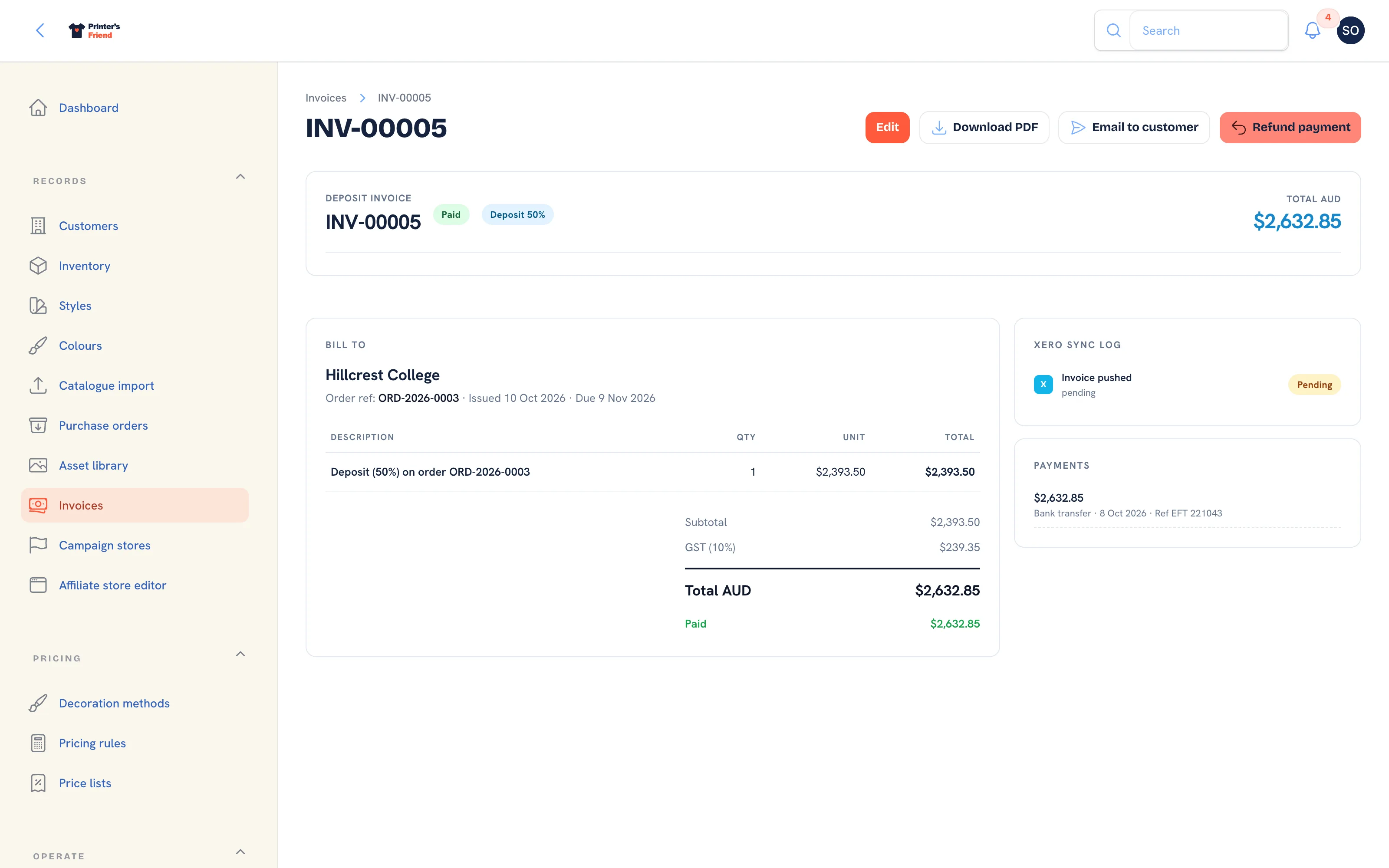 A deposit invoice. The balance is issued at dispatch.
Check the Output
- Create a quote for a test customer with your own email, convert it to an order and move the order to Dispatched. An invoice is issued and emailed.
- Records, then Invoices, open the invoice and press Download PDF.
- Check the title, legal name, registration number, tax label and rate, totals, currency and payment instructions.
Then cancel the test order so it stays out of your reports.