

Appearance
Addresses and Packing Slips
Addresses belong to the customer. An order takes its billing and shipping address from the customer's defaults when the quote is accepted, and the packing slip and the shipping label read them from the order.
Where It Lives
| Page | What it's for |
|---|---|
| Records, then Customers, the Addresses table on Edit | Add, edit and delete a customer's addresses and set the defaults |
| The customer page | A read-only list of the addresses with their default flags |
| The order page and Edit | Ship to and Bill to, and the two address selects |
| Print, then Packing Slip on the order | The PDF that goes in the box |
| Generate shipping label on the order | Books a carrier label to the order's shipping address |
Adding an Address
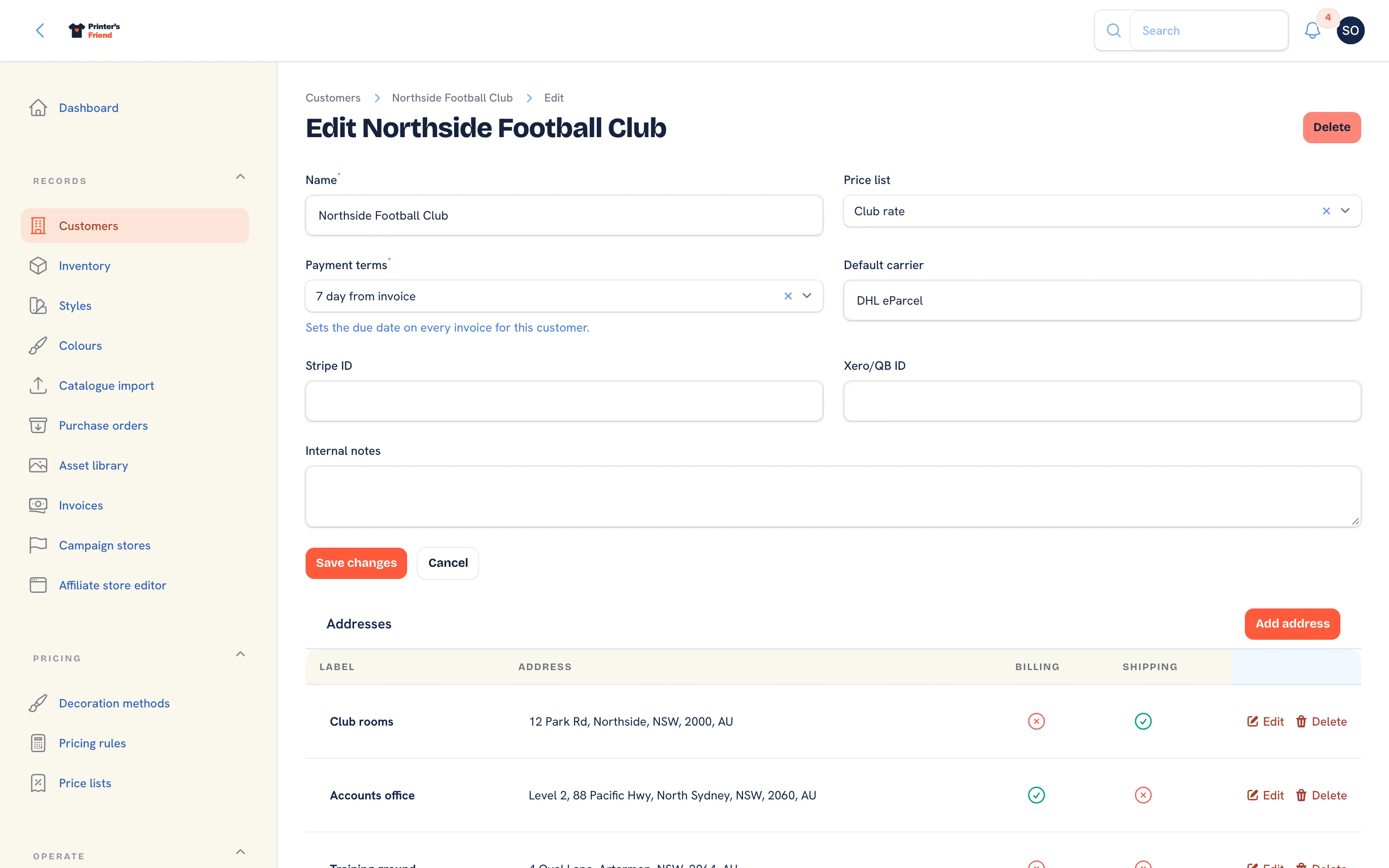 The customer's edit page. The Addresses table sits under the customer form.
- Open the customer under Records, then Customers and click Edit.
- In the Addresses table, click Add address.
- Give it a Label such as Head office, Warehouse or Club rooms. The default is "Default".
- Fill Address line 1, Address line 2 if needed, Suburb or city, State or region and Postcode.
- Country is a two letter code and starts from your shop's region: AU, GB, US or NZ. Shops billed in the EU start blank.
- Turn on Default billing address, Default shipping address or both, then click Create.
A customer has one billing default and one shipping default. Saving a new default clears the flag on the other addresses, so there is never a tie. The table shows each address on one line with a tick under Billing and Shipping.
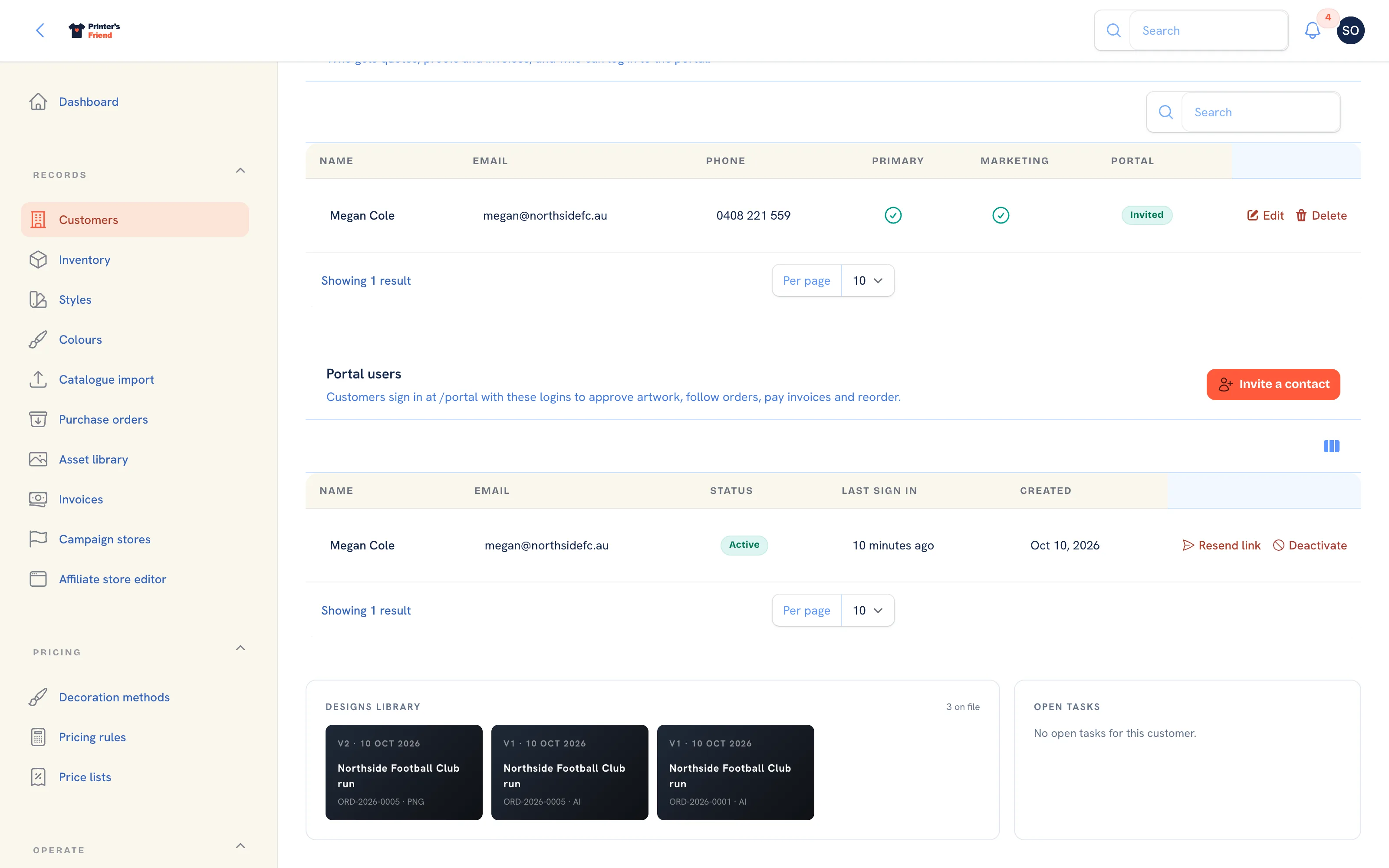 The customer page lists the addresses with their default flags. A customer with none reads "No address on file".
How an Address Reaches the Order
When a quote is accepted the order is given the customer's billing default and shipping default. A customer with one address and no flags still gets it on the order; a missing shipping default falls back to the billing default. An order created before the customer had any address reads "Address pending" until one is chosen.
To change the addresses on an order:
- Open the order and click Edit.
- Pick from Billing address and Shipping address. Both list the customer's addresses, shipping default first.
- Click Save changes. The order page now shows the chosen address under Ship to, and Bill to when it differs.
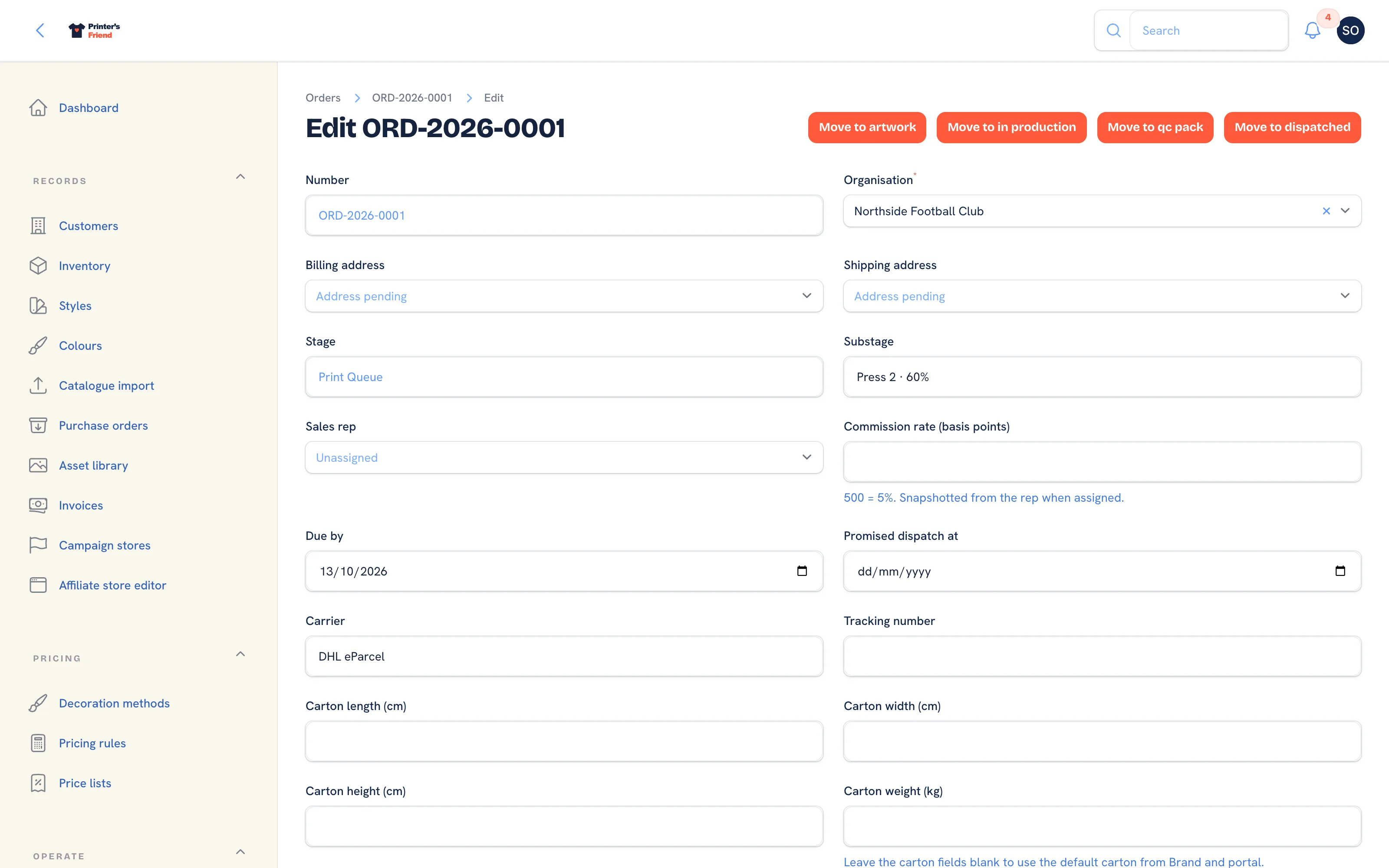 The two address selects on the order edit form.
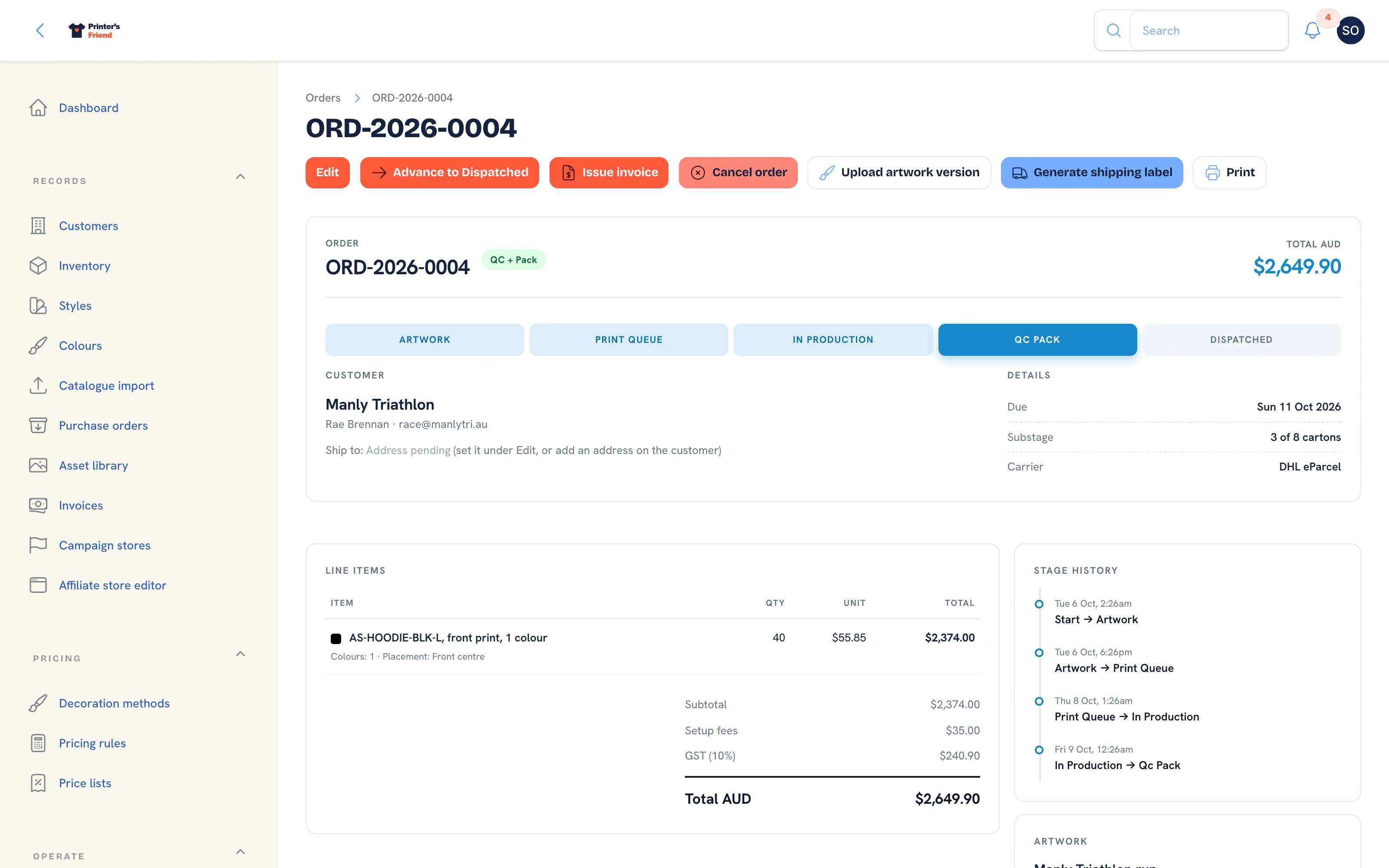 Ship to on the order page. This is what the packing slip and the label will carry.
The Packing Slip
On the order page, open Print and choose Packing Slip. The PDF carries:
- Your shop name and the order number, with the date it was packed.
- A Ship to block with the customer's name and the order's shipping address, falling back to the billing address. "Address pending" prints only when the order has neither.
- An Order reference block with the carrier, the tracking number when there is one, a blank for the carton count and a barcode of the order number.
- One row per line with the item, its SKU code and the quantity enclosed.
- A note asking the customer to inspect the goods on arrival and to contact your shop's email within 7 days.
Add the address before the box is packed
A packing slip that reads "Address pending" is not a rendering fault. The order has no address: add one on the customer, or choose one under Edit on the order, then print again.
The Shipping Label
Generate shipping label is offered while the order is in QC + Pack or Dispatched and has no tracking number. It books the shipment with your connected carrier using:
- the order's shipping address as the destination, with the customer's name;
- your shop's address from Brand and portal settings as the sender;
- the carton dimensions and weight on the order, or the default carton from Brand and portal settings.
On success the order's Carrier and Tracking number are filled, the label PDF is stored on the order and Print label downloads it. A refused address, a missing sender address or a carrier error is reported in plain words under "Label not created". Without a carrier connected the notification reads "Carrier not connected".
Plan requirement
Shipping labels need your own Australia Post eParcel account connected under Integrations. They are available on every plan. See Shipping: Australia Post.
Where Else Addresses Appear
The order page shows Ship to and Bill to under the customer, and the customer page lists every address with its flags. The dispatch email carries the tracking number, so the address the customer sees is the one on the packing slip in the box.
Related Pages
- Orders: the order page, stage moves and what each one triggers
- Customers: the customer record, contacts, portal logins and addresses
- Shipping: Australia Post: book Australia Post labels from the order
- Brand and Portal Settings: shop name, colours, tax and currency, portal copy and the kiosk switch