

Appearance
Subscription and Billing
The Billing page shows what you pay Printer's Friend: your plan, status, renewal date and usage against your plan's limits. From here you start a subscription, open Stripe's portal to change your card, switch plan and, when a workspace has no subscription, close it. This is separate from the Stripe account your customers pay you through.
Where It Lives
| Page | What it's for |
|---|---|
| Insight, then Billing | Plan, status, usage, the plan grid and the actions below |
| Manage card and invoices on that page | Stripe's hosted billing portal: card, invoices, plan changes, cancellation |
| The banner across the top of every workspace page | Your trial, past due, lapsed, trial ended, closing or free tier state |
Billing is available to owners and managers. The banner's button shows only to them; everyone else reads "Ask your workspace owner to update billing" instead.
Your Subscription
The first card shows Plan, Status, and one of Trial ends (with the days left), Renews or Grace ends. Under it is one of three things:
| You see | When | What it does |
|---|---|---|
| Manage card and invoices | A subscription is running | Opens Stripe's portal, where card changes, downgrades and cancellation happen and receipts are emailed |
| Start subscription | No subscription is running: a lapsed or cancelled workspace, or a trial that never had a card | Opens the plan chooser described below |
| A line saying online billing is not available on this install | Billing is not configured on this install | Email hello@printersfriend.com |
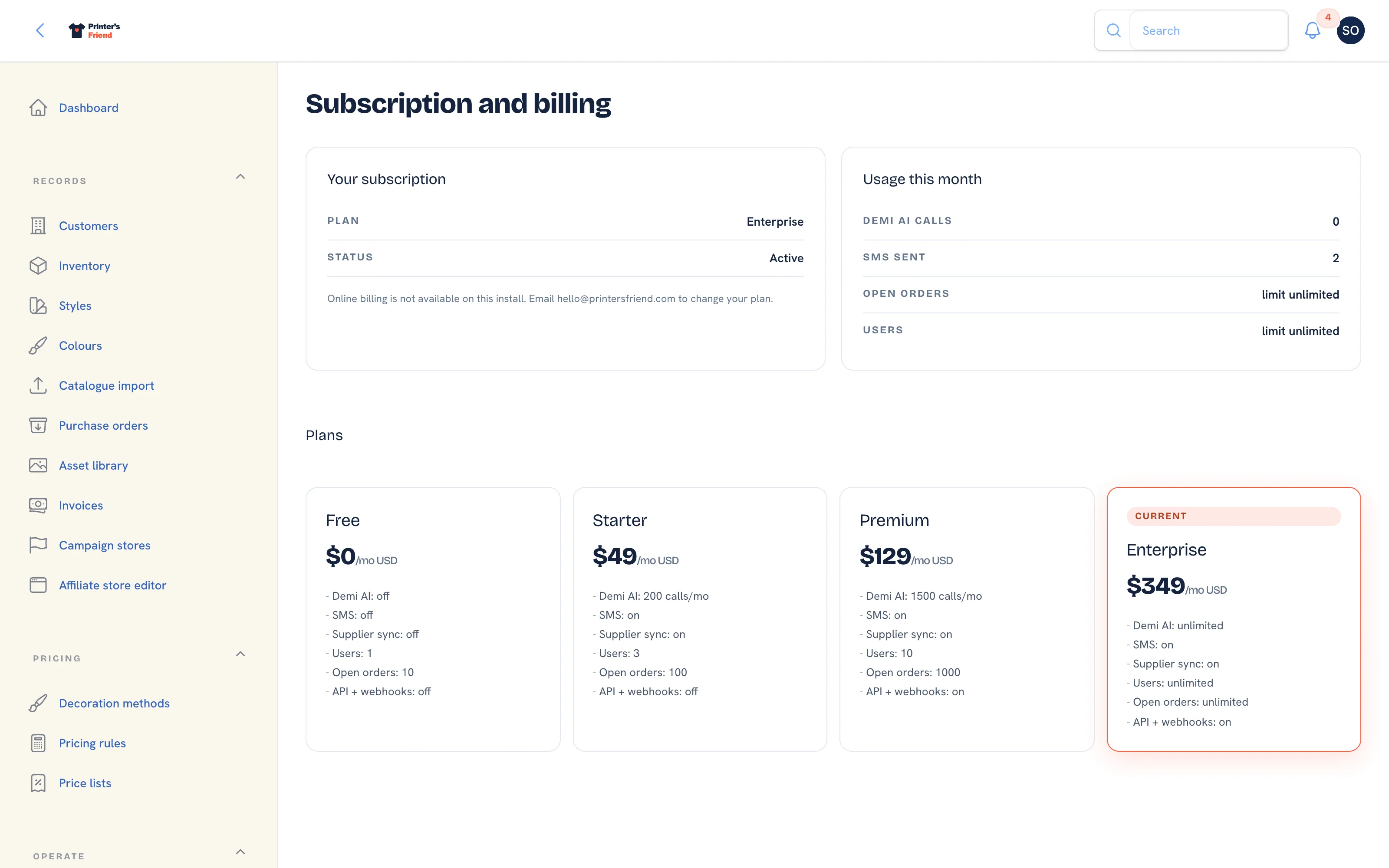 The Billing page.
Usage This Month
| Row | What it counts |
|---|---|
| Demi AI calls | Questions asked this month, against your cap when the plan has one |
| SMS sent | Texts sent this month, from broadcasts and from job messages |
| Open orders | The limit on orders not yet dispatched or cancelled |
| Users | The limit on active staff |
Starting or Restarting a Subscription
- Click Start subscription at the top of the page, or Start on a plan in the plan grid.
- Pick the Plan in the dialog. It opens on the plan a card asked for, otherwise the plan that lapsed, otherwise Premium, each priced a month in your billing currency.
- Click Continue to Checkout. Stripe Checkout opens against your existing billing details, so there is no second signup.
- After paying you land back on Billing with "Subscription started". If Stripe's confirmation is still on its way, the page reads "Payment received, activating" and attaches the subscription within a few minutes. Cancelling in Checkout brings you back with "Checkout cancelled" and nothing charged.
Every record in the workspace stays as it was, and the plan applies as soon as the payment goes through. Signing up again at printersfriend.com with the email of a lapsed workspace sends you to this path instead of creating a second workspace.
Changing Plan
The plan grid lists Free, Starter, Premium and Enterprise with the monthly price in your currency and what each one allows: Demi calls, SMS, supplier sync, users, open orders, API and webhooks. Your plan carries a Current badge. With a running subscription, Switch to opens the Stripe portal for the change; with none, Start on opens the plan chooser. Moving down applies the lower limits at once: an action over a limit is refused until you are back under it, and nothing is deleted.
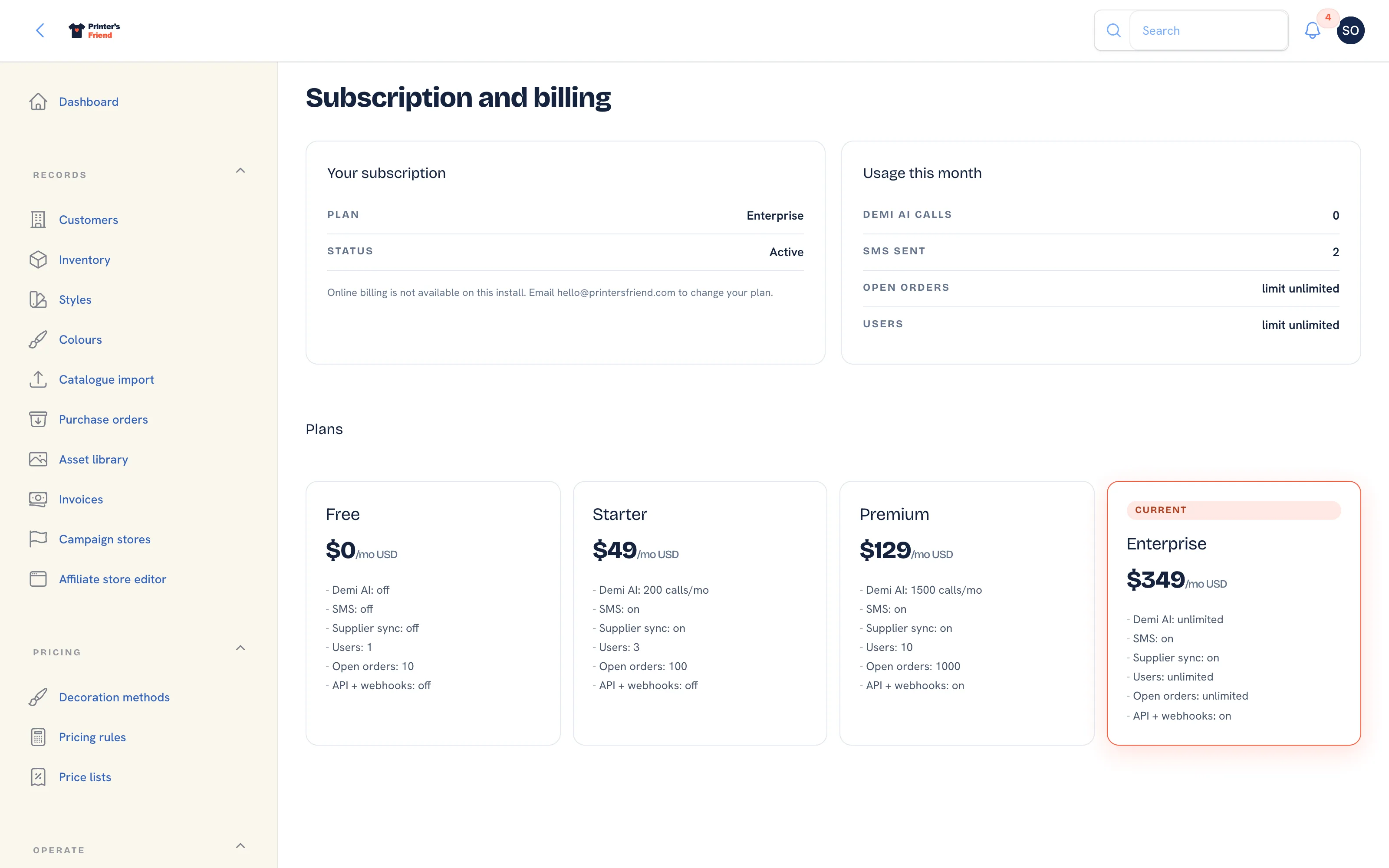 The plan grid.
The Banner and What Each State Means
| Banner | Meaning | Button |
|---|---|---|
| Trial | Days left on your trial. The card is charged when it ends | Manage billing |
| Past due | A payment failed. You have the days shown to update your card before the workspace drops to the free tier | Update card |
| Lapsed | The banner says your payment failed on the date shown and the card could not be charged since, and asks you to update your card to restore your plan. Every record is intact and nothing is deleted | Update card (or Start subscription when there is no card on file) |
| Trial ended | The trial ended with no subscription behind it. Every record is intact | Start subscription |
| Closing | The subscription was cancelled on the date shown. The workspace is read-only until the close date, after which every record is deleted | Restart from Billing |
| Free tier | You are on the free tier | See plans |
Emails follow the same states. A failed payment sends one Payment failed email with a seven day grace window and an Update payment method button; a lapse sends one email with an Update your card button; each successful charge sends a receipt. The buttons in those emails are signed links that work for seven days and open the Stripe portal directly.
A failed payment never deletes anything
When the grace window runs out, the workspace drops to Free with every customer, order, invoice and file intact, and updating your card restores the plan. Only a cancellation starts the deletion clock.
Cancelling and Closing
With a running subscription, cancel in the Stripe portal through Manage card and invoices. From the moment Stripe confirms the cancellation, the workspace is read-only for 30 days (Billing stays writable so you can restart), the banner shows the close date, and after those 30 days every record is permanently deleted apart from records the law requires to be kept.
A workspace with no running subscription can be closed by its owner:
- Click Close this workspace at the top of Billing. It shows only to owners, and only while no subscription is running and the workspace is not already closing.
- Type the workspace address shown in the dialog to confirm, then click Close the workspace.
- The banner switches to Closing with the date. Start subscription on this page stops the clock at any point before it.
Before either, export what you need: Export activity (CSV) on each customer record and your invoice PDFs. See Data, privacy and GDPR. Full detail of plans and limits is under Plans and limits.
Related Pages
- Plans and Prices: what each plan costs and includes
- Subscription and Plan Changes: changing plan, and what a failed payment does
- Cancelling and the 30 Day Window: cancelling, the 30 day read-only window and deletion
- Payments, Receipts and Tax: when the card is charged, receipts and tax
- Team and Permissions: roles, rates, deactivating leavers and the owner rules