

Appearance
Returns
A return records goods coming back from a customer, what you did about it and what happened to the stock. It moves through a fixed set of statuses, and each step is a button on the return.
Where It Lives
| Page | What it's for |
|---|---|
| Operate, then Returns | Every return with its reason, resolution, amount and status |
| New return request | Log the return against an order and list the items coming back |
| The return page | Mark received, Issue refund, Issue credit note and Reject |
The Returns List
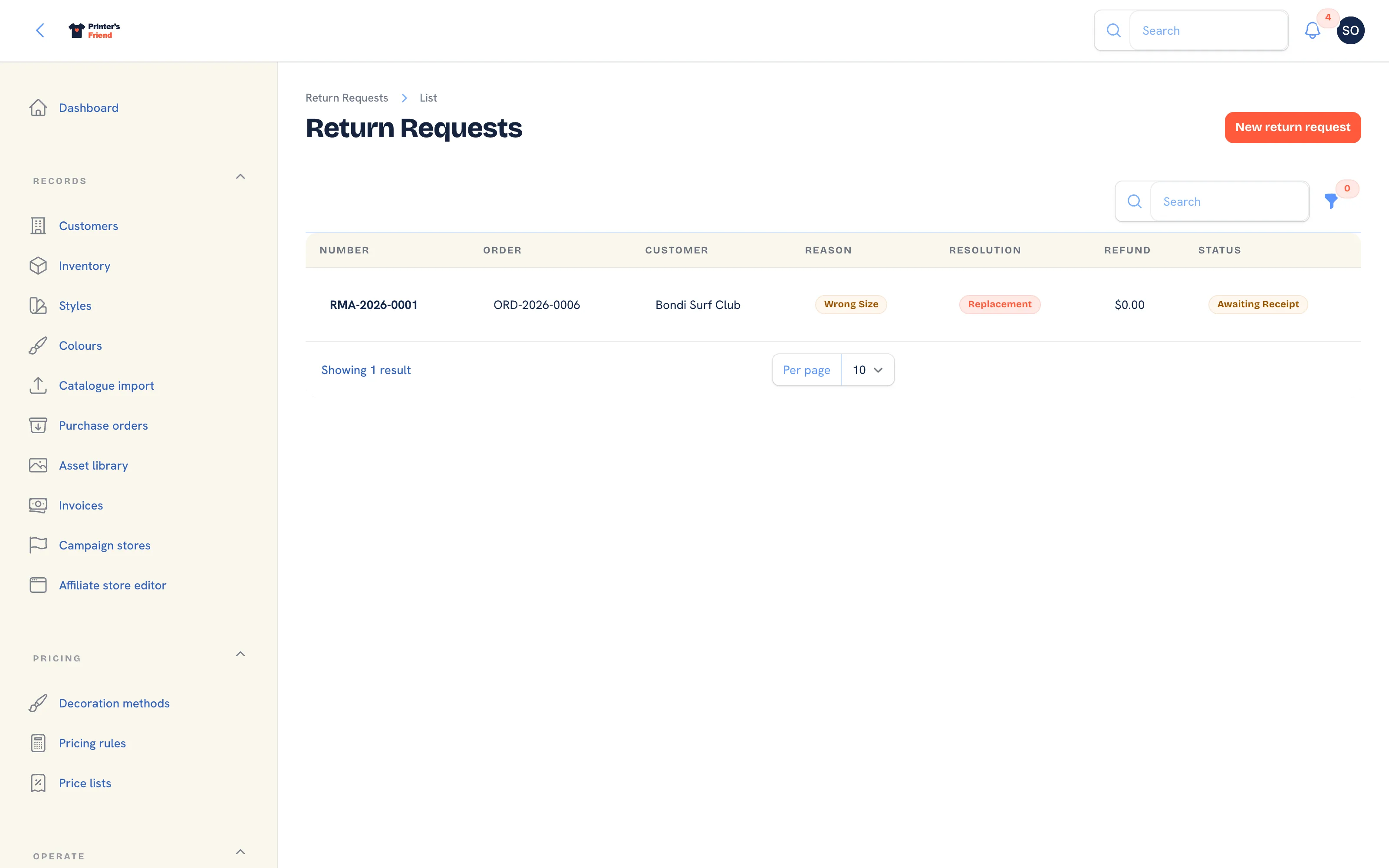 Returns and credits. Filter by status to see what is still open.
Columns: Number, Order, Customer, Reason, Resolution, Refund and Status. Filter by Status. Return numbers run RMA-2026-0001 upwards within the year.
Logging a Return
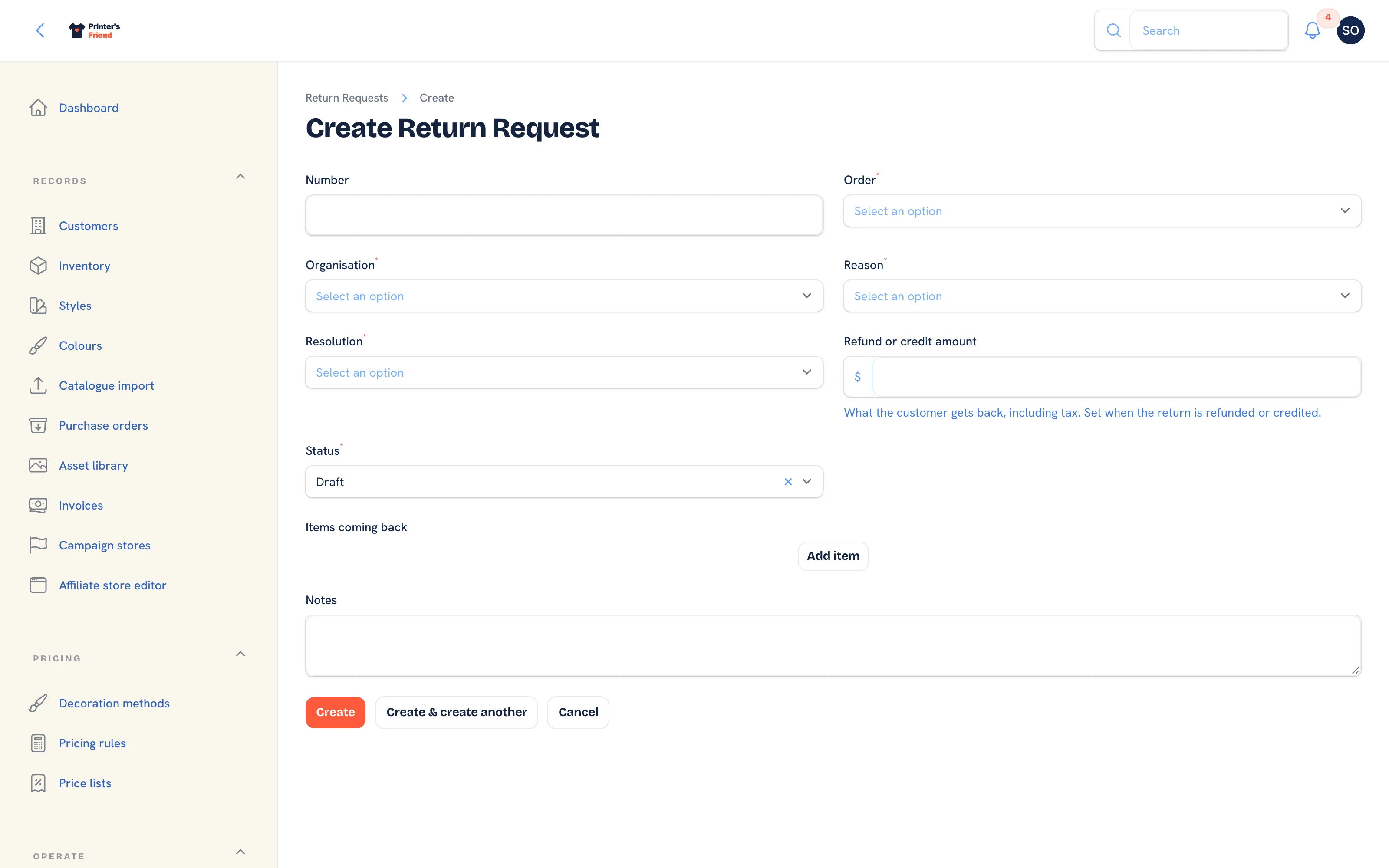 Logging a return against an order.
- Go to Operate, then Returns and click New return request.
- Pick the Order. The Organisation fills from the order and the item list is limited to that order's lines.
- Choose the Reason: Damaged in transit, Wrong size, Quality issue, Change of mind or Other.
- Choose the Resolution you expect: Refund, Replacement or Store credit.
- Enter the Refund or credit amount, including tax, if you know it. It is offered as the default when you refund or credit later.
- Leave Status as Draft, or set Awaiting receipt once the customer has been told to send the goods back.
- Under Items coming back, click Add item for each line: the Order line, the Quantity and any Detail.
- Add Notes and click Create.
Record the reason honestly
Reasons are how you find out whether returns are a courier problem, a sizing problem or a print quality problem. Those have different fixes.
Working the Return
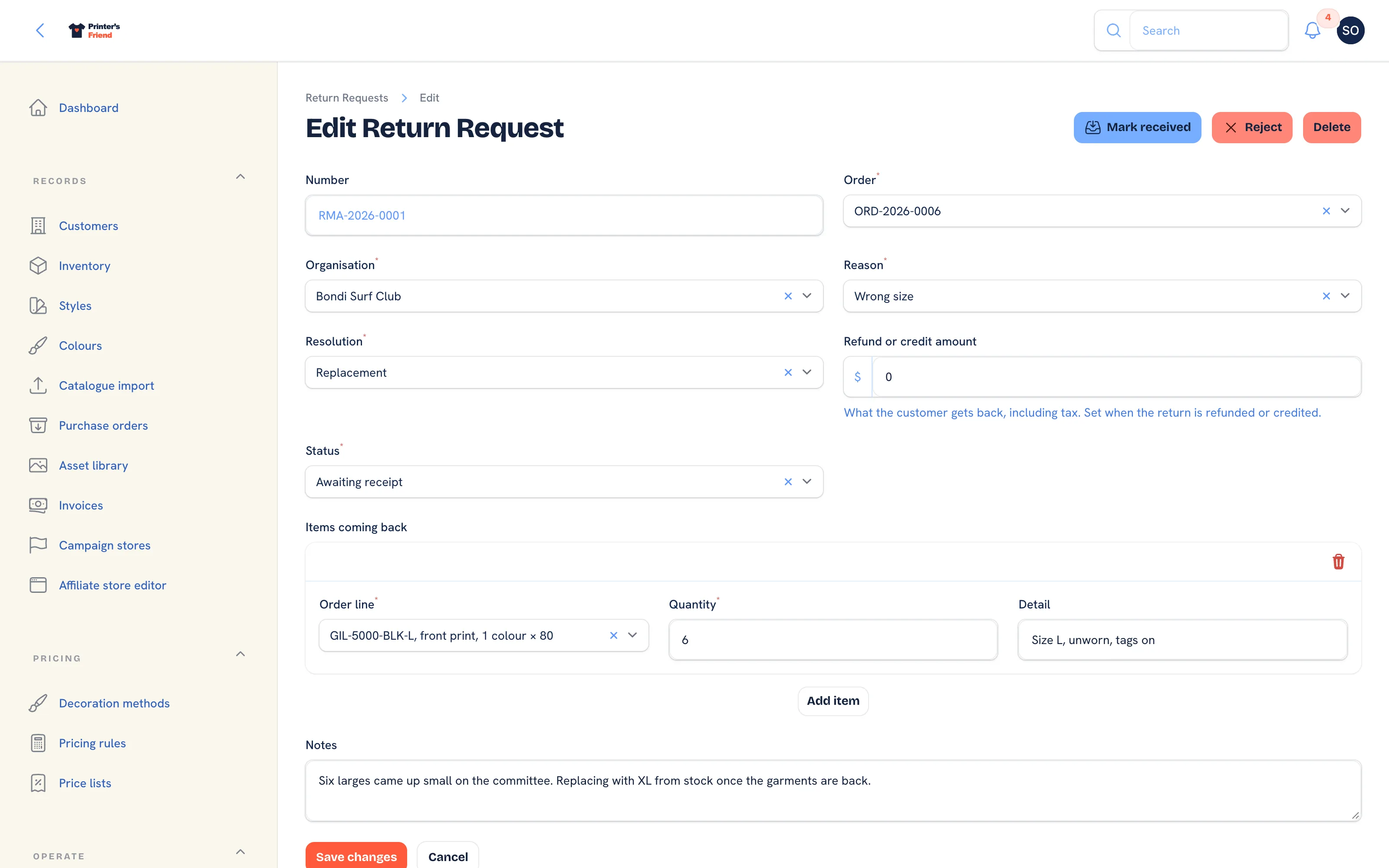 An open return. The actions offered depend on the status.
| Status | Meaning | Actions offered |
|---|---|---|
| Draft | Logged | Mark received, Reject |
| Awaiting receipt | The customer is sending the goods back | Mark received, Reject |
| Received | The goods are back and stock is credited | Issue refund, Issue credit note, Reject |
| Refunded | Money returned | None |
| Credited | A credit note was issued | None |
| Rejected | Declined, with the reason on the notes | None |
Mark Received
- Click Mark received. The dialog reads "Stock on the return lines will be credited back to the shelf."
- Each item whose order line is a stocked SKU is credited back to on hand through the movement ledger, referenced to the return. A custom line with no SKU is received without a stock movement.
- The status becomes Received and the notification reads "Received and stock credited".
Issue Refund
- Click Issue refund.
- Under Payment to refund, pick a payment on the order's invoices. Each option shows what is still refundable, the method and the date, and "card" when it was paid through Stripe.
- Enter the Refund amount. It defaults to the amount on the return and cannot exceed what is still refundable on that payment.
- Submit. A card payment is refunded at Stripe; any other payment is recorded as a manual reversal and you return the money by hand. The status becomes Refunded, the resolution is set to refund and the timeline records how the money went back.
If the order has no payment left to refund, the notification says so and suggests a credit note.
Issue Credit Note
- Click Issue credit note.
- Enter the Credit amount, including tax. It cannot exceed the order total.
- Submit. A credit note invoice is issued for the amount, against the order's invoice, and pushed to a connected ledger as a credit note. The status becomes Credited.
The credit note appears under Records, then Invoices as a negative document. It is never chased and never carries a pay link.
Reject
- Click Reject and answer Why are you rejecting?.
- The status becomes Rejected, the reason is appended to the notes and nothing happens to stock.
Stock That Cannot Be Resold
Mark received credits every stocked item on the return back to the shelf. If a garment comes back misprinted or damaged, write it off afterwards with Adjust stock on the SKU in Inventory, with the reason, or leave that item off the return lines so it is never credited. Restocking a garment you cannot sell makes the count lie.
Replacements
A replacement is a new job. Receive the return, then raise a new quote for the customer and accept it, so the remake carries its own lines, stock reservation and stage history.
Plan requirement
Returns are included on every plan. Pushing credit notes to Xero or QuickBooks needs Premium or Enterprise. See Plans and limits.
Related Pages
- Invoices: invoices, reminders, payments, refunds and credit notes
- Payments and Deposits: deposits before dispatch, pay links, manual payments and refunds
- Inventory: stock with a movement ledger, reorder points and shelf labels
- Accounting: Xero and QuickBooks: push invoices and contacts to Xero or QuickBooks and pull payments back