

Appearance
12. The Customer Portal
The portal is your customers' side of the shop: orders, artwork approval, invoices and payment, the catalogue at their price, a cart, the online designer, messages and their account, all in your brand. It lives at yourshop.printersfriend.com/portal and is included on every plan.
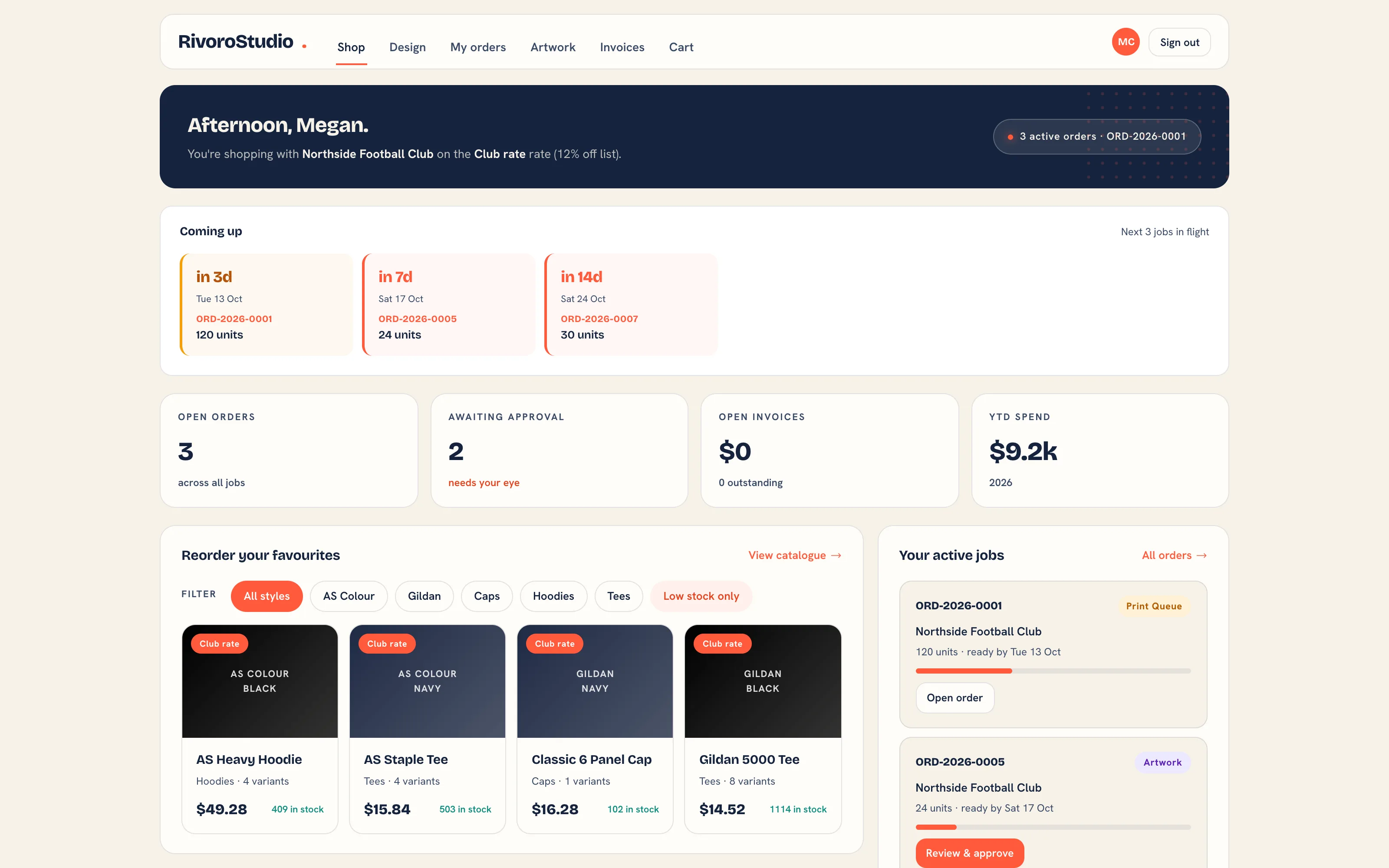 The portal home as a customer sees it, with your name, colour and copy.
Where It Lives
| Page | What it's for |
|---|---|
| Insight, then Brand & portal | Name, accent colour, welcome message, main button and the two visibility switches |
| The customer page, Contacts | Invite to portal on a contact |
| The customer page, Portal users | Every login for that customer: resend the link, deactivate, reactivate |
yourshop.printersfriend.com/portal/login | Where customers sign in |
What Customers Can Do
| Screen | What they do there |
|---|---|
| Home | Open orders, proofs awaiting approval, open invoices, YTD spend and reorder tiles when you show them |
| Orders | Every order with its stage and tracking, and Reorder, which sends you a quote to confirm |
| Artwork | Review a proof, Approve it, or Request change with a note |
| Invoices | View, download the PDF, and Pay through the Stripe pay link when Stripe is connected |
| Catalogue and cart | Your range at their price list rate, a cart with a coupon field, and checkout that lands a quote with you |
| Designer and designs | Text, shape and image layers on a garment preview, saved to a quote |
| Messages | A conversation with your shop |
| Wishlist | Styles saved for later |
| Account | Their name and password |
| Data and privacy | Export their own data or ask for deletion |
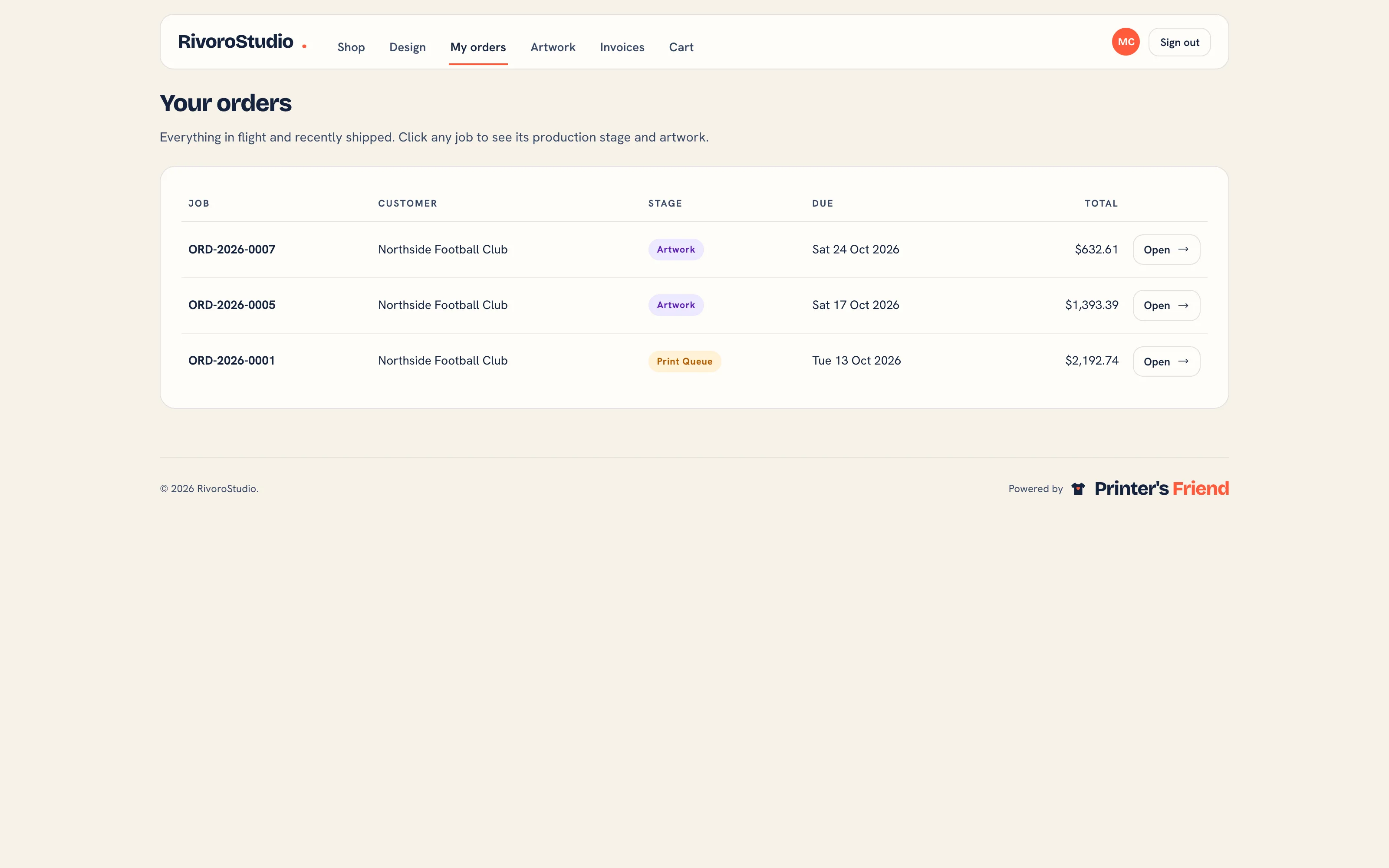 Orders in the portal.
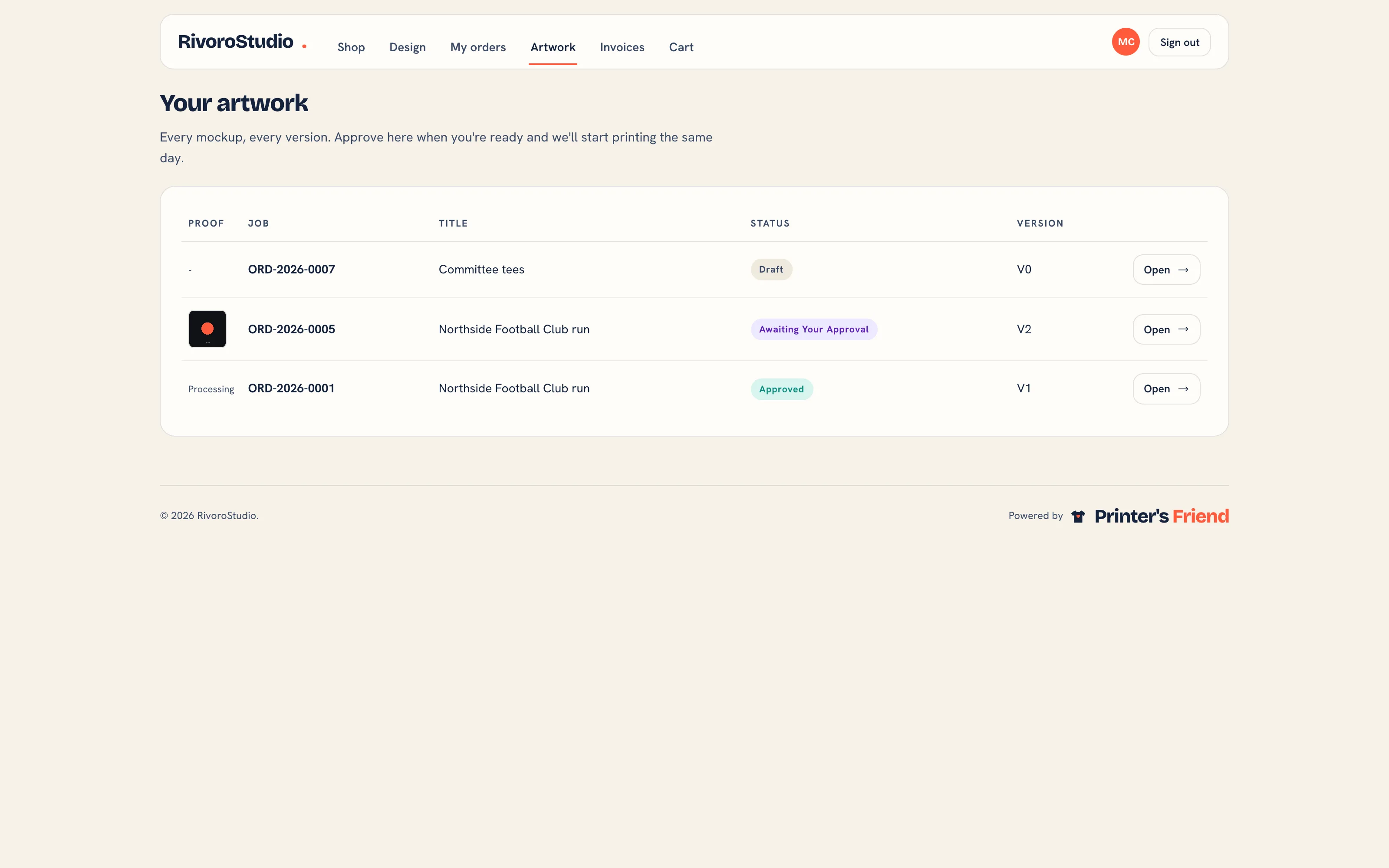 Artwork in the portal. Each proof shows its status, Draft, Awaiting Your Approval or Approved, and opens with Open.
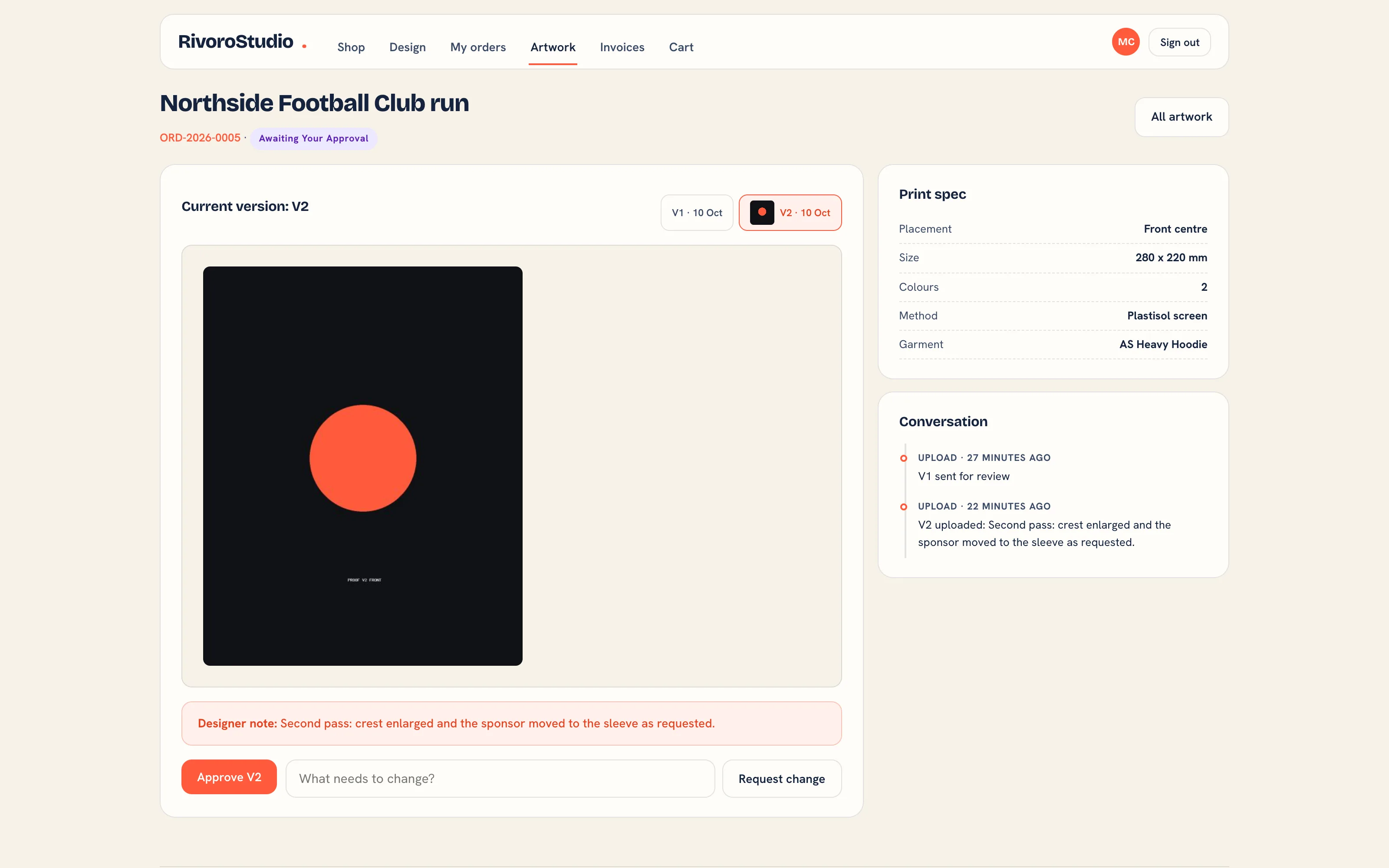 A proof in the portal. Approval moves the order to the print queue.
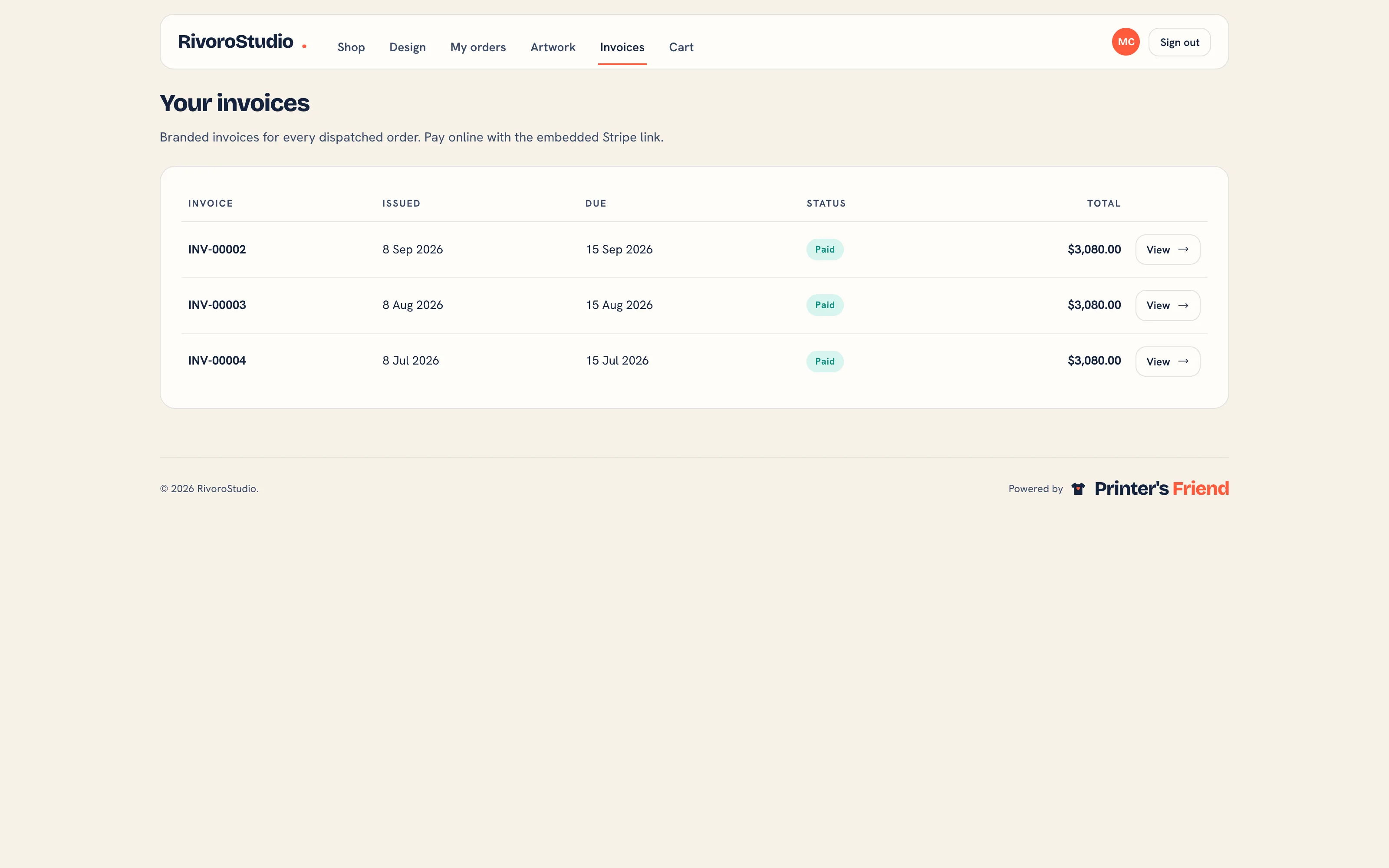 Invoices in the portal. View opens the invoice with its PDF and, while it is unpaid, the Stripe pay link when your Stripe account is connected.
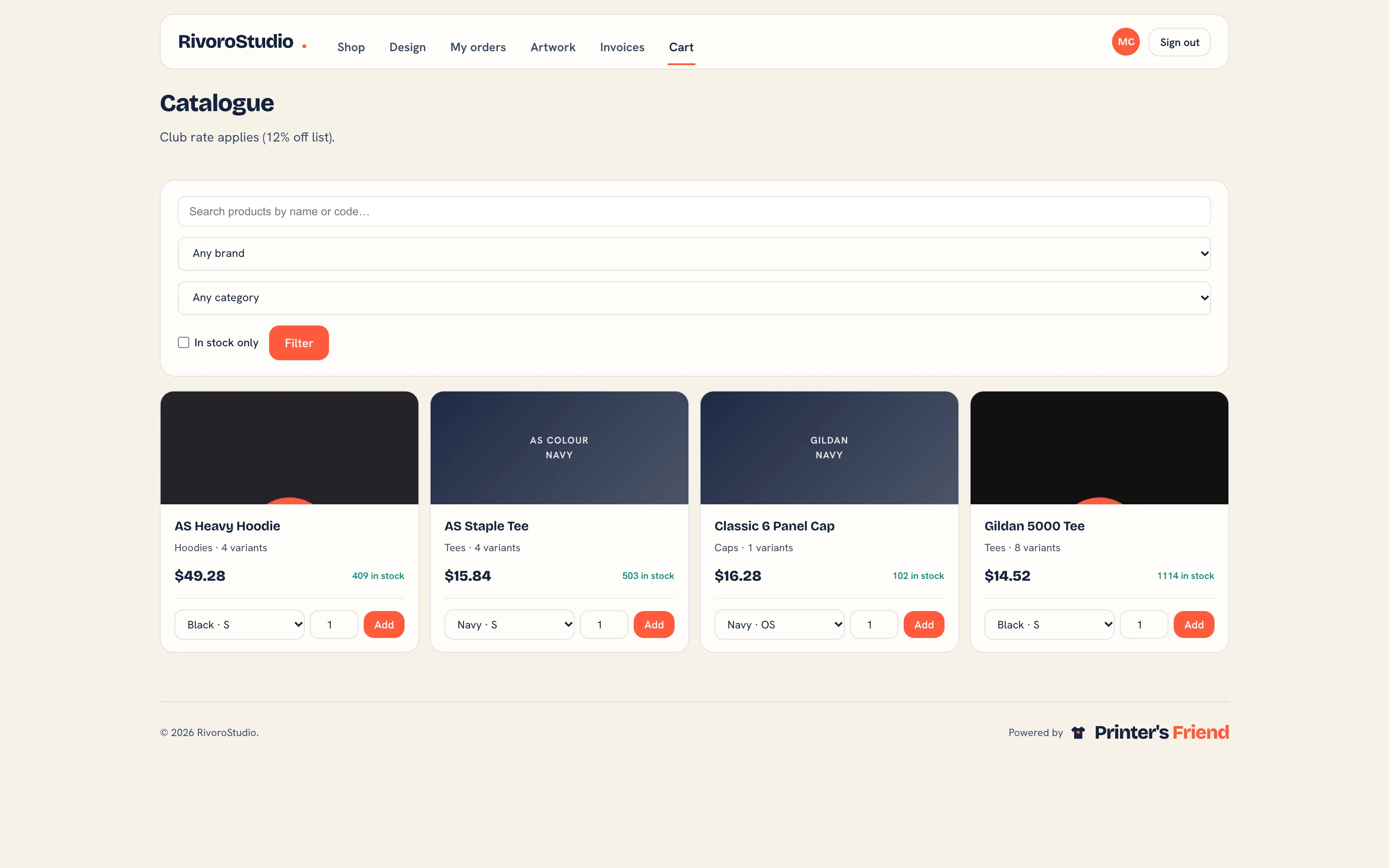 The catalogue at the customer's price list rate.
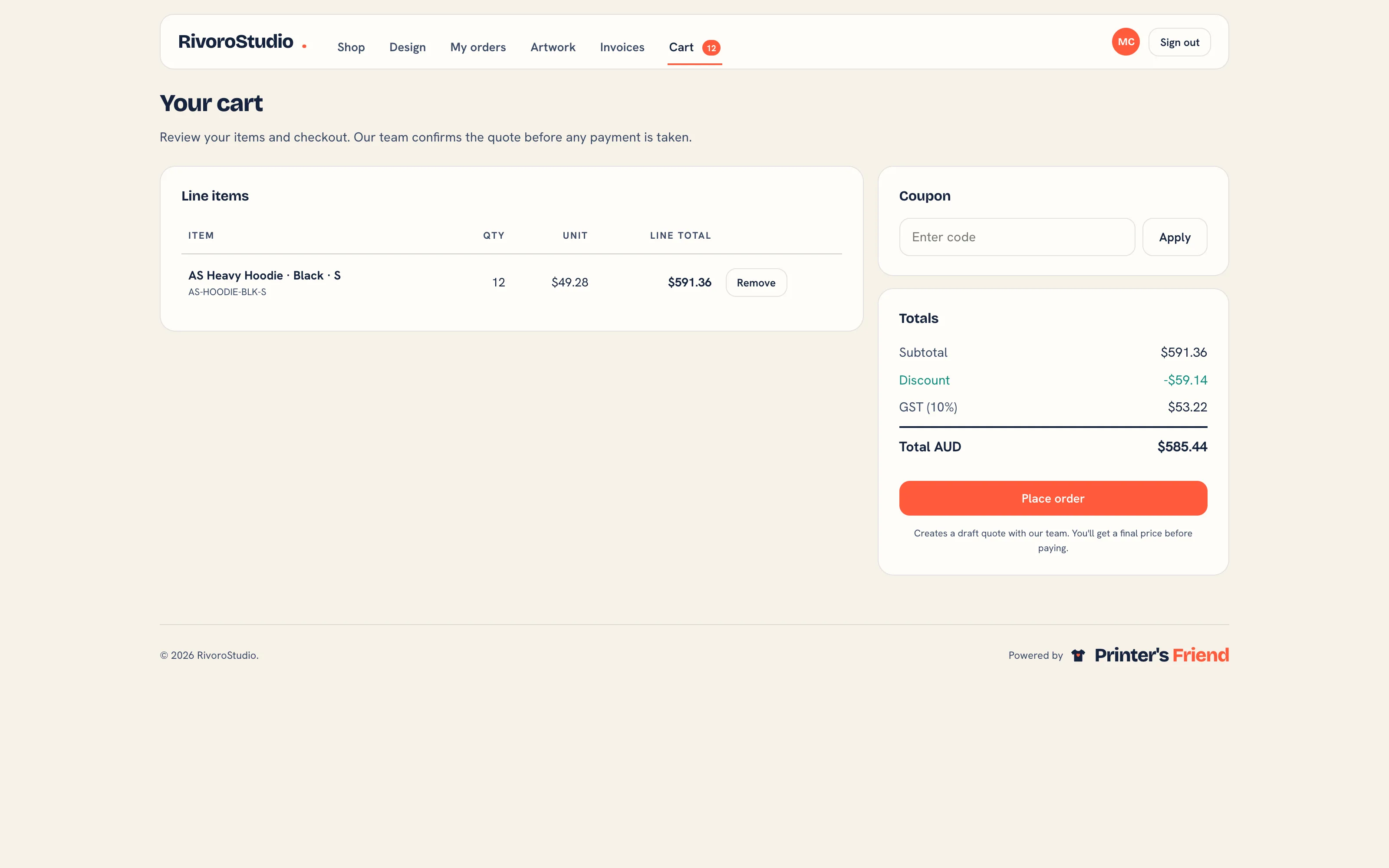 The cart. Checkout creates a quote in your workspace.
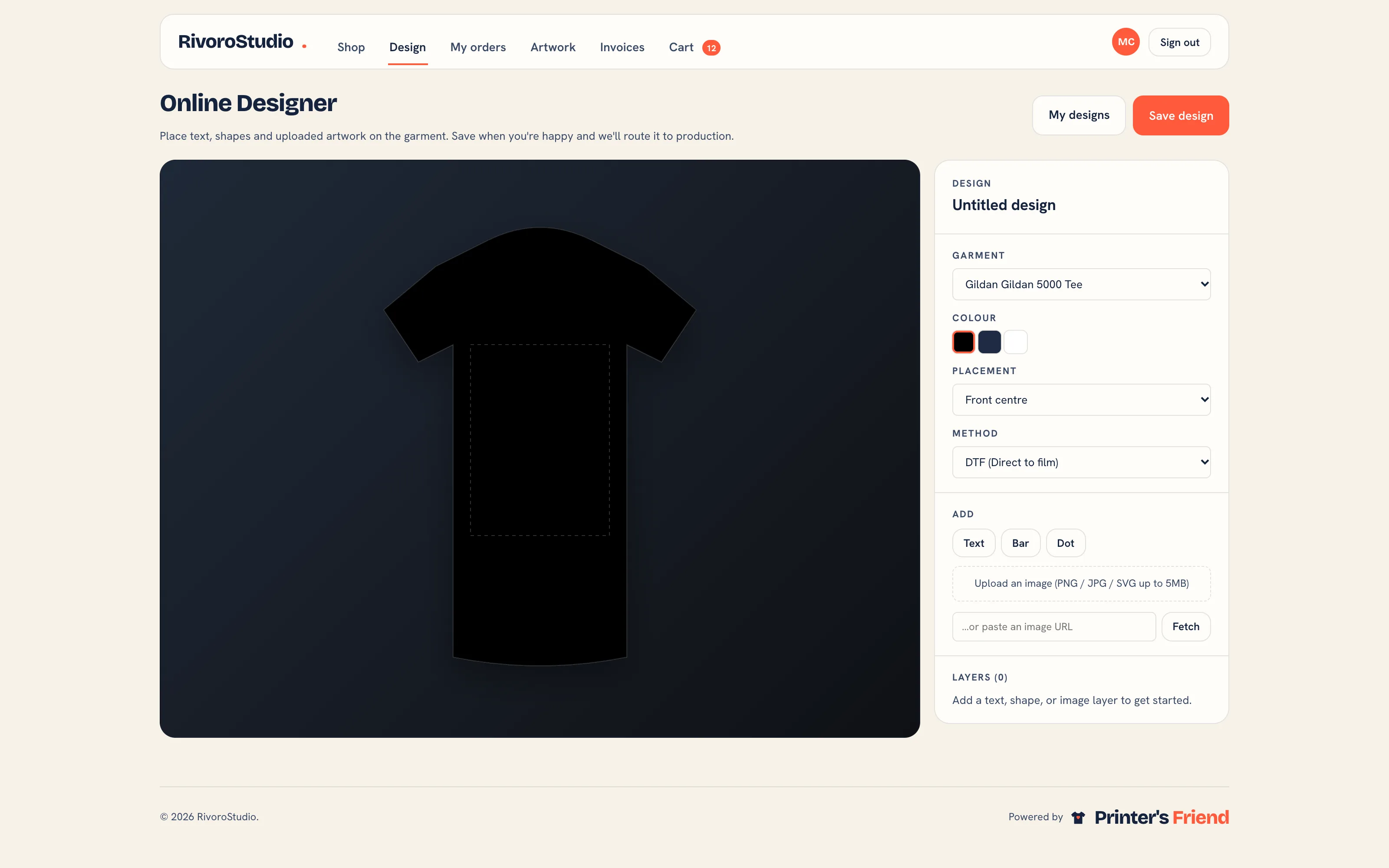 The online designer.
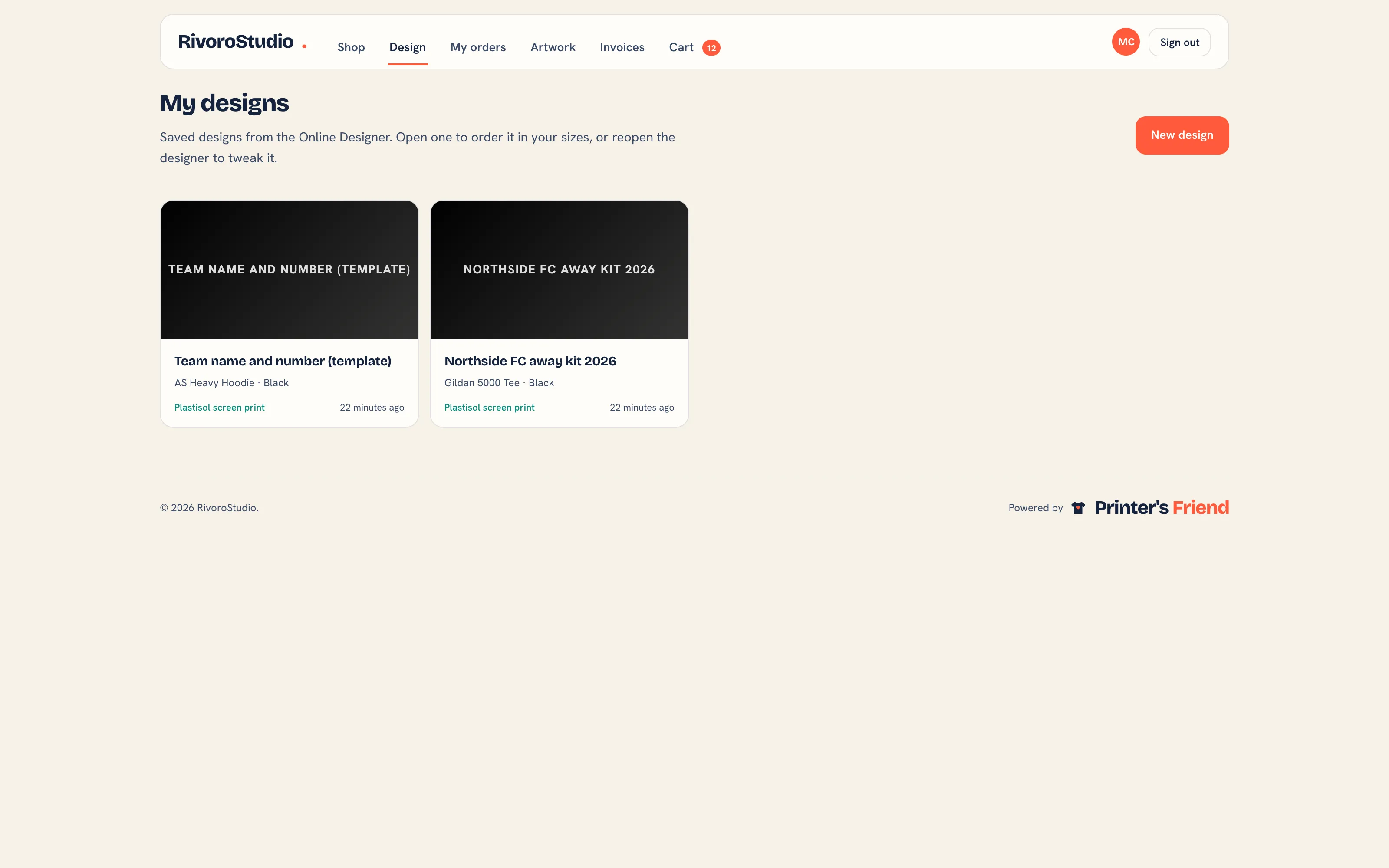 Saved designs. A customer opens one to order it in their sizes, or reopens the designer to change it.
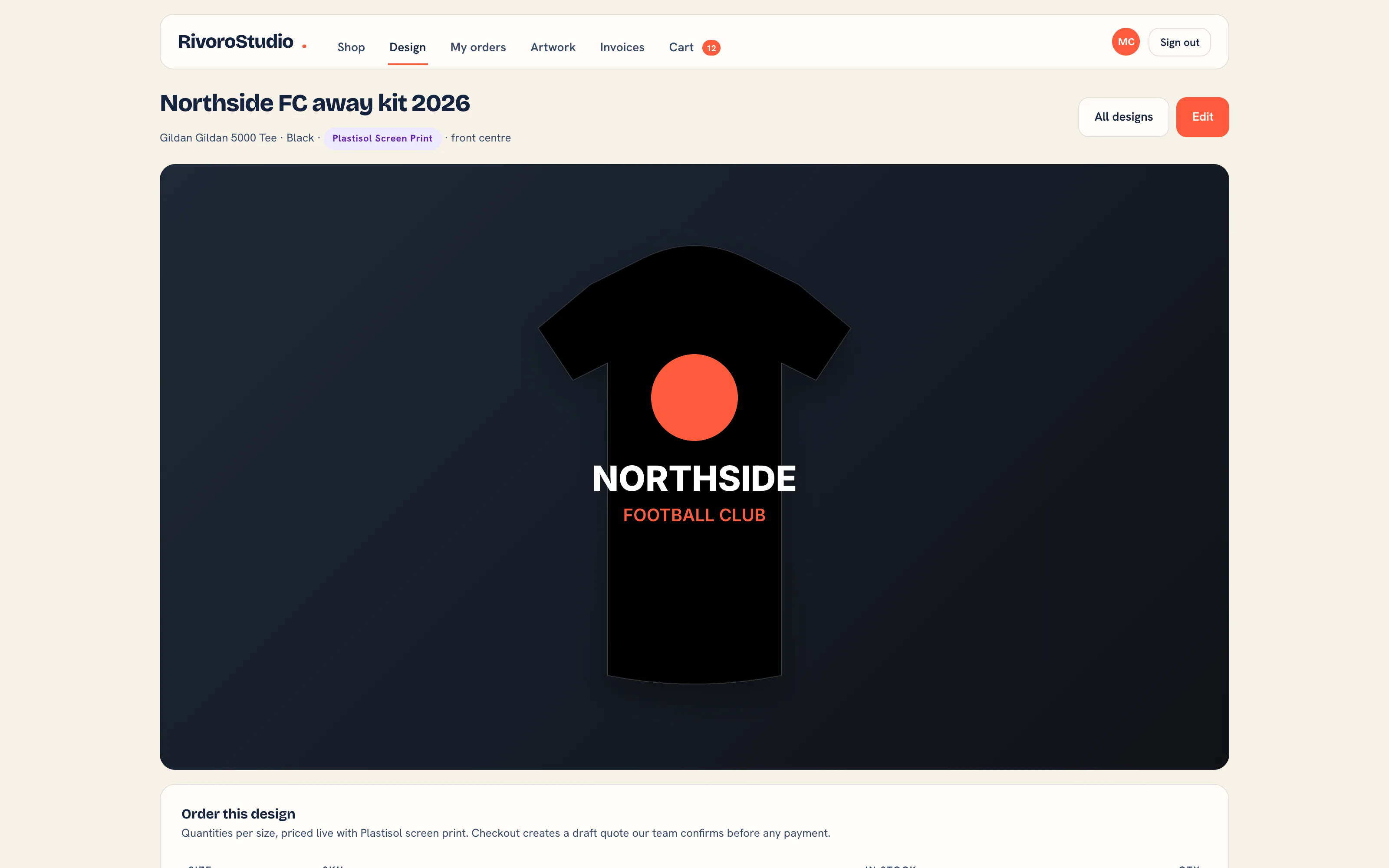 A saved design with its mockup. Order this design takes quantities per size, and checkout lands a draft quote with you.
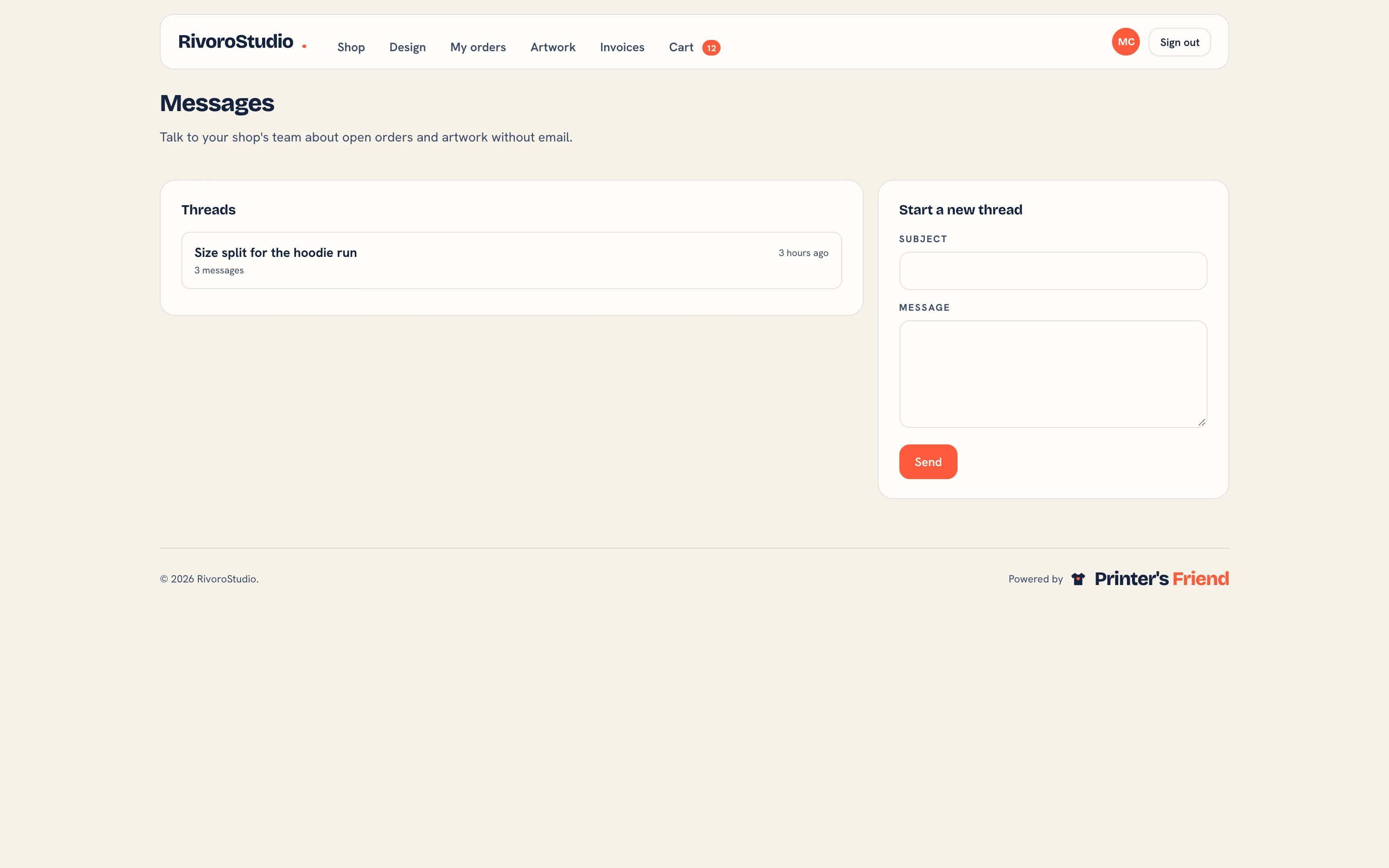 Messages with the shop.
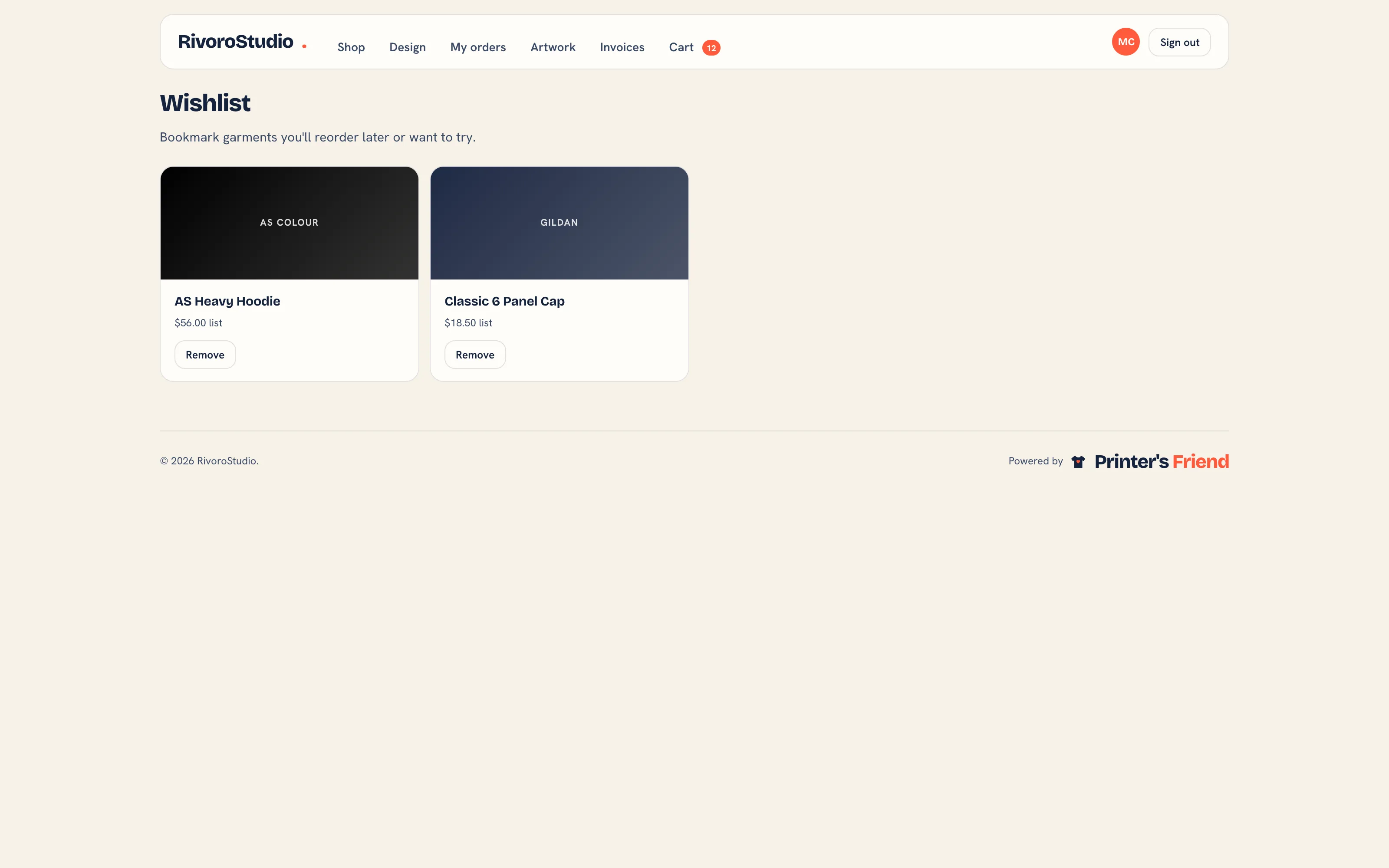 The wishlist: garments saved for later, each with its list price.
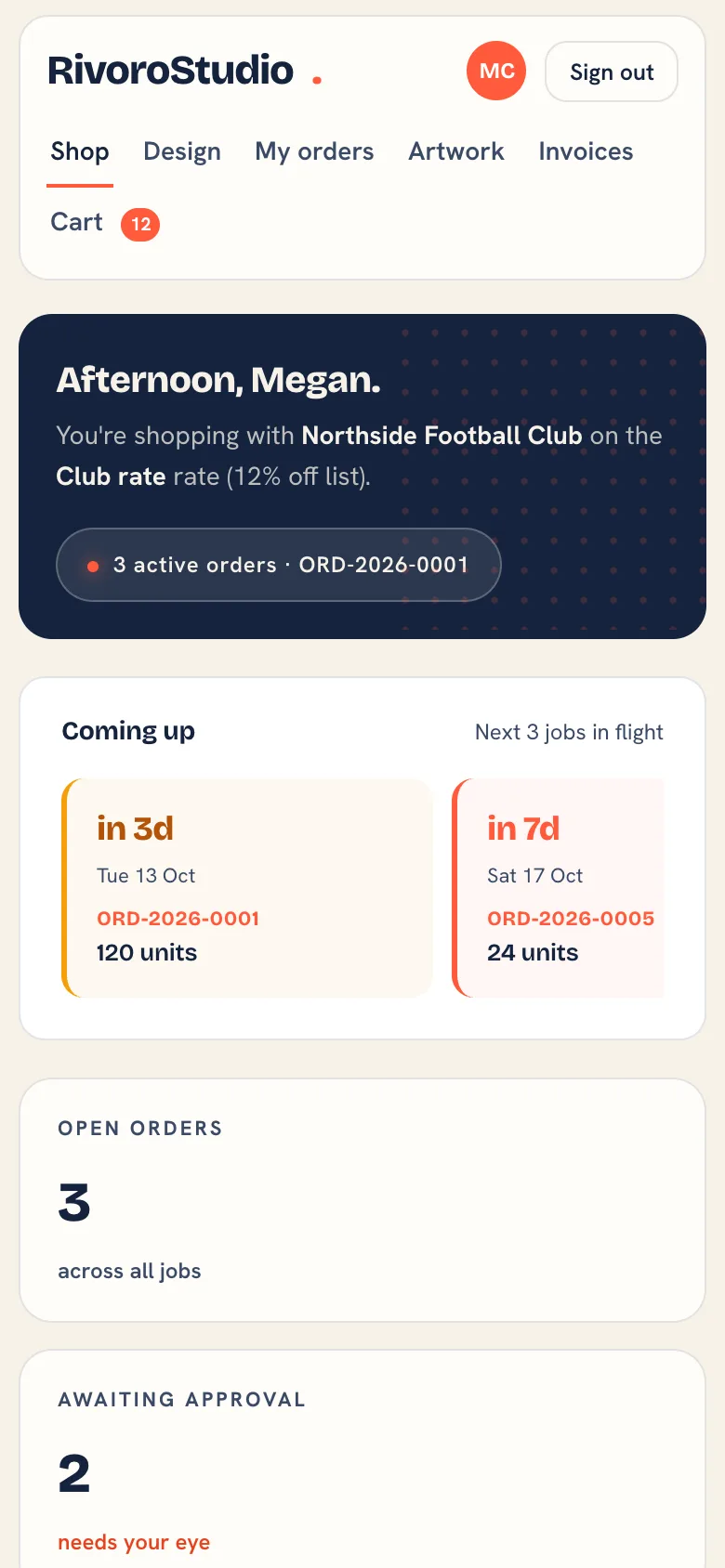 The portal on a phone. The layout stacks below 640 px.
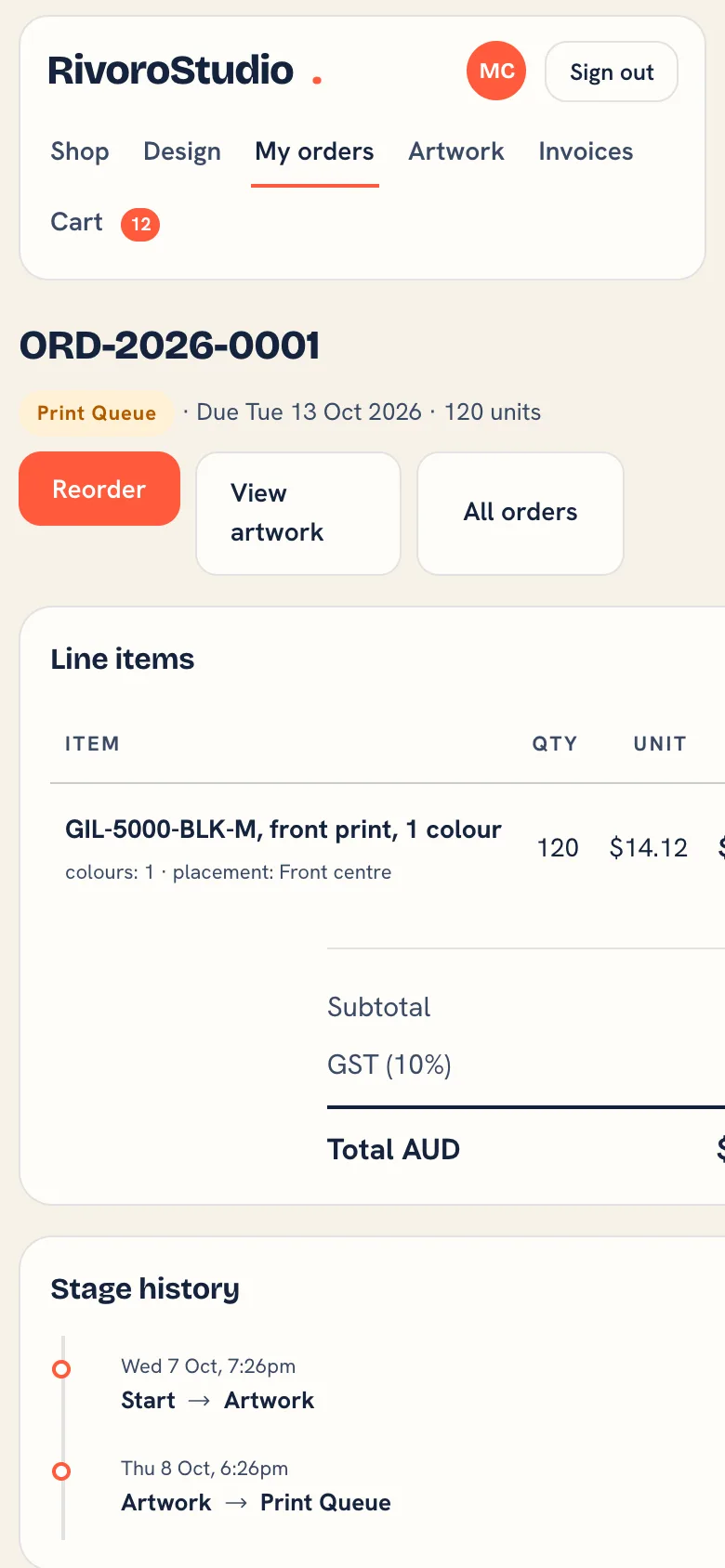 An order on a phone, with Reorder, View artwork and the stage history.
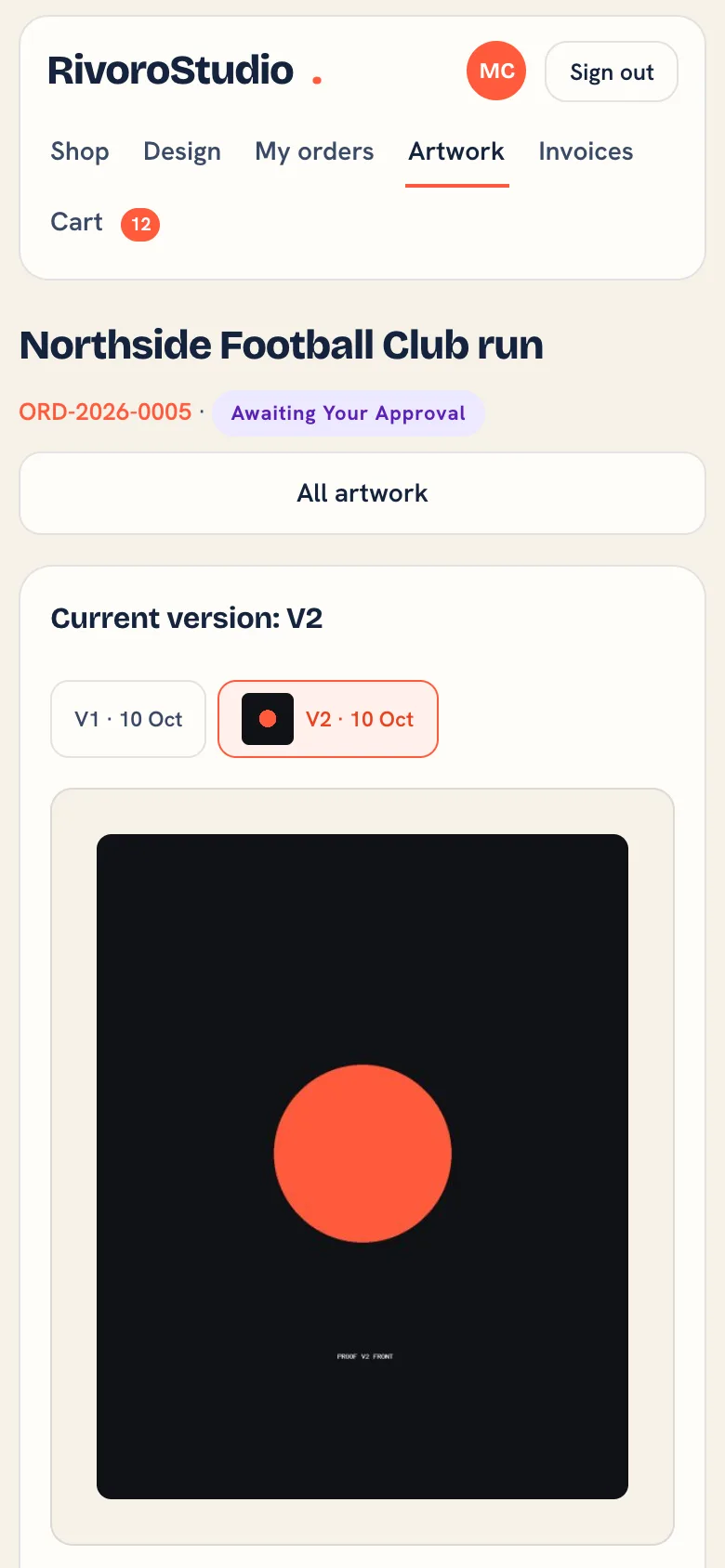 A proof on a phone. The version chips switch between V1 and V2 above the preview.
Configuring It
Everything customer-facing about the portal is set on Brand and portal: the shop name, accent colour and location, the Welcome message, the Primary CTA label, and the Show YTD spend and Show reorder favourites switches. Prices customers see come from their price list.
Inviting a Customer
A portal login is created from a contact, never typed in on its own, so every login belongs to a real person on the customer record and to exactly one customer.
- Records, then Customers, open the customer.
- Under Contacts, make sure the person has an Email. Add or edit the contact if not.
- Press Invite to portal on the contact's row and read the confirmation: a login is created for that address and they receive an email with a link to set their password. Press Send invite.
- The notice confirms the invite. The set-password link is valid for 60 minutes; the email tells the customer to use Forgot password on the portal sign-in page if it has expired.
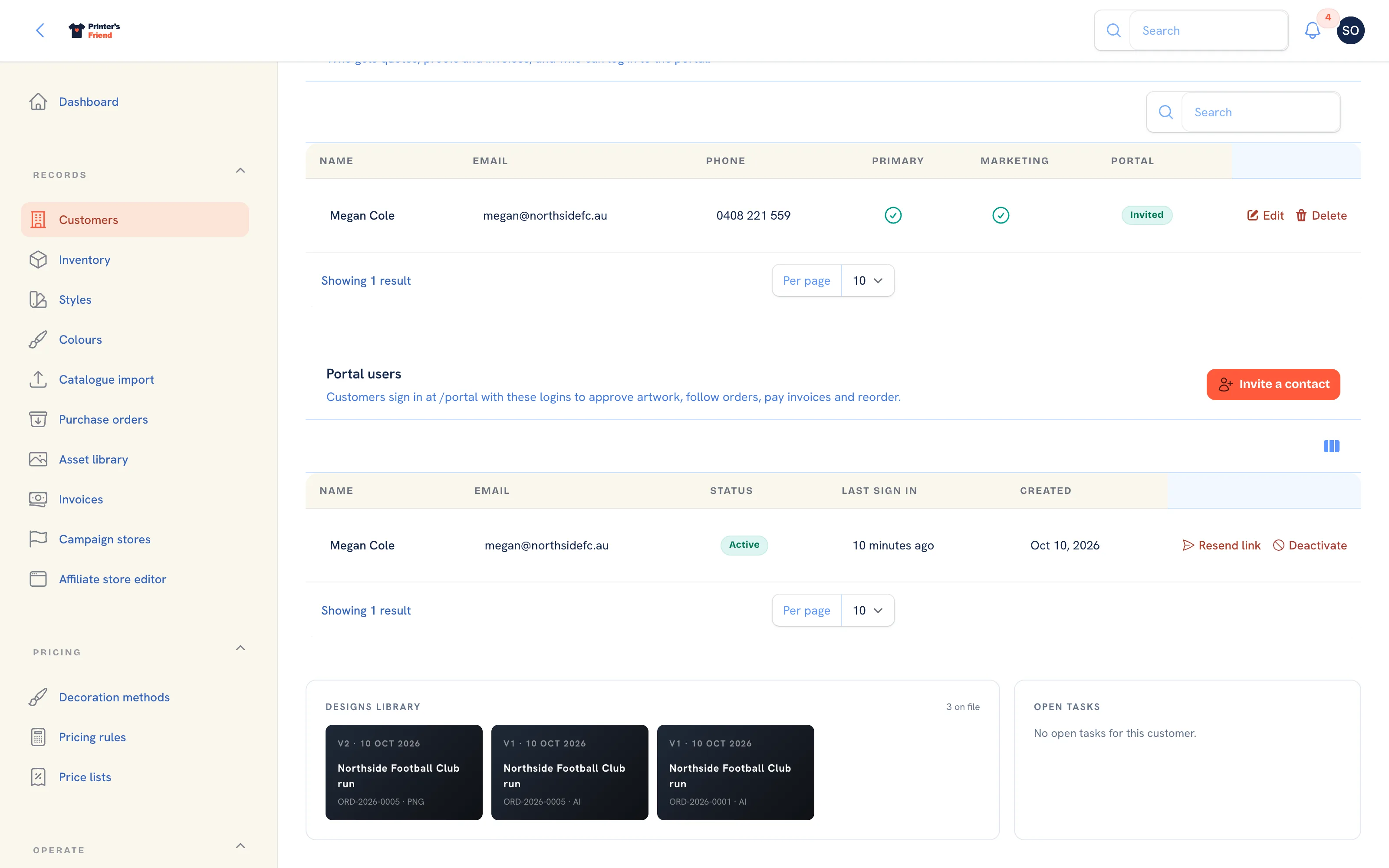 Invite to portal on a contact, and the portal users below it.
The Portal users section lists the login with Active or Deactivated, the last sign-in and the actions Resend link, Deactivate and Reactivate. Invite a contact in its header picks from contacts with an email and no active login.
An email that already has a portal login with another customer is refused, because a login belongs to one customer. A contact without an email cannot be invited.
Start with your three best trade accounts
Pick the customers who email you most, invite one contact each, and watch the reorder and approval flows. Those are the ones that save you the most time.
Signing In
Customers sign in at yourshop.printersfriend.com/portal/login. From printersfriend.com, the Sign in page offers I am a shop's customer and asks for your shop's address. Forgot password on the portal sign-in page emails a fresh link.
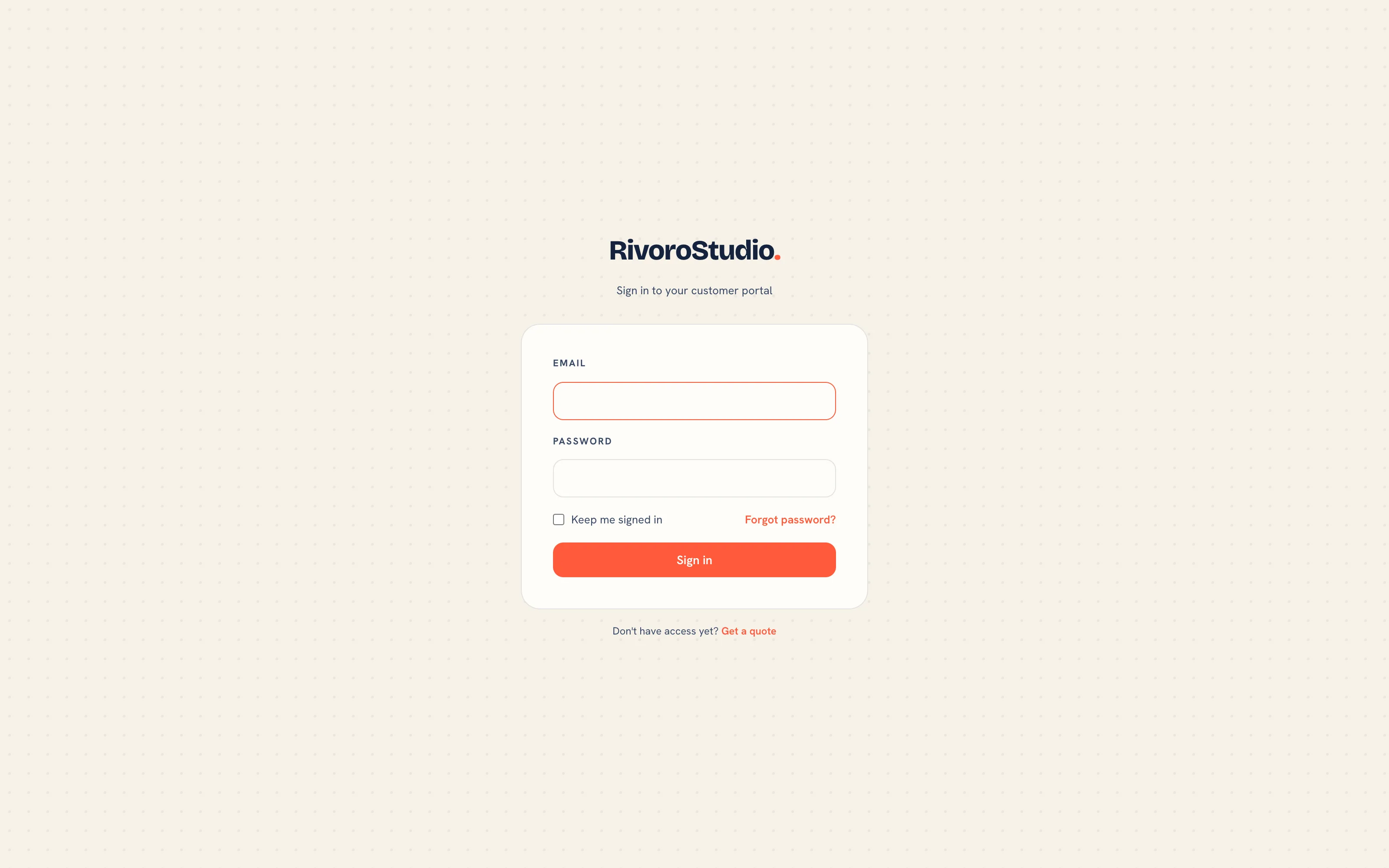 Portal sign-in on your workspace address.
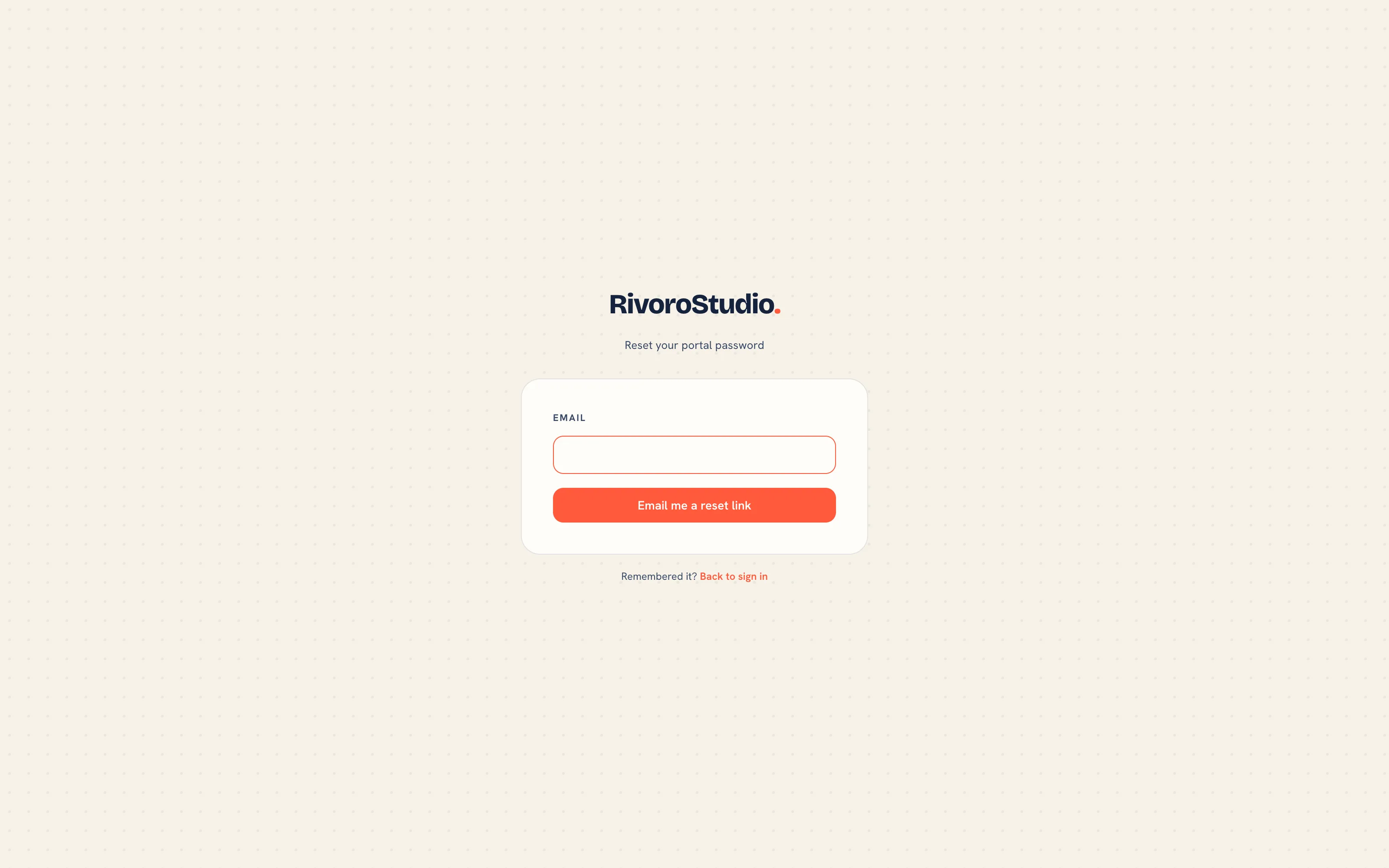 Forgot password in the portal.
What a Customer Can and Cannot See
| Can see | |
|---|---|
| Their own orders, artwork, invoices, designs and messages | Yes |
| Their price list rate | Yes |
| Another customer's records | No |
| Your costs, margins or supplier prices | No |
| Your internal notes on their record | No |
A portal user requesting another customer's invoice by its id gets a 404. The portal carries a noindex header, so nothing in it reaches a search engine.
Data Requests
The portal's Data and privacy page lets a customer export their own data or request deletion. A deletion request notifies the owner and the privacy address. See Data, privacy and GDPR.
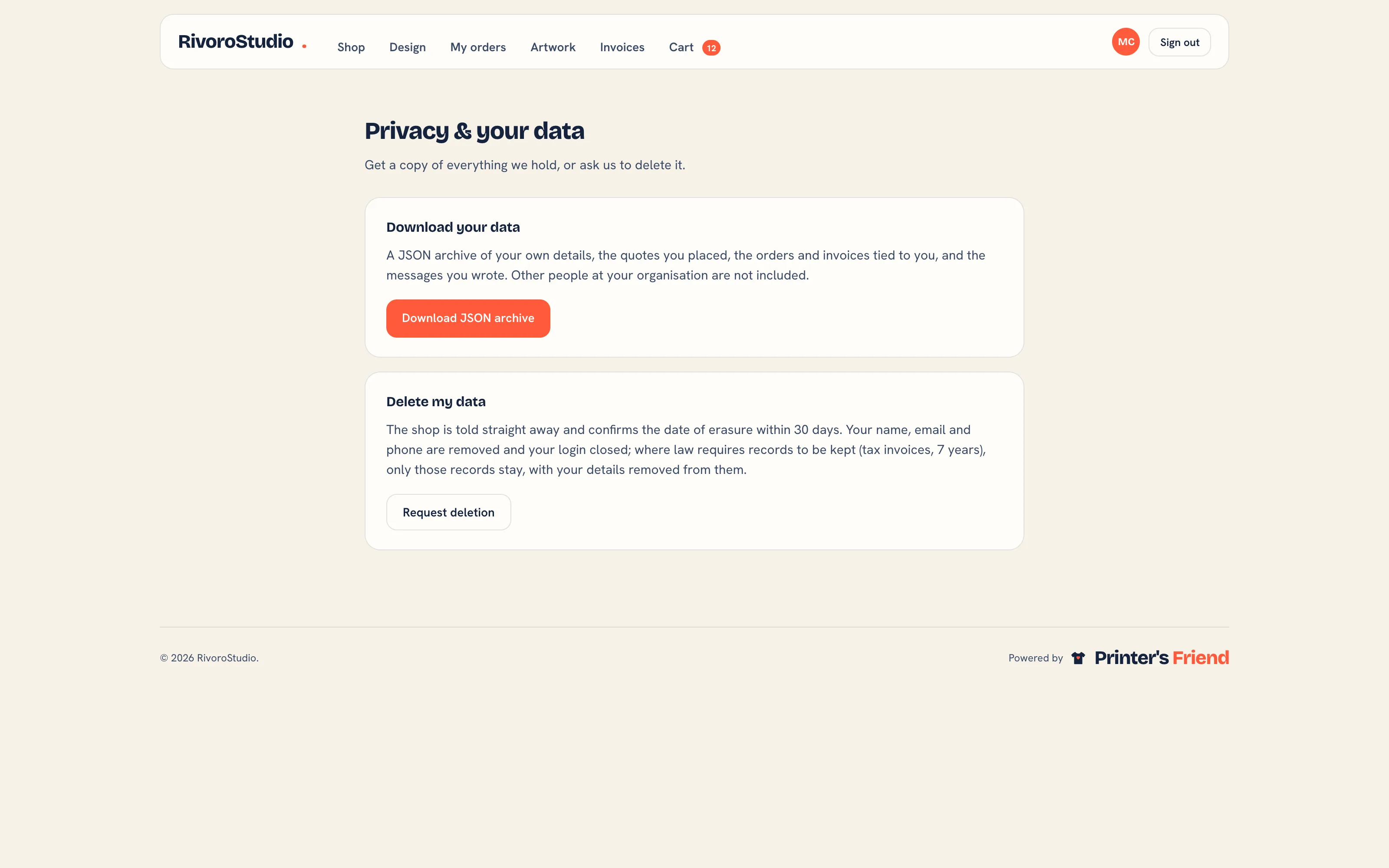 Data and privacy in the portal.