

Appearance
8. Production Workflow Stages
An order's stage is the column it sits in on the production board and the state the floor screens, the scan page and the order's Advance to button move it through. There are five, in a fixed order, and most of the product is tuned around them.
Where It Lives
| Page | What it's for |
|---|---|
| Operate, then Production | The board: every open order by stage, with drag and a Move action |
| Operate, then Orders, the order page | Advance to the next stage, or Move to any stage on the edit page |
/workspace/scan | Advance a job by scanning its worksheet barcode |
| Insight, then Workflow stages | A settings page for stage codes and labels |
The Five Stages
| Code | Label on the board | What it means, and what entering it does |
|---|---|---|
artwork | Artwork | A quote was accepted. The design is being prepared, proofed or waiting on the customer |
print_queue | Print queue | Approved and scheduled. Approving a proof moves the order here, and the print queue SMS goes out |
in_production | In production | On the press. Entering it consumes the reserved stock and writes the movement to the ledger |
qc_pack | QC + Pack | Printed, being checked and packed |
dispatched | Dispatched | Gone. Entering it sends the dispatch email and SMS, issues the balance invoice, closes the job and notifies webhook subscribers |
A cancelled order leaves the board and releases its reserved stock. Cancelling is its own action, Cancel order on the order page, never a stage move.
The floor board shows the first four stages, labelled Artwork, Print queue, On the press and QC + pack. The operator stations are fixed to stages: the printer board shows Print queue and In production, the packer board QC + Pack, and the QC board In production and QC + Pack.
The Workflow Stages Page
Insight, then Workflow stages lists the five stages as rows of code and label, with + Add stage, Remove and Save in the header.
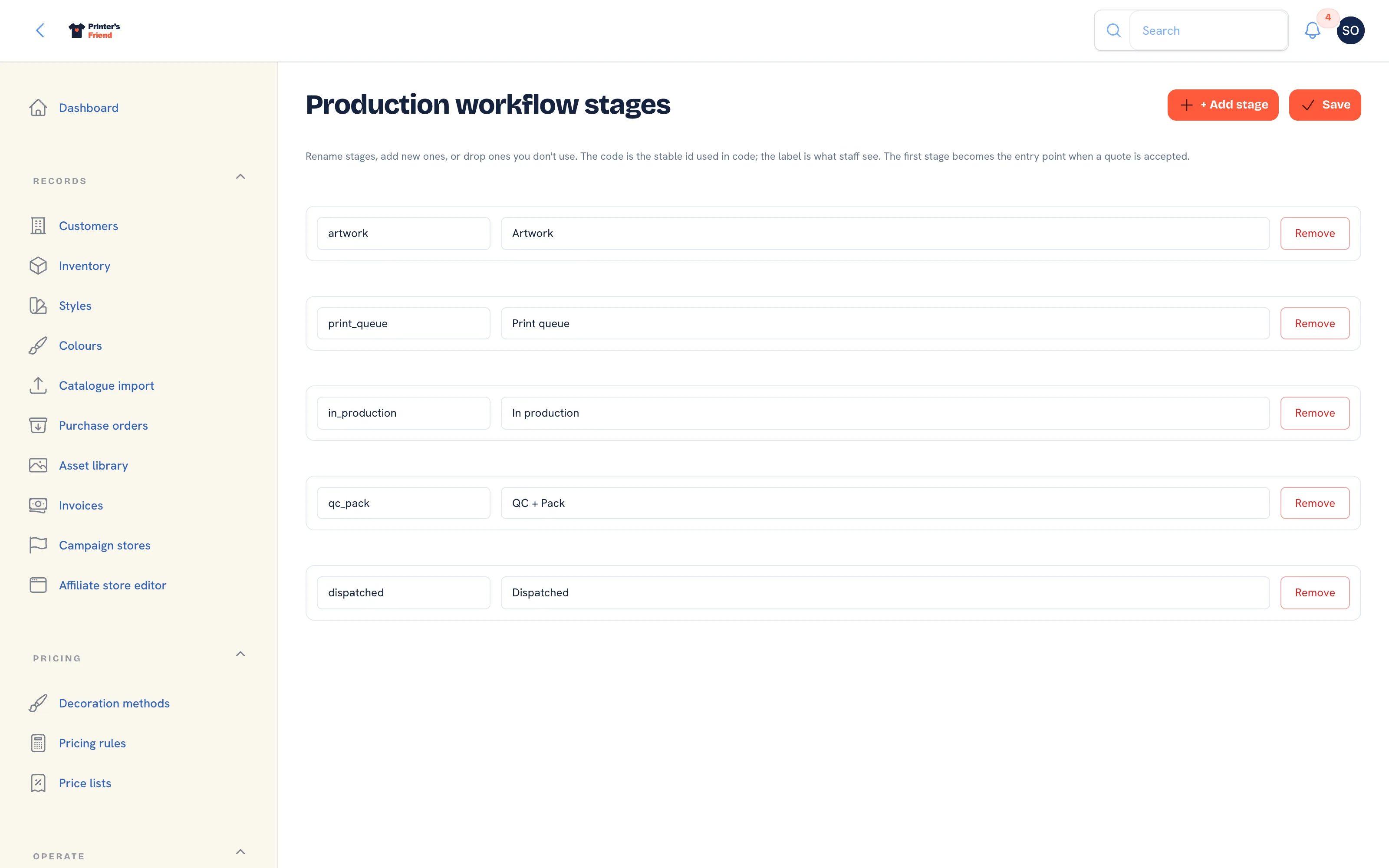 The Workflow stages page.
The boards use the built-in stages
The list you save here is stored with your workspace settings. The production board, the floor board, the station boards, the scan page and the order screens use the five built-in stages and their built-in names, so a renamed label or an added row does not change what staff see on those screens. Leave this page as it is unless you have been told otherwise.
Stage Moves That Are Refused
A move is refused with a message, never a blank error, when the order is cancelled, when the stock ledger cannot release what the job held, or when the stage is unknown. A move backwards is allowed from the order's edit page and the board's Move action; it does not undo what entering the stage did, so stock consumed on the way into production stays consumed.