

Appearance
Payments and Deposits
Money on an order is handled from two places: Issue invoice on the order raises the invoice, and the invoice page records what arrives against it. Card payments through the Stripe link record themselves; everything else is recorded by hand.
Where It Lives
| Page | What it's for |
|---|---|
| The order page, Issue invoice | Raise the full invoice or a deposit before dispatch |
| The invoice page, Record manual payment | Bank transfer, cash, cheque, EFTPOS or a Stripe payment keyed by hand |
| The invoice page, Refund payment | Refund a recorded payment in full or part |
| The invoice page, Payment panel | The Stripe pay link and its expiry |
| The customer record, Payment terms | The terms the due date is computed from |
| Returns | Refunds and credit notes for goods coming back |
Payment Terms
Each customer has Payment terms on their record: Net 7 (the default), Net 14, Net 30, Net 60, End of month or Cash on delivery. Every invoice for that customer takes its due date from the terms on the day it is issued: net terms count days from issue, end of month is the last day of the issue month, and cash on delivery is due the day it is issued. Set them under Records, then Customers, Edit.
Taking a Deposit
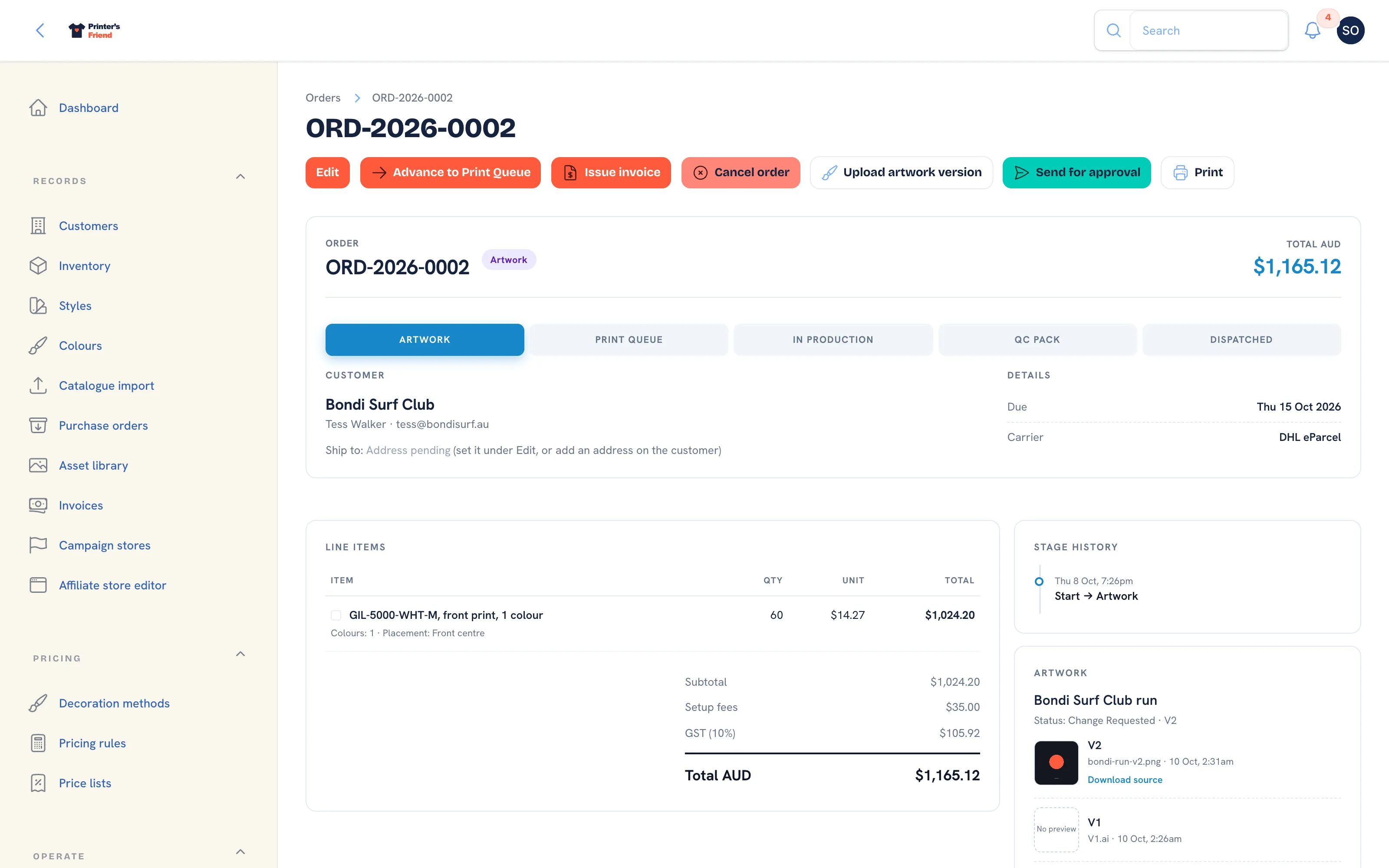 Issue invoice is available on any order that is not cancelled and not yet invoiced in full.
- Open the order and click Issue invoice.
- Under Invoice, choose Deposit now, balance at dispatch.
- Enter Deposit (% of the ex-tax total). The default is 50; any whole number from 1 to 99 is accepted.
- Confirm the dialog. The notification reads "Deposit invoice INV-00012 issued for" followed by the amount.
The deposit invoice carries one line, "Deposit (50%) on order ORD-2026-0031", with the same share of the tax, so the deposit and the balance add up to the order exactly. It is emailed to the customer with a pay link where Stripe is connected, and reminders run on it like any invoice.
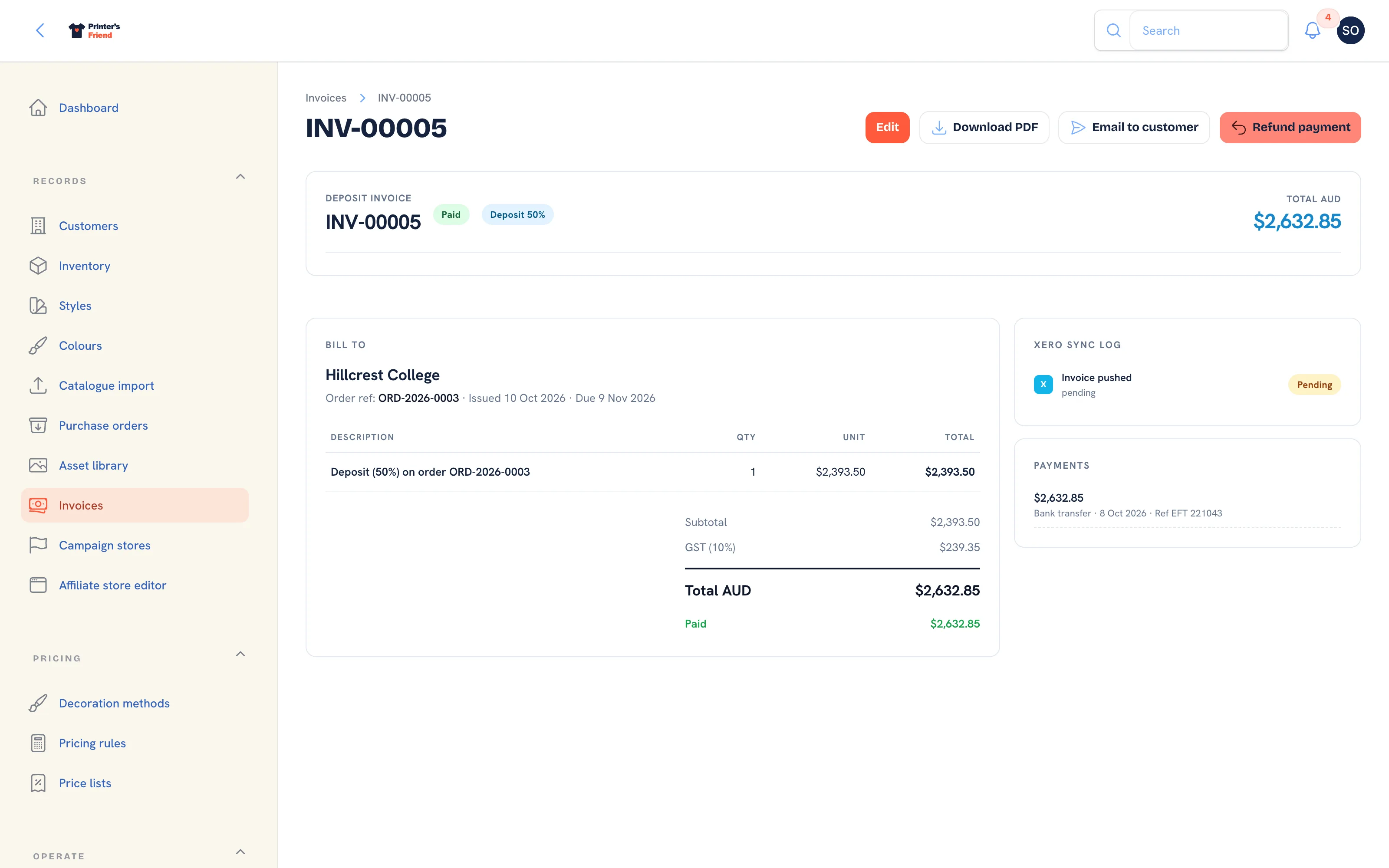 A paid deposit. The Deposit pill shows the percentage.
When the order is dispatched, the balance invoice is raised on its own: the order's lines, then a line "Less deposit invoiced: INV-00012", then the balance. To raise the balance before dispatch, click Issue balance invoice on the order. Once the order is invoiced in full the button disappears and dispatch raises nothing.
Choosing Full amount now instead raises the whole order as one invoice before dispatch, and dispatch raises nothing further.
The Stripe Pay Link
When an invoice is issued and your Stripe account is connected, a hosted payment link is created before the invoice email leaves, so the email reads "Pay online:" followed by the link. The invoice page shows Pay now with Stripe with the link's expiry while the invoice is unpaid, and the customer portal shows the same button.
- With Stripe Connect, the link is a Stripe Checkout session that lasts 24 hours. It is renewed whenever the customer opens the invoice in the portal, so a link in an old email still lands somewhere payable.
- With your own Stripe keys, the link is a Stripe Payment Link that lasts 30 days.
A card payment is recorded on the invoice when Stripe reports it to your workspace, through the webhook endpoint shown on the Stripe card under Integrations. The payment appears in the Payments panel with the Stripe method, and the invoice becomes Paid when the total is covered. A refund made in your Stripe dashboard is recorded the same way, and a dispute marks the invoice Disputed with a note on the timeline to respond in Stripe before the deadline.
Register the webhook
Without the Stripe webhook registered, card payments are taken but never land on the invoice, and paid customers are chased. The endpoint URL and the events to register are on the Stripe card under Integrations.
Recording a Manual Payment
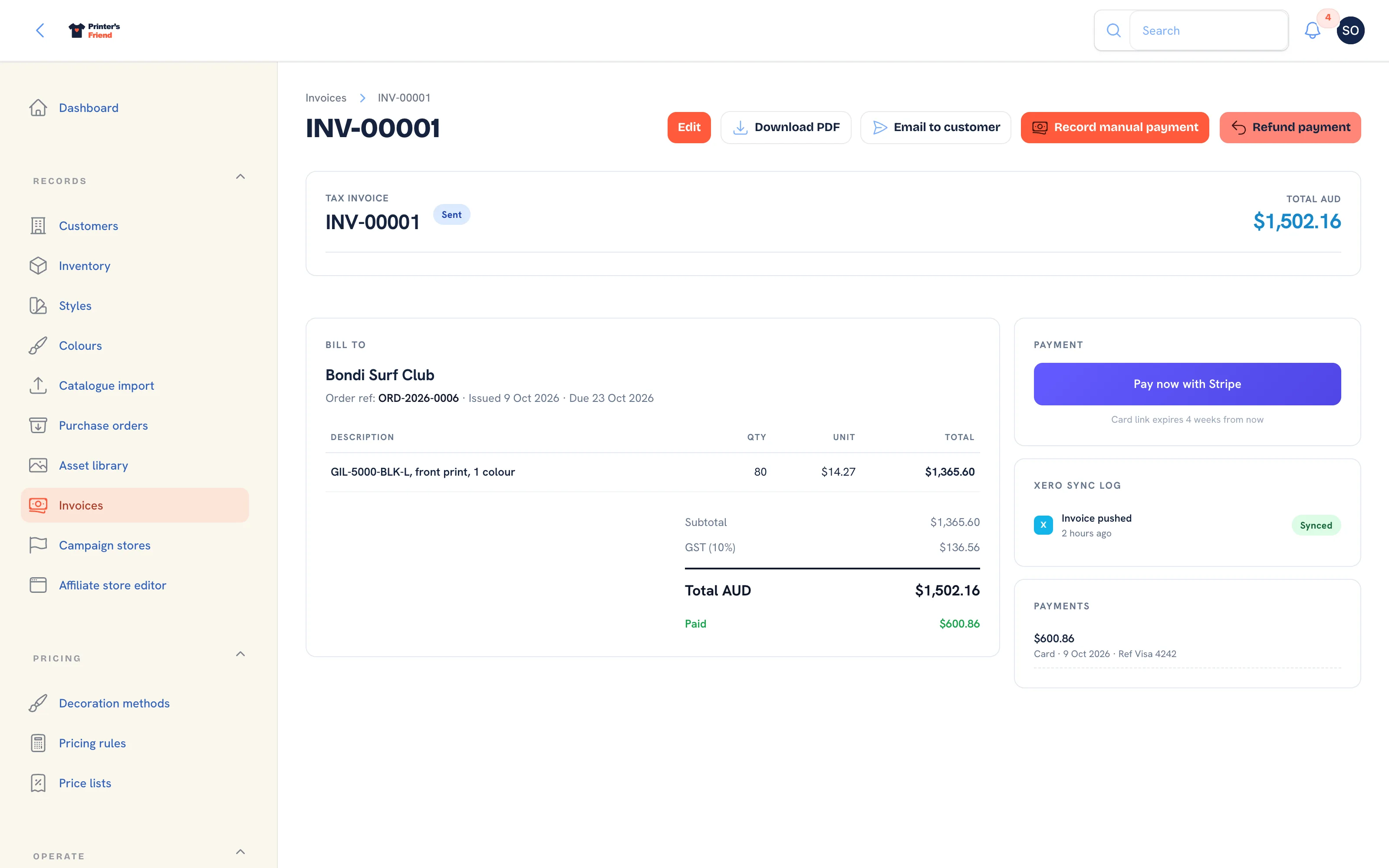 A part payment. The remaining balance is offered as the default amount for the next one.
- Open the invoice and click Record manual payment. The button is offered while the invoice is unpaid.
- Amount defaults to the remaining balance. Change it for a part payment.
- Pick the Method: Bank transfer, Cash, Cheque, EFTPOS / in-person card or Stripe (manual entry).
- Type the Reference / receipt, such as the bank reference on your statement, and set Received on to the day the money arrived.
- Click Submit. The notification reads "Payment recorded" with the amount.
The payment appears in the Payments panel with its method, date and reference, Paid shows under the totals, and the status becomes Paid once payments cover the total. A connected Xero or QuickBooks is told about the payment. Recording the money that arrives outside Stripe is what keeps the dashboard's cash flow and the reminders honest: an invoice whose payments cover its total is never chased.
Refunding a Payment
- Open the invoice and click Refund payment. The button is offered while a payment has something left to refund.
- Under Payment to refund, pick the payment. Each option shows the amount still refundable, the method and the date; a payment already refunded in full is not listed.
- Enter the Refund amount, or leave it blank to refund everything still refundable on that payment.
- Confirm the dialog. The notification reads "Refund recorded".
A card payment is refunded at Stripe and recorded as a negative row against the payment. Any other payment is recorded as a reversal, and you return the money by hand. A refund cannot exceed what is still refundable on the payment, and a refund that takes the payments below the invoice total puts the invoice back to Sent. Each refund appears in the Payments panel as a "Refund" row.
For goods coming back, raise a return instead. It handles the stock credit, the refund or the credit note, and keeps the reason on record.
What Each Document Means
| Document | What it is |
|---|---|
| Invoice | The whole order, raised at dispatch or with Full amount now |
| Deposit invoice | A percentage of the ex-tax total, raised before dispatch |
| Balance invoice | The order less the deposit, raised at dispatch or with Issue balance invoice |
| Credit note | A negative document for money you owe the customer, raised from a return. Never chased, never pay-linked |
Plan requirement
Stripe pay links need your own Stripe account connected under Integrations and are available on every plan. Pushing payments to Xero or QuickBooks needs Premium or Enterprise. See Plans and limits.
Related Pages
- Invoices: invoices, reminders, payments, refunds and credit notes
- Stripe: connect your Stripe account so invoices carry a pay link
- Returns: goods coming back: receive, refund, credit or reject
- Payments with Stripe: connect Stripe at setup